IPC44 Project Milestone 5
VerifiedAdded on 2019/09/16
|43
|13942
|546
Project
AI Summary
This is a detailed assignment for Seneca College's IPC44 course, focusing on building a grocery store inventory management system in C. The project is divided into five milestones, with this being the fifth and final mandatory milestone. It involves creating functions for file input/output (reading and writing item data to a text file), managing an array of items, and integrating these functionalities into a menu-driven application. Students are provided with detailed instructions, function specifications, example outputs, and submission guidelines for both short and long submissions, along with an open submission option for those who may not meet the exact output requirements. The assignment includes links to GitHub repositories containing starter code and a marking rubric.
1
Fall 2016.
Grocery Store Inventory System
File IO and Final assembly
IPC44 Project (Milestone 5, Due Fri Dec 9th 23:59, see project webpage)
(V1.1, corrected the datefile definitions and added comments.txt to OPEN submission)
In a grocery store, in order to be able to always have the proper number of items available on
shelves, an inventory system is needed to keep track of items available in the inventory and
make sure the quantity of the items does not fall below a specific count.
Your job for this project is to prepare an application that manages the inventory of items
needed for a grocery store. The application should be able to keep track of the following
information about an item:
1- The SKU number
2- The name (maximum of 20 chars)
3- Quantity (On hand quantity currently available in the inventory)
4- Minimum Quantity (if the quantity of the item falls less than or equal to this value, a
warning should be generated)
5- Price of the item
6- Is the item Taxed
This application must be able to do the following tasks:
1- Print a detailed list of all the items in the inventory
2- Search and display an item by its SKU number
3- Checkout an item to be delivered to the shelf for sale
4- Add to stock items that are recently purchased for inventory (add to their quantity)
5- Add a new item to the inventory or update an already existing item
6- Delete an item from the inventory (optional for extra marks)
7- Search for an item by its name (optional for extra marks)
8- Sort Items by Name (optional for extra marks)
PROJECT DEVELOPMENT PROCESS
To make the development of this application fun and easy, the tasks are broken down into
several functions that are given to you from very easy ones to more complicated one by the
end of the project
Since you act like a programmer in this project, you do not need to know the big picture. The
professor is your system analyst and designs the system and all its functions to work together in
harmony. Each milestone is divided into a few functions. For each function, firstly, understand
the goal of the function. Secondly, write the code for it and test it with the tester. Once your
Fall 2016.
Grocery Store Inventory System
File IO and Final assembly
IPC44 Project (Milestone 5, Due Fri Dec 9th 23:59, see project webpage)
(V1.1, corrected the datefile definitions and added comments.txt to OPEN submission)
In a grocery store, in order to be able to always have the proper number of items available on
shelves, an inventory system is needed to keep track of items available in the inventory and
make sure the quantity of the items does not fall below a specific count.
Your job for this project is to prepare an application that manages the inventory of items
needed for a grocery store. The application should be able to keep track of the following
information about an item:
1- The SKU number
2- The name (maximum of 20 chars)
3- Quantity (On hand quantity currently available in the inventory)
4- Minimum Quantity (if the quantity of the item falls less than or equal to this value, a
warning should be generated)
5- Price of the item
6- Is the item Taxed
This application must be able to do the following tasks:
1- Print a detailed list of all the items in the inventory
2- Search and display an item by its SKU number
3- Checkout an item to be delivered to the shelf for sale
4- Add to stock items that are recently purchased for inventory (add to their quantity)
5- Add a new item to the inventory or update an already existing item
6- Delete an item from the inventory (optional for extra marks)
7- Search for an item by its name (optional for extra marks)
8- Sort Items by Name (optional for extra marks)
PROJECT DEVELOPMENT PROCESS
To make the development of this application fun and easy, the tasks are broken down into
several functions that are given to you from very easy ones to more complicated one by the
end of the project
Since you act like a programmer in this project, you do not need to know the big picture. The
professor is your system analyst and designs the system and all its functions to work together in
harmony. Each milestone is divided into a few functions. For each function, firstly, understand
the goal of the function. Secondly, write the code for it and test it with the tester. Once your

Paraphrase This Document
Need a fresh take? Get an instant paraphrase of this document with our AI Paraphraser
2
code for the function passes the test, set it aside and pick up the next function. Continue until
the milestone is complete.
The Development process of the project is divided into six milestones and therefore six
deliverables. The first five deliverables are mandatory and conclude full submission of the
project. The sixth milestone is optional; for those who want to do some extra work for the
challenge and the bonus marks. For each deliverable, a tester program (also called a unit test)
will be provided to you to test your functions. If the tester works the way it is supposed to do,
you can submit that milestone and start the next. The approximate schedule for deliverables is
as follows
Kickoff week 7
The UI Tools Due in 10 days
The Application User Interface Due 5 days after UI
The Item IO Due 7 days after Application User Interface
Item Storage and Retrieval in Array Due 10 days after Item IO
File IO and final assembly Due 5 days after Item Storage (project completed)
Item Search by name, delete and sort (optional) 7 days after Project completion
FILE STRUCTURE OF THE PROJECT
For each milestone, a source file is provided under the name ipc_msX.c that includes the main()
tester program. (Replace X with the milestone number from 1 to 6)
The main program acts like a tester (a unit test). Code your functions in this file and test them
one by one using the main function provided. You can comment out the parts of the main
program for which functions are not developed yet. You are not allowed to change the code in
tester. Make sure you do not make any modifications in the tester.
MARKING:
Please follow this link for marking details:
https://scs.senecac.on.ca/~ipc144/dynamic/assignments/Marking_Rubric.pdf
MILESTONE 1: THE USER INTERFACE TOOLS (DUE SAT OCT 29TH)
Download or Clone milestone 1 from https://github.com/Seneca-144100/IPC_MS1
In ipc_ms1.c write the following functions:
void welcome(void);
Prints the following line and goes to newline
>---=== Grocery Inventory System ===---<
void prnTitle(void);
code for the function passes the test, set it aside and pick up the next function. Continue until
the milestone is complete.
The Development process of the project is divided into six milestones and therefore six
deliverables. The first five deliverables are mandatory and conclude full submission of the
project. The sixth milestone is optional; for those who want to do some extra work for the
challenge and the bonus marks. For each deliverable, a tester program (also called a unit test)
will be provided to you to test your functions. If the tester works the way it is supposed to do,
you can submit that milestone and start the next. The approximate schedule for deliverables is
as follows
Kickoff week 7
The UI Tools Due in 10 days
The Application User Interface Due 5 days after UI
The Item IO Due 7 days after Application User Interface
Item Storage and Retrieval in Array Due 10 days after Item IO
File IO and final assembly Due 5 days after Item Storage (project completed)
Item Search by name, delete and sort (optional) 7 days after Project completion
FILE STRUCTURE OF THE PROJECT
For each milestone, a source file is provided under the name ipc_msX.c that includes the main()
tester program. (Replace X with the milestone number from 1 to 6)
The main program acts like a tester (a unit test). Code your functions in this file and test them
one by one using the main function provided. You can comment out the parts of the main
program for which functions are not developed yet. You are not allowed to change the code in
tester. Make sure you do not make any modifications in the tester.
MARKING:
Please follow this link for marking details:
https://scs.senecac.on.ca/~ipc144/dynamic/assignments/Marking_Rubric.pdf
MILESTONE 1: THE USER INTERFACE TOOLS (DUE SAT OCT 29TH)
Download or Clone milestone 1 from https://github.com/Seneca-144100/IPC_MS1
In ipc_ms1.c write the following functions:
void welcome(void);
Prints the following line and goes to newline
>---=== Grocery Inventory System ===---<
void prnTitle(void);
3
Prints the following two lines and goes to newline
>Row |SKU| Name | Price |Taxed| Qty | Min | Total |Atn<
>----+---+--------------------+--------+-----+-----+-----+------------|---<
void prnFooter(double gTotal);
Prints the following line and goes to newline
>--------------------------------------------------------+----------------<
Then if gTotal is greater than zero it will print this line: (assuming gTotal is 1234.57) and
go to new line.
> Grand Total: | 1234.57<
Use this format specifier for printing gTotal : %12.2lf
void clrKyb(void);
“clear Keyboard” Makes sure the keyboard is clear by reading from keyboard character
by character until it reads a new line character.
Hint: In a loop, keep reading single characters from keyboard until newline character is
read ('\n'). Then, exit the loop.
void pause(void);
Pauses the execution of the application by printing a message and waiting for user to hit
<ENTER>.
Print the following line and DO NOT go to newline:
>Press <ENTER> to continue...<
Then, call clrKyb function.
Here the clrKyb function is used for a fool-proof <ENTER> key entry.
int getInt(void);
Gets a valid integer from the keyboard and returns it. If the integer is not valid it will
print:
"Invalid integer, please try again: "
and try again.
This function must be fool-proof; it should not let the user pass, unless a valid integer is
entered.
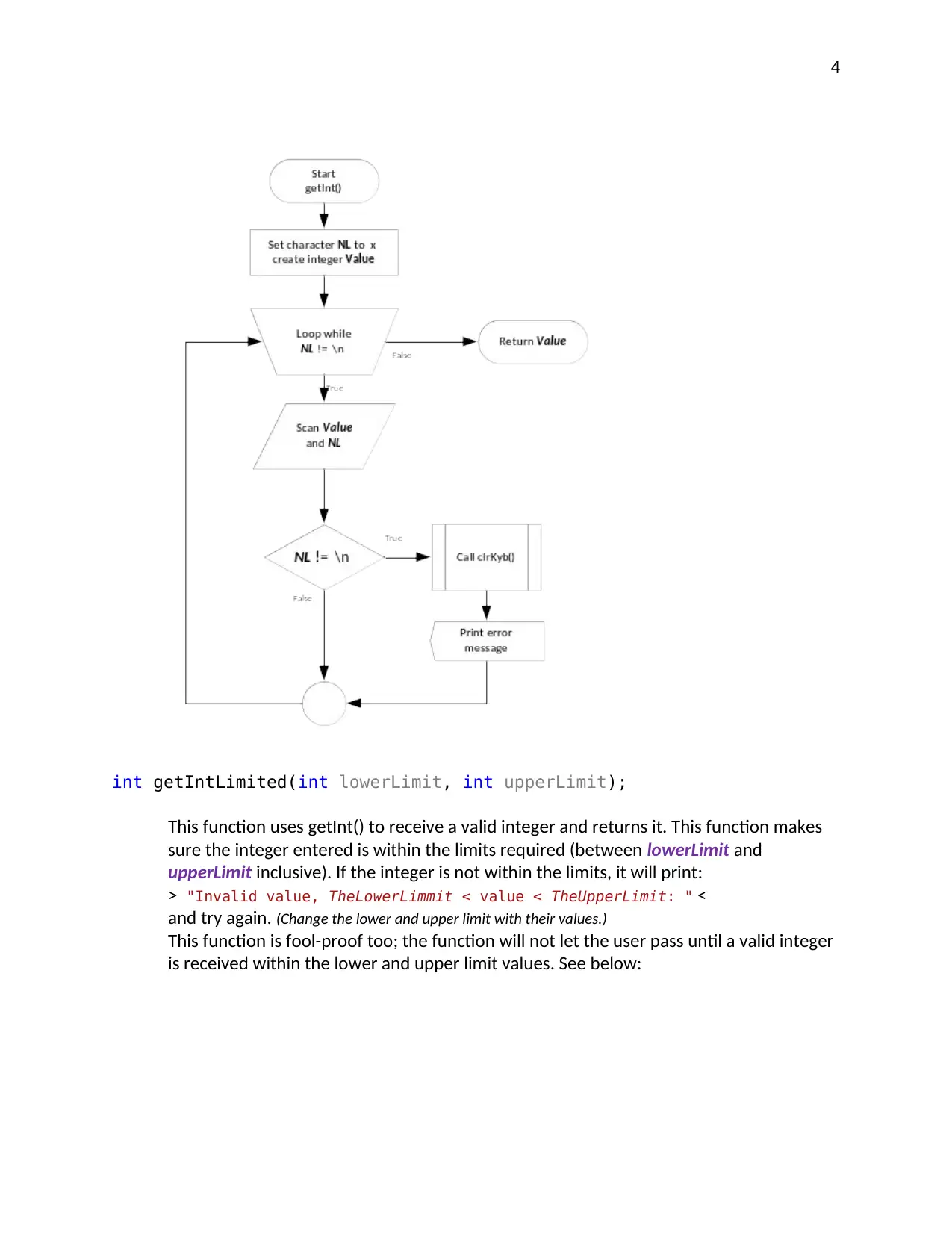
Hint: to do this, you can have two variables read back to back by scanf; an integer and then a character ("%d
%c") and make sure the second (the character) is new line. If the second character is new line, then this
guaranties that first integer is successfully read and also after the integer <ENTER> is hit. If the character is
anything but new line, then either the user did not enter an integer properly, or has some additional
characters after the integer, which is not good. In this case clear the keyboard, print an error message and
scan the integer again. See the flowchart below.
Prints the following two lines and goes to newline
>Row |SKU| Name | Price |Taxed| Qty | Min | Total |Atn<
>----+---+--------------------+--------+-----+-----+-----+------------|---<
void prnFooter(double gTotal);
Prints the following line and goes to newline
>--------------------------------------------------------+----------------<
Then if gTotal is greater than zero it will print this line: (assuming gTotal is 1234.57) and
go to new line.
> Grand Total: | 1234.57<
Use this format specifier for printing gTotal : %12.2lf
void clrKyb(void);
“clear Keyboard” Makes sure the keyboard is clear by reading from keyboard character
by character until it reads a new line character.
Hint: In a loop, keep reading single characters from keyboard until newline character is
read ('\n'). Then, exit the loop.
void pause(void);
Pauses the execution of the application by printing a message and waiting for user to hit
<ENTER>.
Print the following line and DO NOT go to newline:
>Press <ENTER> to continue...<
Then, call clrKyb function.
Here the clrKyb function is used for a fool-proof <ENTER> key entry.
int getInt(void);
Gets a valid integer from the keyboard and returns it. If the integer is not valid it will
print:
"Invalid integer, please try again: "
and try again.
This function must be fool-proof; it should not let the user pass, unless a valid integer is
entered.
Hint: to do this, you can have two variables read back to back by scanf; an integer and then a character ("%d
%c") and make sure the second (the character) is new line. If the second character is new line, then this
guaranties that first integer is successfully read and also after the integer <ENTER> is hit. If the character is
anything but new line, then either the user did not enter an integer properly, or has some additional
characters after the integer, which is not good. In this case clear the keyboard, print an error message and
scan the integer again. See the flowchart below.
⊘ This is a preview!⊘
Do you want full access?
Subscribe today to unlock all pages.

Trusted by 1+ million students worldwide
4
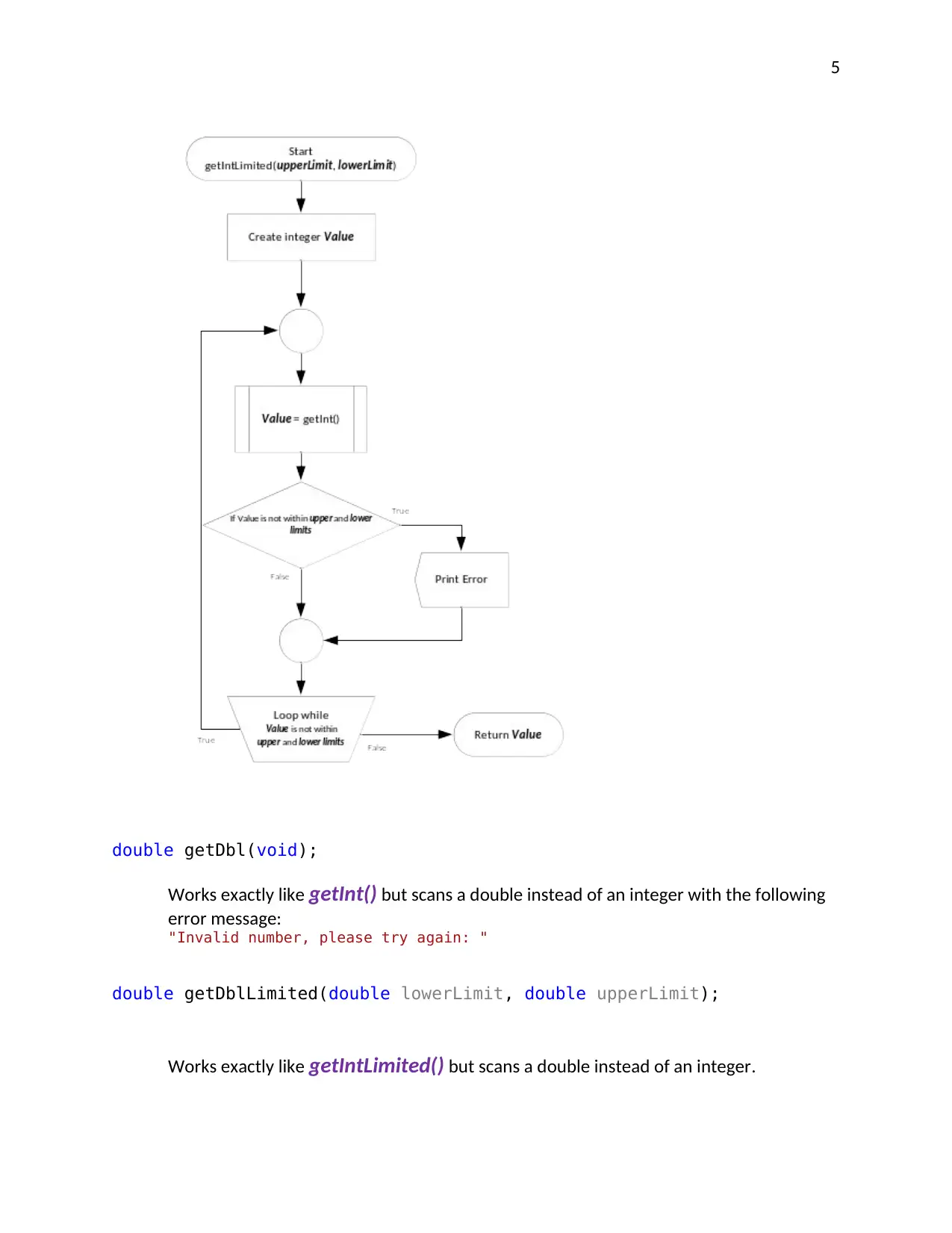
int getIntLimited(int lowerLimit, int upperLimit);
This function uses getInt() to receive a valid integer and returns it. This function makes
sure the integer entered is within the limits required (between lowerLimit and
upperLimit inclusive). If the integer is not within the limits, it will print:
> "Invalid value, TheLowerLimmit < value < TheUpperLimit: " <
and try again. (Change the lower and upper limit with their values.)
This function is fool-proof too; the function will not let the user pass until a valid integer
is received within the lower and upper limit values. See below:
int getIntLimited(int lowerLimit, int upperLimit);
This function uses getInt() to receive a valid integer and returns it. This function makes
sure the integer entered is within the limits required (between lowerLimit and
upperLimit inclusive). If the integer is not within the limits, it will print:
> "Invalid value, TheLowerLimmit < value < TheUpperLimit: " <
and try again. (Change the lower and upper limit with their values.)
This function is fool-proof too; the function will not let the user pass until a valid integer
is received within the lower and upper limit values. See below:
Paraphrase This Document
Need a fresh take? Get an instant paraphrase of this document with our AI Paraphraser
5
double getDbl(void);
Works exactly like getInt() but scans a double instead of an integer with the following
error message:
"Invalid number, please try again: "
double getDblLimited(double lowerLimit, double upperLimit);
Works exactly like getIntLimited() but scans a double instead of an integer.
double getDbl(void);
Works exactly like getInt() but scans a double instead of an integer with the following
error message:
"Invalid number, please try again: "
double getDblLimited(double lowerLimit, double upperLimit);
Works exactly like getIntLimited() but scans a double instead of an integer.
6
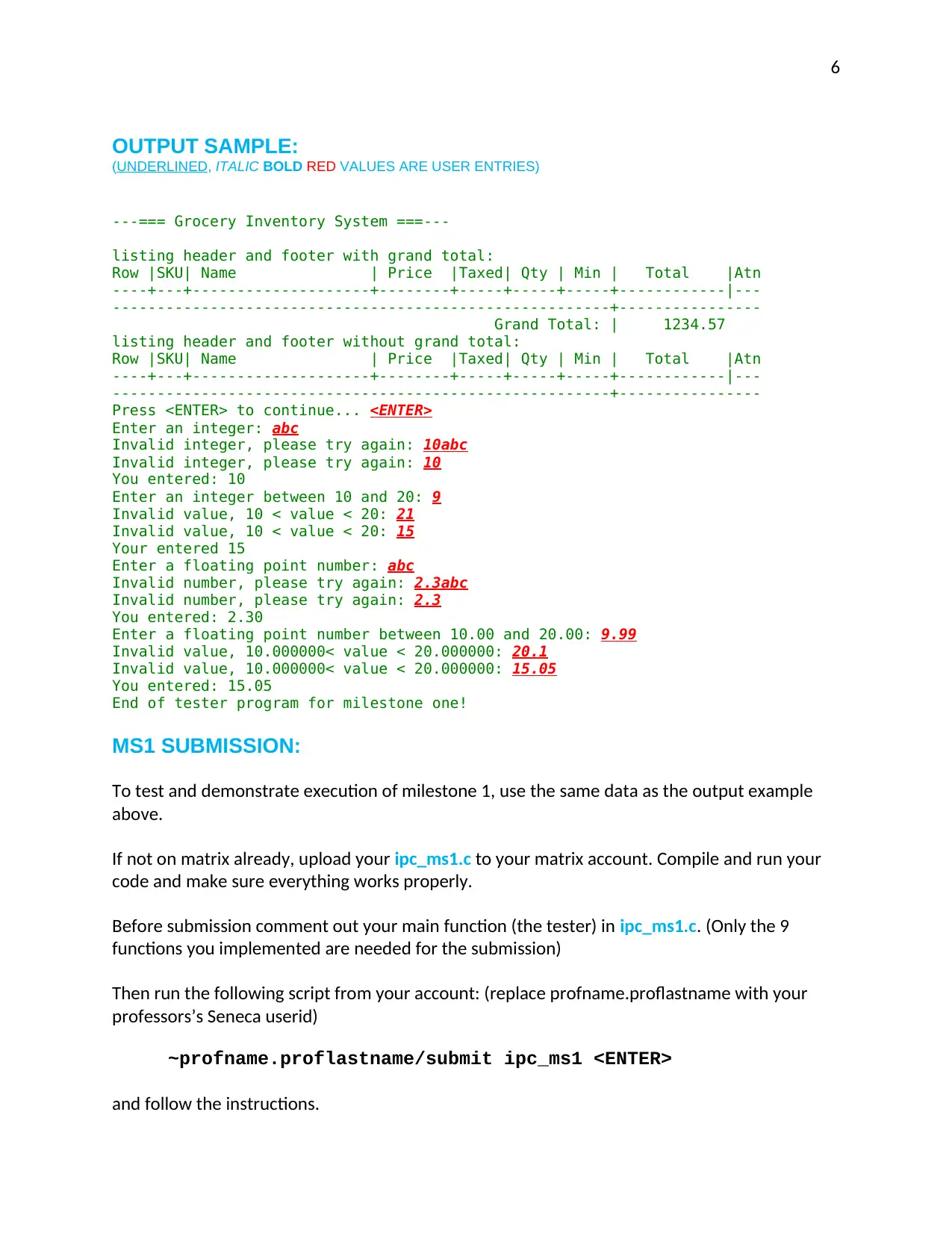
OUTPUT SAMPLE:
(UNDERLINED, ITALIC BOLD RED VALUES ARE USER ENTRIES)
---=== Grocery Inventory System ===---
listing header and footer with grand total:
Row |SKU| Name | Price |Taxed| Qty | Min | Total |Atn
----+---+--------------------+--------+-----+-----+-----+------------|---
--------------------------------------------------------+----------------
Grand Total: | 1234.57
listing header and footer without grand total:
Row |SKU| Name | Price |Taxed| Qty | Min | Total |Atn
----+---+--------------------+--------+-----+-----+-----+------------|---
--------------------------------------------------------+----------------
Press <ENTER> to continue... <ENTER>
Enter an integer: abc
Invalid integer, please try again: 10abc
Invalid integer, please try again: 10
You entered: 10
Enter an integer between 10 and 20: 9
Invalid value, 10 < value < 20: 21
Invalid value, 10 < value < 20: 15
Your entered 15
Enter a floating point number: abc
Invalid number, please try again: 2.3abc
Invalid number, please try again: 2.3
You entered: 2.30
Enter a floating point number between 10.00 and 20.00: 9.99
Invalid value, 10.000000< value < 20.000000: 20.1
Invalid value, 10.000000< value < 20.000000: 15.05
You entered: 15.05
End of tester program for milestone one!
MS1 SUBMISSION:
To test and demonstrate execution of milestone 1, use the same data as the output example
above.
If not on matrix already, upload your ipc_ms1.c to your matrix account. Compile and run your
code and make sure everything works properly.
Before submission comment out your main function (the tester) in ipc_ms1.c. (Only the 9
functions you implemented are needed for the submission)
Then run the following script from your account: (replace profname.proflastname with your
professors’s Seneca userid)
~profname.proflastname/submit ipc_ms1 <ENTER>
and follow the instructions.
OUTPUT SAMPLE:
(UNDERLINED, ITALIC BOLD RED VALUES ARE USER ENTRIES)
---=== Grocery Inventory System ===---
listing header and footer with grand total:
Row |SKU| Name | Price |Taxed| Qty | Min | Total |Atn
----+---+--------------------+--------+-----+-----+-----+------------|---
--------------------------------------------------------+----------------
Grand Total: | 1234.57
listing header and footer without grand total:
Row |SKU| Name | Price |Taxed| Qty | Min | Total |Atn
----+---+--------------------+--------+-----+-----+-----+------------|---
--------------------------------------------------------+----------------
Press <ENTER> to continue... <ENTER>
Enter an integer: abc
Invalid integer, please try again: 10abc
Invalid integer, please try again: 10
You entered: 10
Enter an integer between 10 and 20: 9
Invalid value, 10 < value < 20: 21
Invalid value, 10 < value < 20: 15
Your entered 15
Enter a floating point number: abc
Invalid number, please try again: 2.3abc
Invalid number, please try again: 2.3
You entered: 2.30
Enter a floating point number between 10.00 and 20.00: 9.99
Invalid value, 10.000000< value < 20.000000: 20.1
Invalid value, 10.000000< value < 20.000000: 15.05
You entered: 15.05
End of tester program for milestone one!
MS1 SUBMISSION:
To test and demonstrate execution of milestone 1, use the same data as the output example
above.
If not on matrix already, upload your ipc_ms1.c to your matrix account. Compile and run your
code and make sure everything works properly.
Before submission comment out your main function (the tester) in ipc_ms1.c. (Only the 9
functions you implemented are needed for the submission)
Then run the following script from your account: (replace profname.proflastname with your
professors’s Seneca userid)
~profname.proflastname/submit ipc_ms1 <ENTER>
and follow the instructions.
⊘ This is a preview!⊘
Do you want full access?
Subscribe today to unlock all pages.
Trusted by 1+ million students worldwide
7
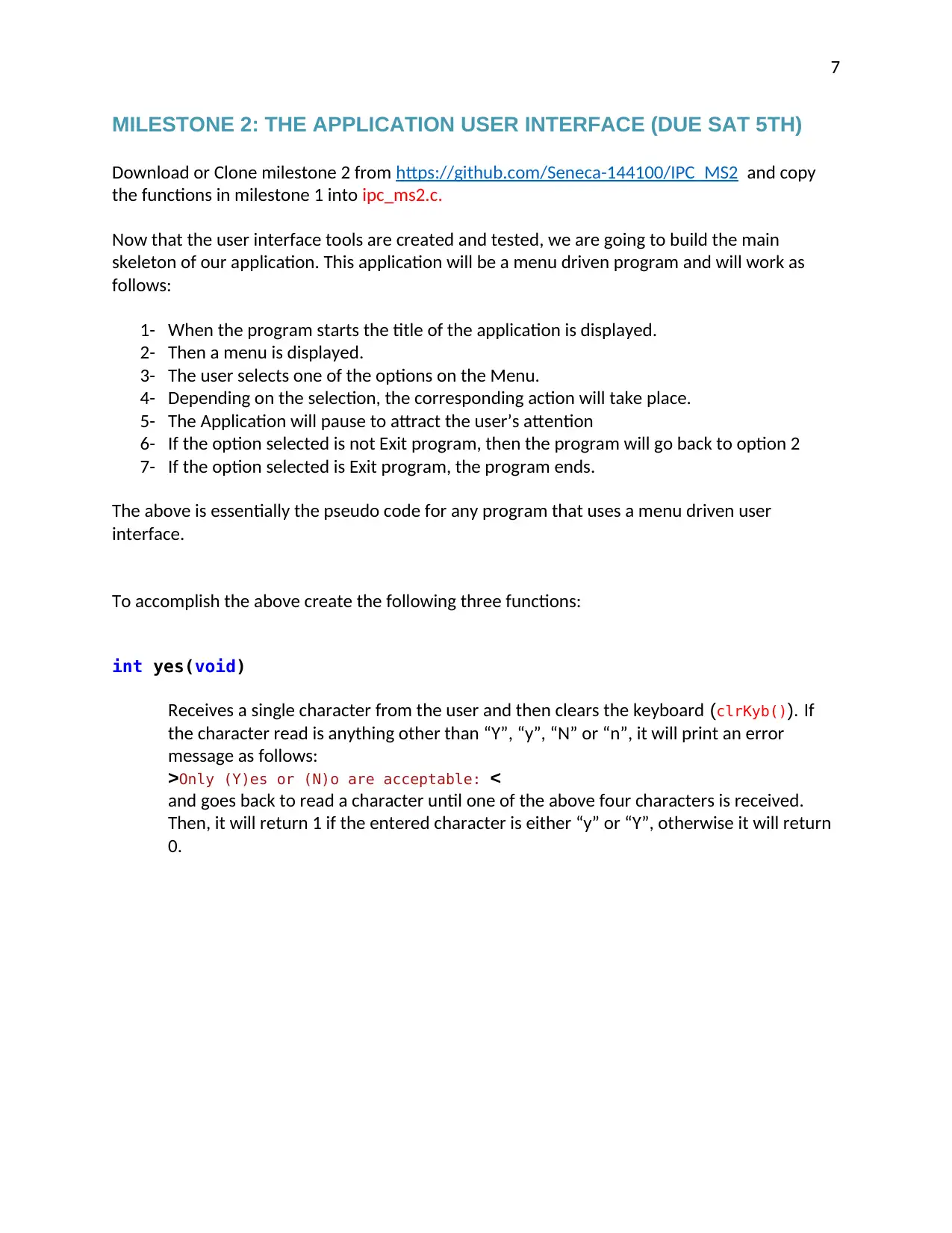
MILESTONE 2: THE APPLICATION USER INTERFACE (DUE SAT 5TH)
Download or Clone milestone 2 from https://github.com/Seneca-144100/IPC_MS2 and copy
the functions in milestone 1 into ipc_ms2.c.
Now that the user interface tools are created and tested, we are going to build the main
skeleton of our application. This application will be a menu driven program and will work as
follows:
1- When the program starts the title of the application is displayed.
2- Then a menu is displayed.
3- The user selects one of the options on the Menu.
4- Depending on the selection, the corresponding action will take place.
5- The Application will pause to attract the user’s attention
6- If the option selected is not Exit program, then the program will go back to option 2
7- If the option selected is Exit program, the program ends.
The above is essentially the pseudo code for any program that uses a menu driven user
interface.
To accomplish the above create the following three functions:
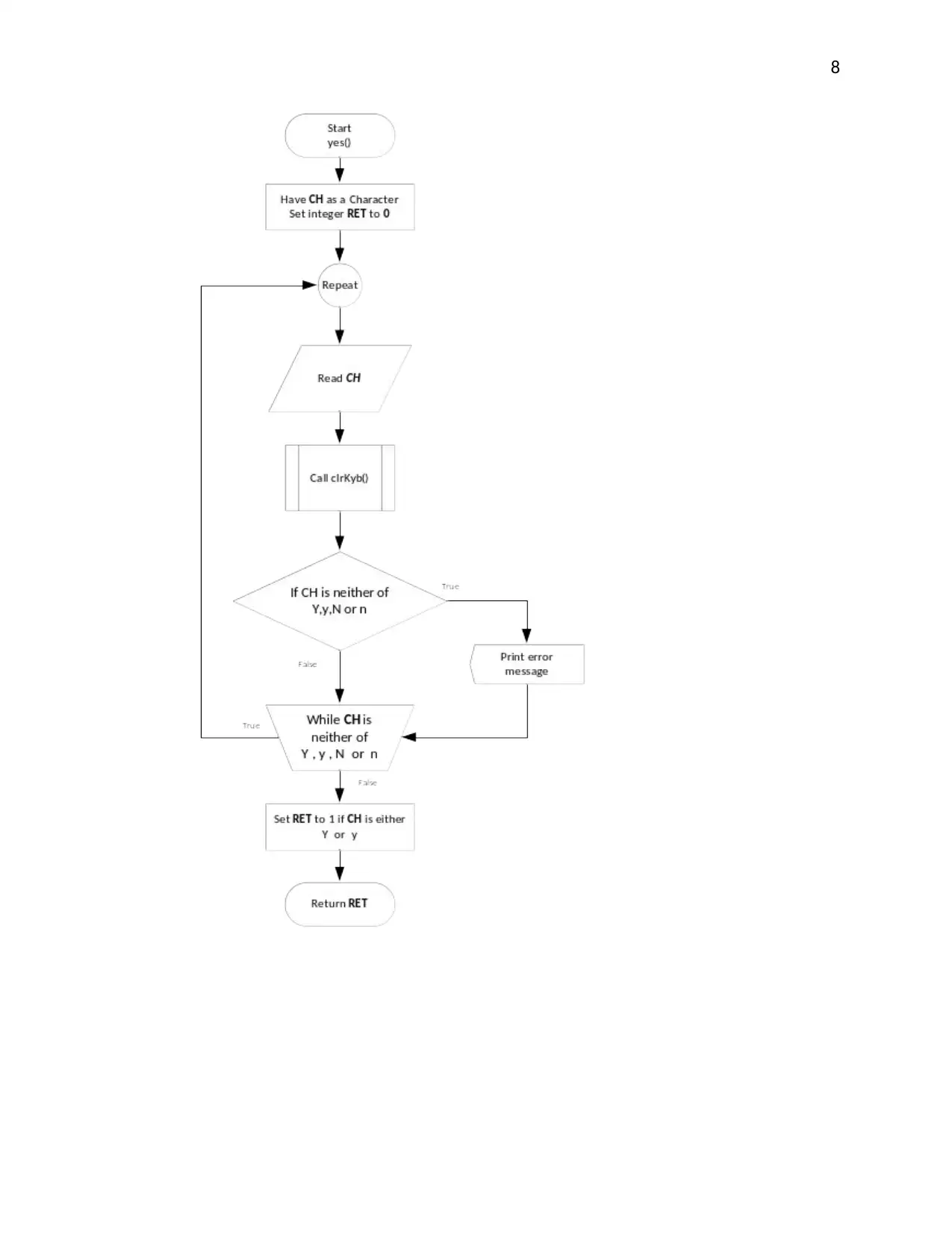
int yes(void)
Receives a single character from the user and then clears the keyboard (clrKyb()). If
the character read is anything other than “Y”, “y”, “N” or “n”, it will print an error
message as follows:
>Only (Y)es or (N)o are acceptable: <
and goes back to read a character until one of the above four characters is received.
Then, it will return 1 if the entered character is either “y” or “Y”, otherwise it will return
0.
MILESTONE 2: THE APPLICATION USER INTERFACE (DUE SAT 5TH)
Download or Clone milestone 2 from https://github.com/Seneca-144100/IPC_MS2 and copy
the functions in milestone 1 into ipc_ms2.c.
Now that the user interface tools are created and tested, we are going to build the main
skeleton of our application. This application will be a menu driven program and will work as
follows:
1- When the program starts the title of the application is displayed.
2- Then a menu is displayed.
3- The user selects one of the options on the Menu.
4- Depending on the selection, the corresponding action will take place.
5- The Application will pause to attract the user’s attention
6- If the option selected is not Exit program, then the program will go back to option 2
7- If the option selected is Exit program, the program ends.
The above is essentially the pseudo code for any program that uses a menu driven user
interface.
To accomplish the above create the following three functions:
int yes(void)
Receives a single character from the user and then clears the keyboard (clrKyb()). If
the character read is anything other than “Y”, “y”, “N” or “n”, it will print an error
message as follows:
>Only (Y)es or (N)o are acceptable: <
and goes back to read a character until one of the above four characters is received.
Then, it will return 1 if the entered character is either “y” or “Y”, otherwise it will return
0.
Paraphrase This Document
Need a fresh take? Get an instant paraphrase of this document with our AI Paraphraser
8
9
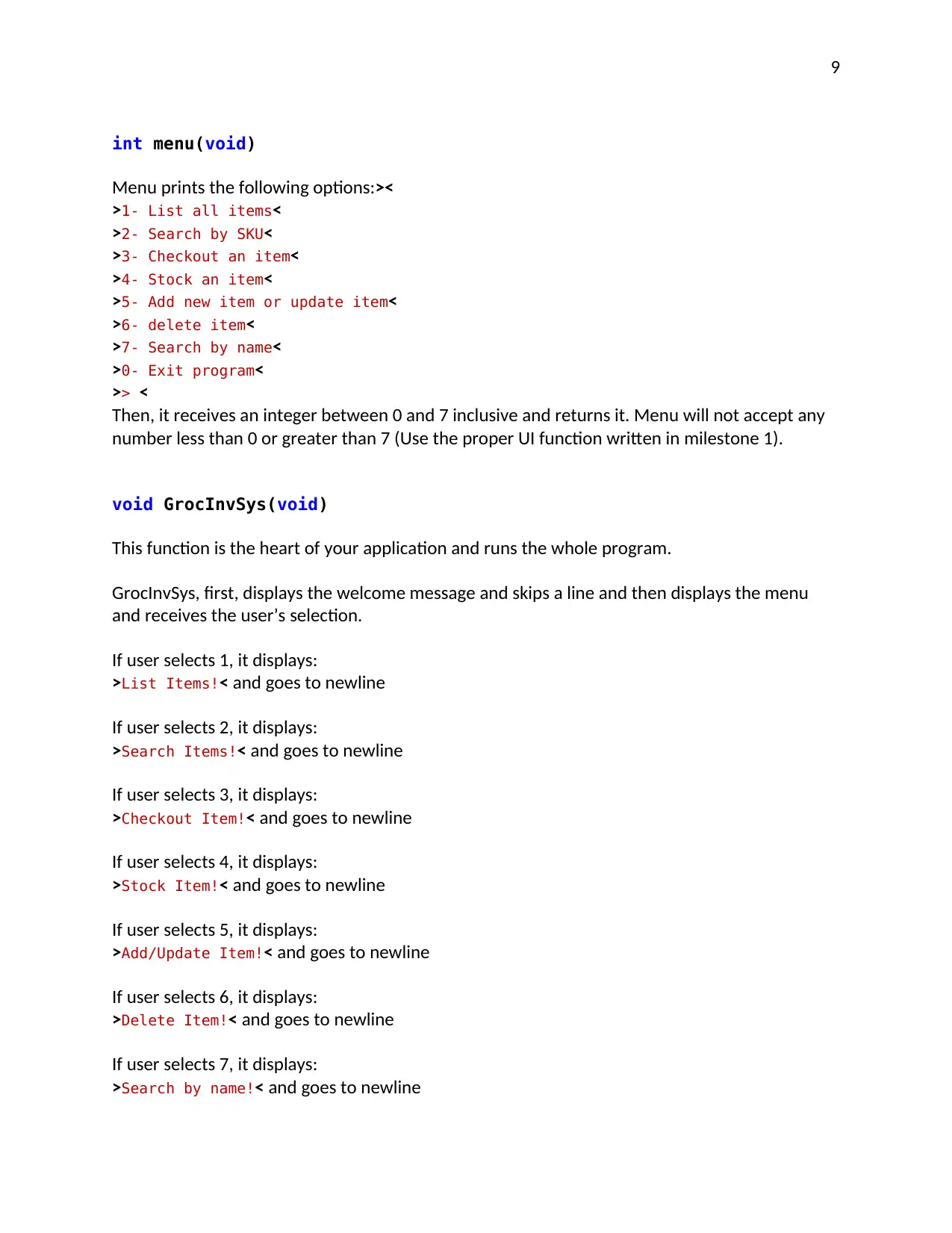
int menu(void)
Menu prints the following options:><
>1- List all items<
>2- Search by SKU<
>3- Checkout an item<
>4- Stock an item<
>5- Add new item or update item<
>6- delete item<
>7- Search by name<
>0- Exit program<
>> <
Then, it receives an integer between 0 and 7 inclusive and returns it. Menu will not accept any
number less than 0 or greater than 7 (Use the proper UI function written in milestone 1).
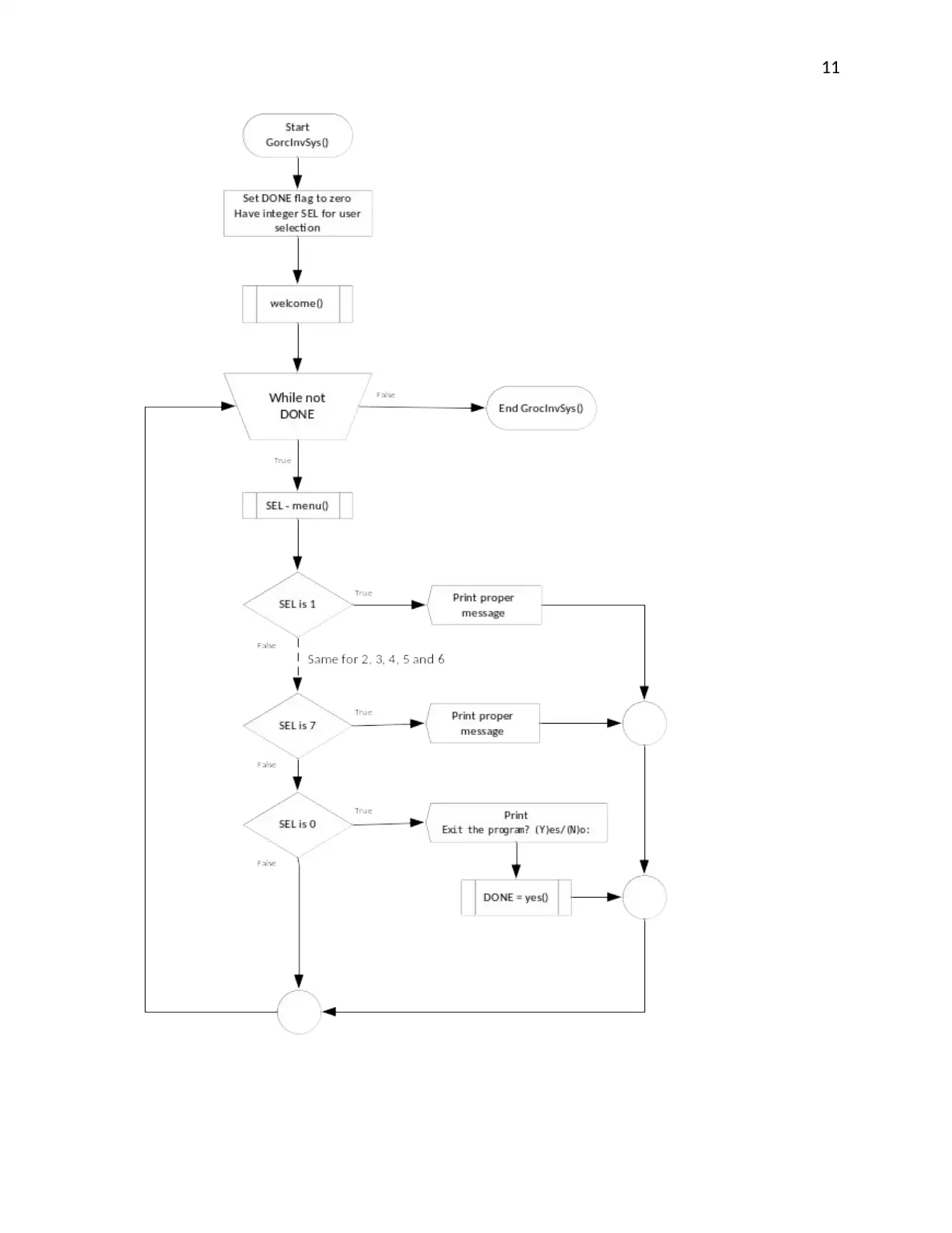
void GrocInvSys(void)
This function is the heart of your application and runs the whole program.
GrocInvSys, first, displays the welcome message and skips a line and then displays the menu
and receives the user’s selection.
If user selects 1, it displays:
>List Items!< and goes to newline
If user selects 2, it displays:
>Search Items!< and goes to newline
If user selects 3, it displays:
>Checkout Item!< and goes to newline
If user selects 4, it displays:
>Stock Item!< and goes to newline
If user selects 5, it displays:
>Add/Update Item!< and goes to newline
If user selects 6, it displays:
>Delete Item!< and goes to newline
If user selects 7, it displays:
>Search by name!< and goes to newline
int menu(void)
Menu prints the following options:><
>1- List all items<
>2- Search by SKU<
>3- Checkout an item<
>4- Stock an item<
>5- Add new item or update item<
>6- delete item<
>7- Search by name<
>0- Exit program<
>> <
Then, it receives an integer between 0 and 7 inclusive and returns it. Menu will not accept any
number less than 0 or greater than 7 (Use the proper UI function written in milestone 1).
void GrocInvSys(void)
This function is the heart of your application and runs the whole program.
GrocInvSys, first, displays the welcome message and skips a line and then displays the menu
and receives the user’s selection.
If user selects 1, it displays:
>List Items!< and goes to newline
If user selects 2, it displays:
>Search Items!< and goes to newline
If user selects 3, it displays:
>Checkout Item!< and goes to newline
If user selects 4, it displays:
>Stock Item!< and goes to newline
If user selects 5, it displays:
>Add/Update Item!< and goes to newline
If user selects 6, it displays:
>Delete Item!< and goes to newline
If user selects 7, it displays:
>Search by name!< and goes to newline
⊘ This is a preview!⊘
Do you want full access?
Subscribe today to unlock all pages.
Trusted by 1+ million students worldwide
10
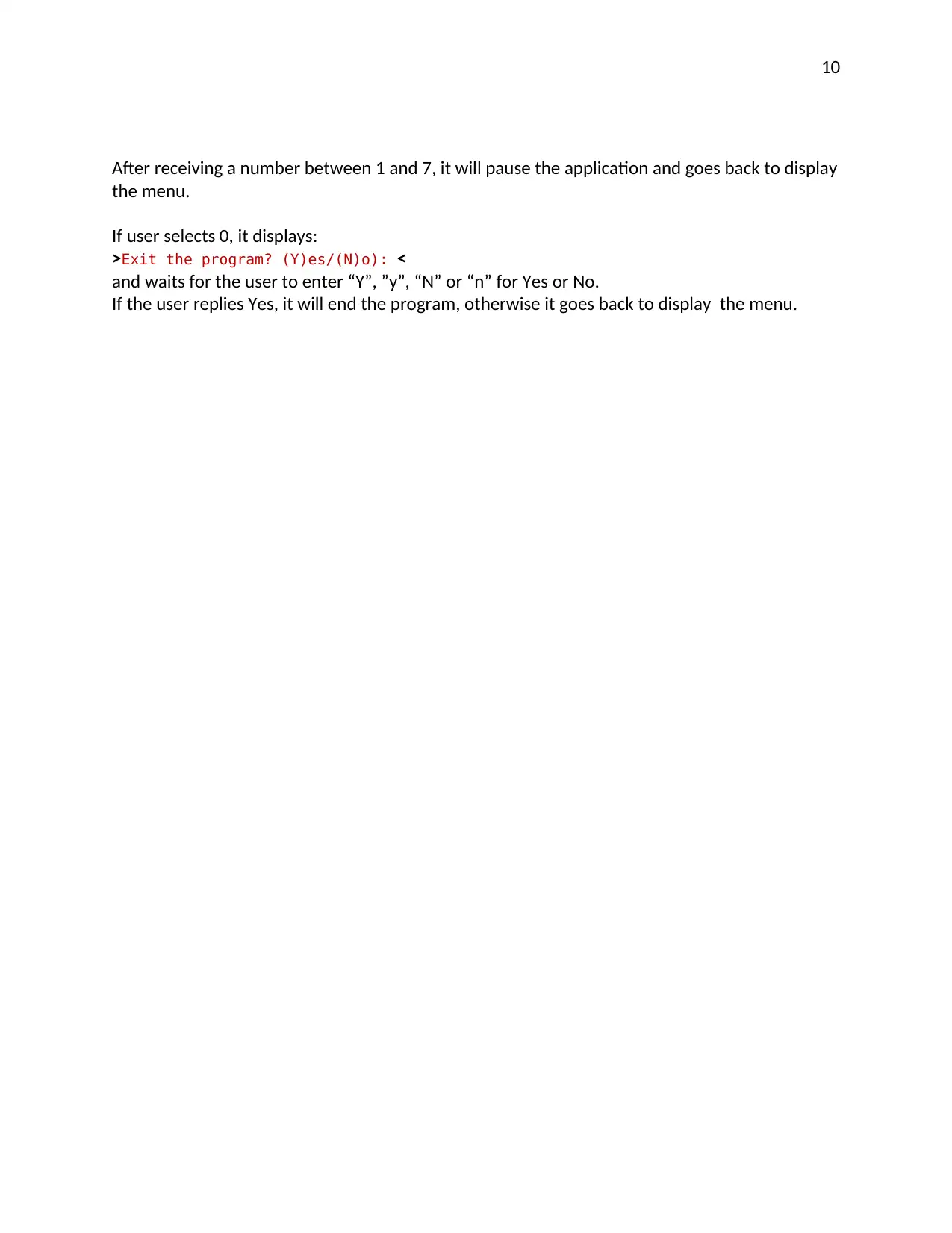
After receiving a number between 1 and 7, it will pause the application and goes back to display
the menu.
If user selects 0, it displays:
>Exit the program? (Y)es/(N)o): <
and waits for the user to enter “Y”, ”y”, “N” or “n” for Yes or No.
If the user replies Yes, it will end the program, otherwise it goes back to display the menu.
After receiving a number between 1 and 7, it will pause the application and goes back to display
the menu.
If user selects 0, it displays:
>Exit the program? (Y)es/(N)o): <
and waits for the user to enter “Y”, ”y”, “N” or “n” for Yes or No.
If the user replies Yes, it will end the program, otherwise it goes back to display the menu.
Paraphrase This Document
Need a fresh take? Get an instant paraphrase of this document with our AI Paraphraser
11
12
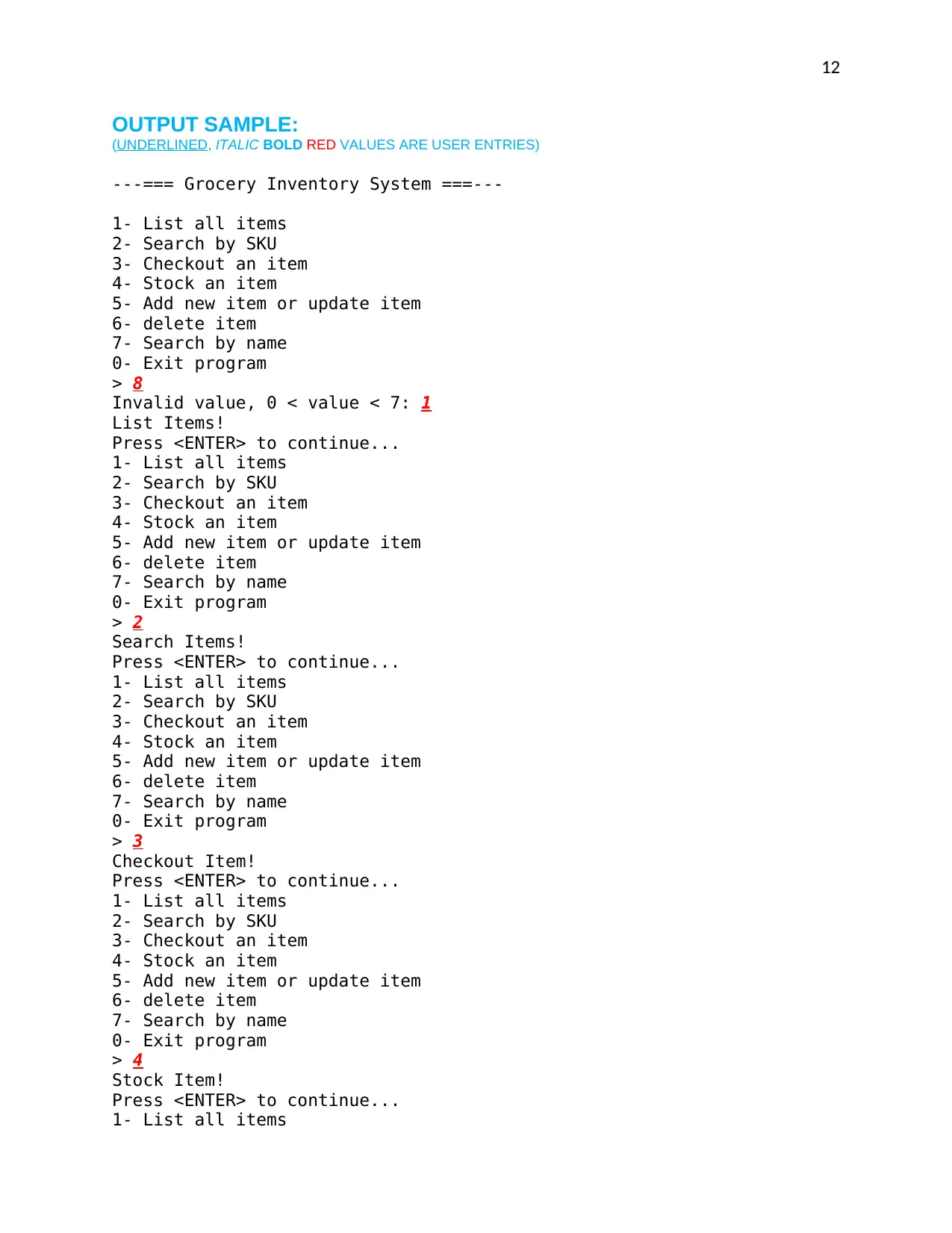
OUTPUT SAMPLE:
(UNDERLINED, ITALIC BOLD RED VALUES ARE USER ENTRIES)
---=== Grocery Inventory System ===---
1- List all items
2- Search by SKU
3- Checkout an item
4- Stock an item
5- Add new item or update item
6- delete item
7- Search by name
0- Exit program
> 8
Invalid value, 0 < value < 7: 1
List Items!
Press <ENTER> to continue...
1- List all items
2- Search by SKU
3- Checkout an item
4- Stock an item
5- Add new item or update item
6- delete item
7- Search by name
0- Exit program
> 2
Search Items!
Press <ENTER> to continue...
1- List all items
2- Search by SKU
3- Checkout an item
4- Stock an item
5- Add new item or update item
6- delete item
7- Search by name
0- Exit program
> 3
Checkout Item!
Press <ENTER> to continue...
1- List all items
2- Search by SKU
3- Checkout an item
4- Stock an item
5- Add new item or update item
6- delete item
7- Search by name
0- Exit program
> 4
Stock Item!
Press <ENTER> to continue...
1- List all items
OUTPUT SAMPLE:
(UNDERLINED, ITALIC BOLD RED VALUES ARE USER ENTRIES)
---=== Grocery Inventory System ===---
1- List all items
2- Search by SKU
3- Checkout an item
4- Stock an item
5- Add new item or update item
6- delete item
7- Search by name
0- Exit program
> 8
Invalid value, 0 < value < 7: 1
List Items!
Press <ENTER> to continue...
1- List all items
2- Search by SKU
3- Checkout an item
4- Stock an item
5- Add new item or update item
6- delete item
7- Search by name
0- Exit program
> 2
Search Items!
Press <ENTER> to continue...
1- List all items
2- Search by SKU
3- Checkout an item
4- Stock an item
5- Add new item or update item
6- delete item
7- Search by name
0- Exit program
> 3
Checkout Item!
Press <ENTER> to continue...
1- List all items
2- Search by SKU
3- Checkout an item
4- Stock an item
5- Add new item or update item
6- delete item
7- Search by name
0- Exit program
> 4
Stock Item!
Press <ENTER> to continue...
1- List all items
⊘ This is a preview!⊘
Do you want full access?
Subscribe today to unlock all pages.
Trusted by 1+ million students worldwide

1 out of 43


Your All-in-One AI-Powered Toolkit for Academic Success.
+13062052269
info@desklib.com
Available 24*7 on WhatsApp / Email
![[object Object]](/_next/static/media/star-bottom.7253800d.svg)
Unlock your academic potential
Copyright © 2020–2025 A2Z Services. All Rights Reserved. Developed and managed by ZUCOL.