Cloud Computing Assignment 2: Azure VM Creation, SSH & Key Generation

Verified

Added on  2022/10/07

|21
|699
|19
Practical Assignment
AI Summary
This document presents a comprehensive solution to a cloud computing assignment focused on creating a virtual machine (VM) in the Azure portal. The assignment involves generating SSH keys using PuttyGen, creating a resource group with a specific naming convention, and deploying an Ubuntu Server 18.04 LTS VM. The solution details the process of key generation (RSA, 2048 bit), saving private and public keys, and creating the resource group in Azure. It addresses troubleshooting encountered during resource group creation and VM deployment. Furthermore, the solution covers the steps involved in connecting to the VM via SSH using PuTTY, including loading the private key for authentication and logging into the Ubuntu environment. The document also describes different VM power states and obtaining the private and public IP addresses of the created VM. Finally, the solution demonstrates logging into the Linux VM using Putty with the private key and passphrase for secure access.
Document Page
CLOUD COMPUTING
tabler-icon-diamond-filled.svg

Paraphrase This Document

Need a fresh take? Get an instant paraphrase of this document with our AI Paraphraser
Document Page
Key Generation using Putty_Gen
Visited https://www.ssh.com/ssh/putty/download
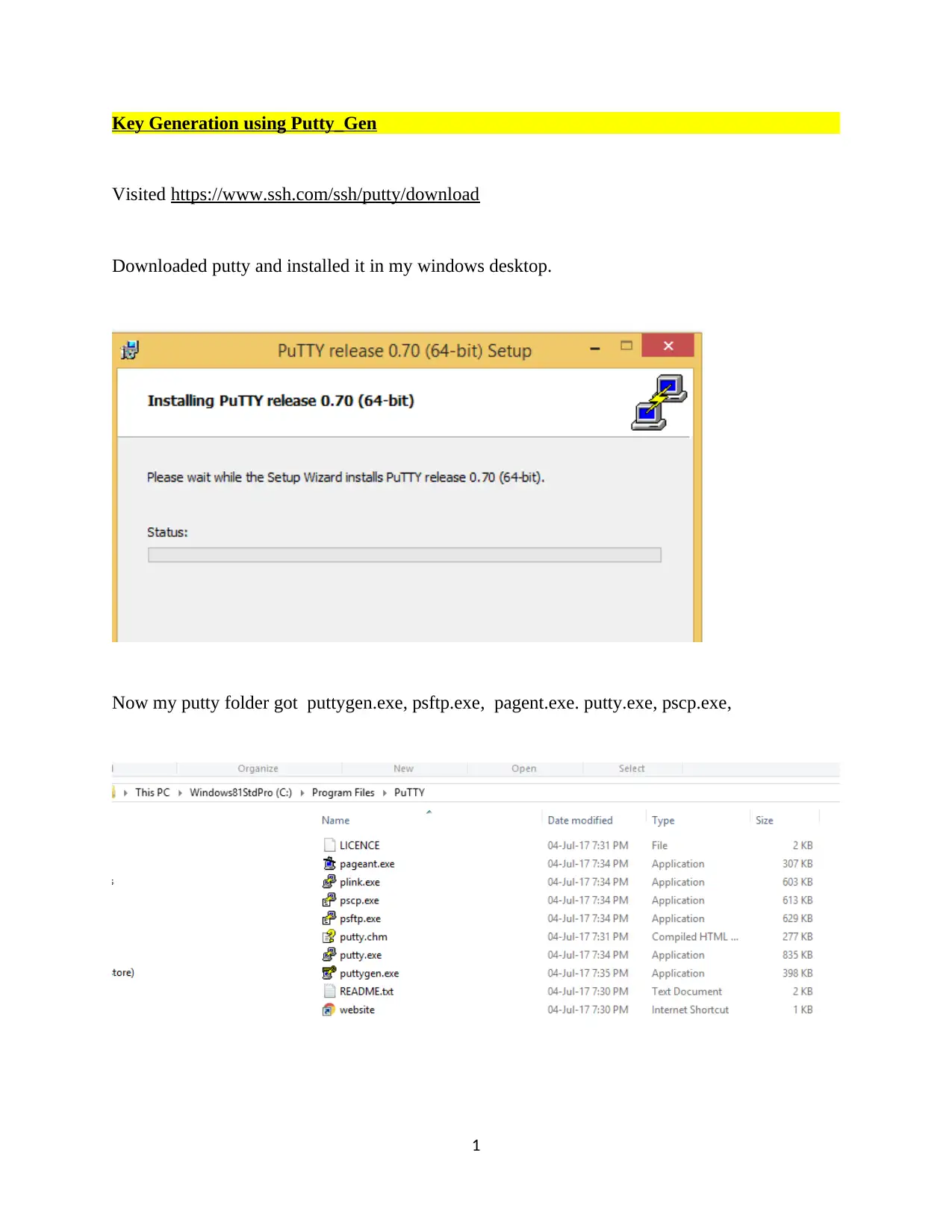
Downloaded putty and installed it in my windows desktop.
Now my putty folder got puttygen.exe, psftp.exe, pagent.exe. putty.exe, pscp.exe,
1
Document Page
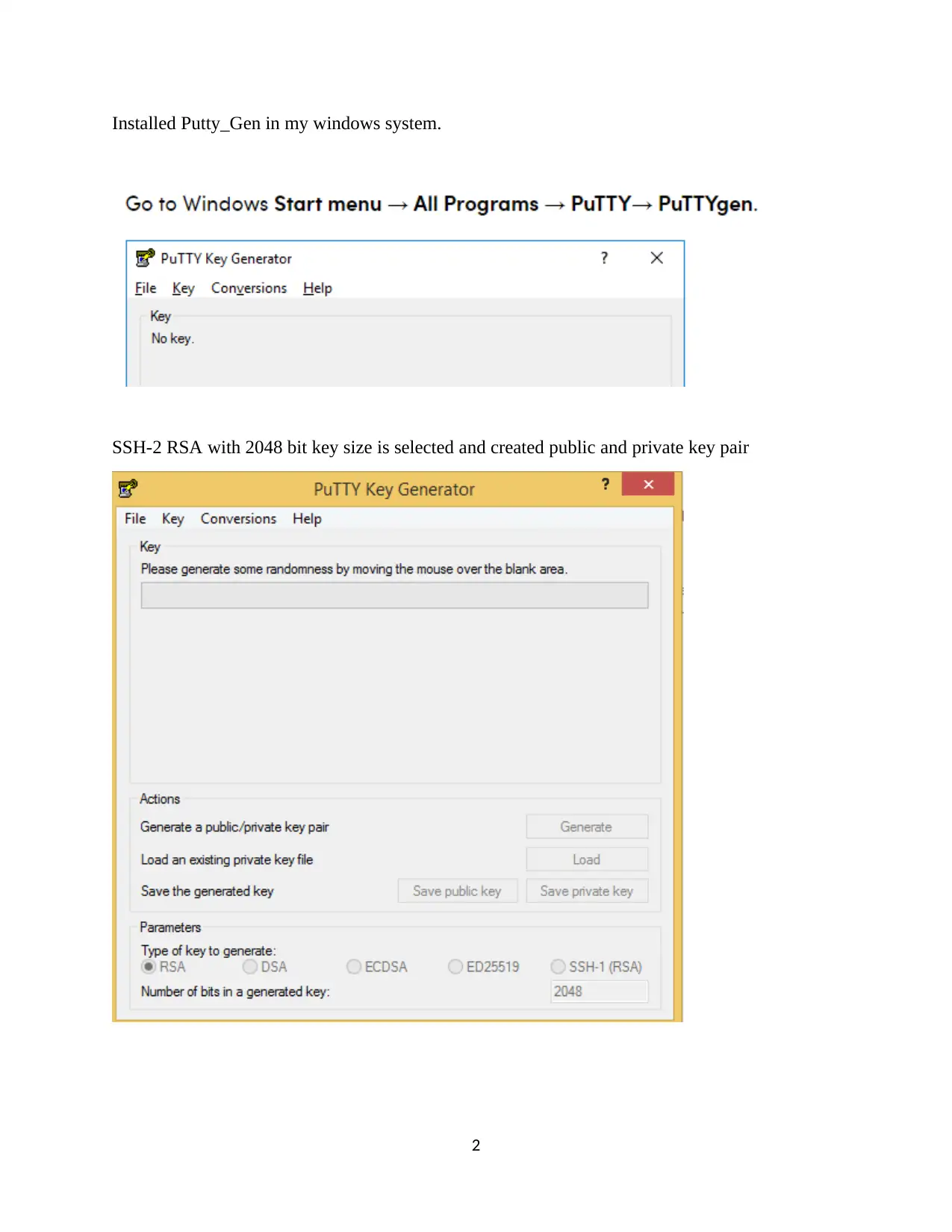
Installed Putty_Gen in my windows system.
SSH-2 RSA with 2048 bit key size is selected and created public and private key pair
2
Document Page
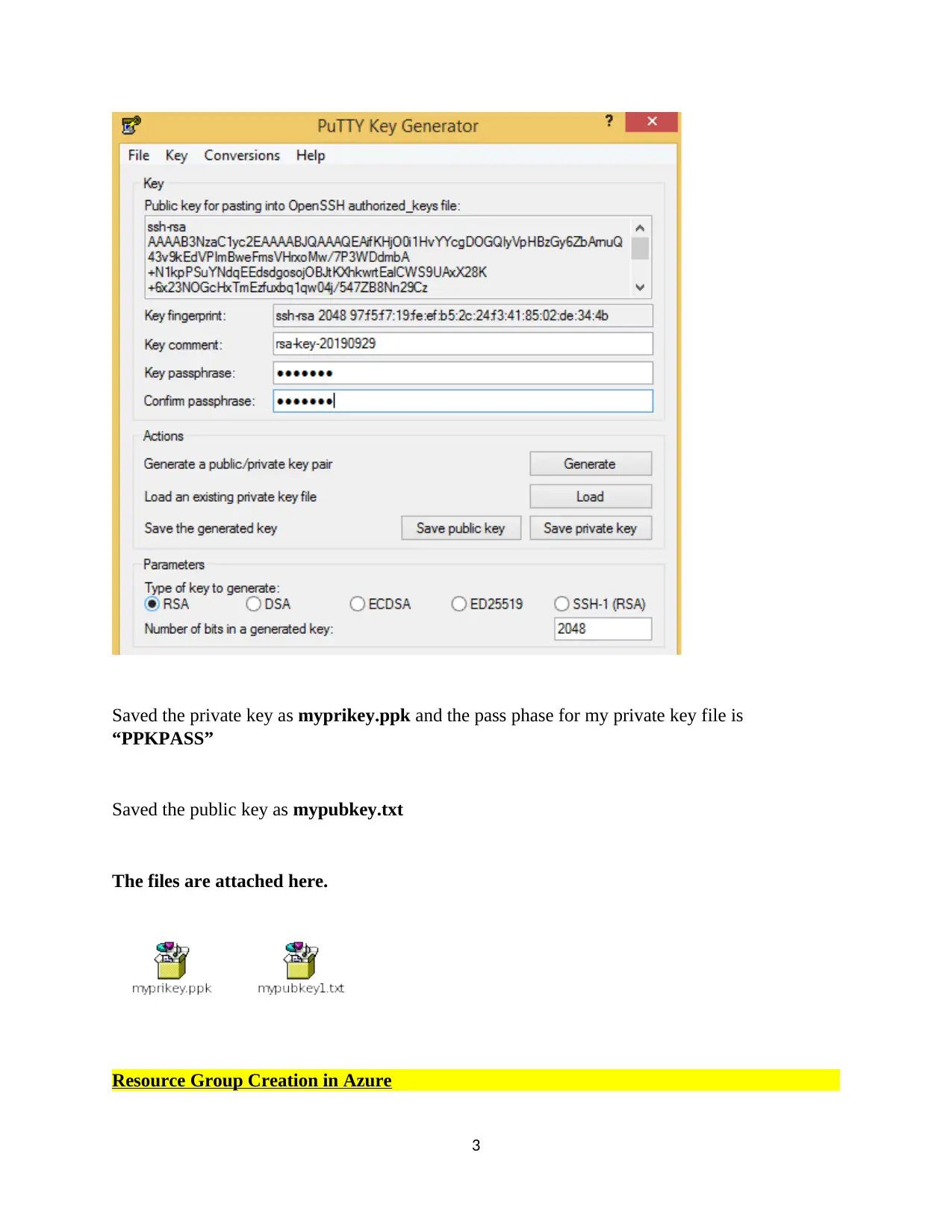
Saved the private key as myprikey.ppk and the pass phase for my private key file is
“PPKPASS”
Saved the public key as mypubkey.txt
The files are attached here.
Resource Group Creation in Azure
3
tabler-icon-diamond-filled.svg

Paraphrase This Document

Need a fresh take? Get an instant paraphrase of this document with our AI Paraphraser
Document Page
Faced some problems in my credit card and hence used my relative’s credit card with his user
name “arumugam”. Resource group is created in my First Name “Aravind” and my student ID
“41534”.
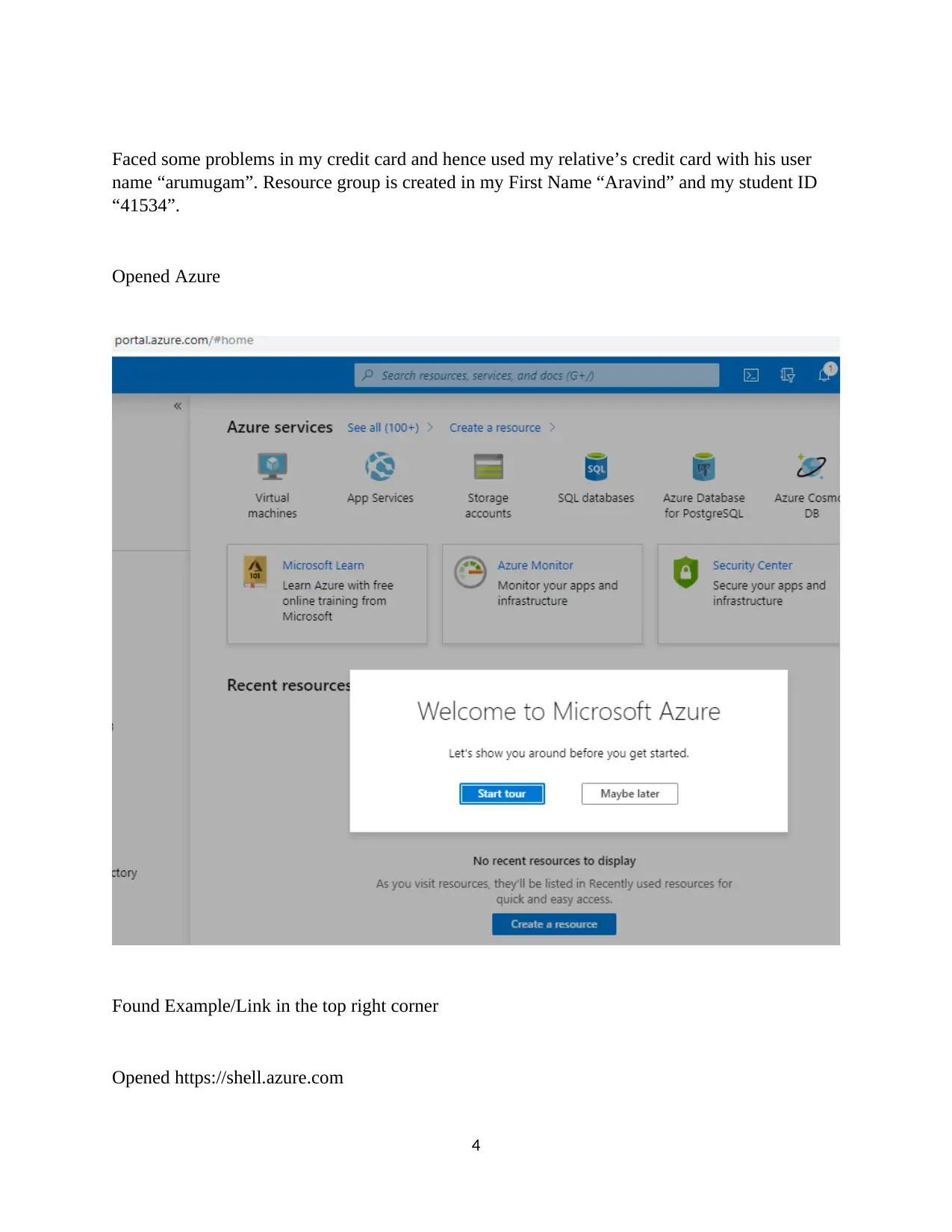
Opened Azure
Found Example/Link in the top right corner
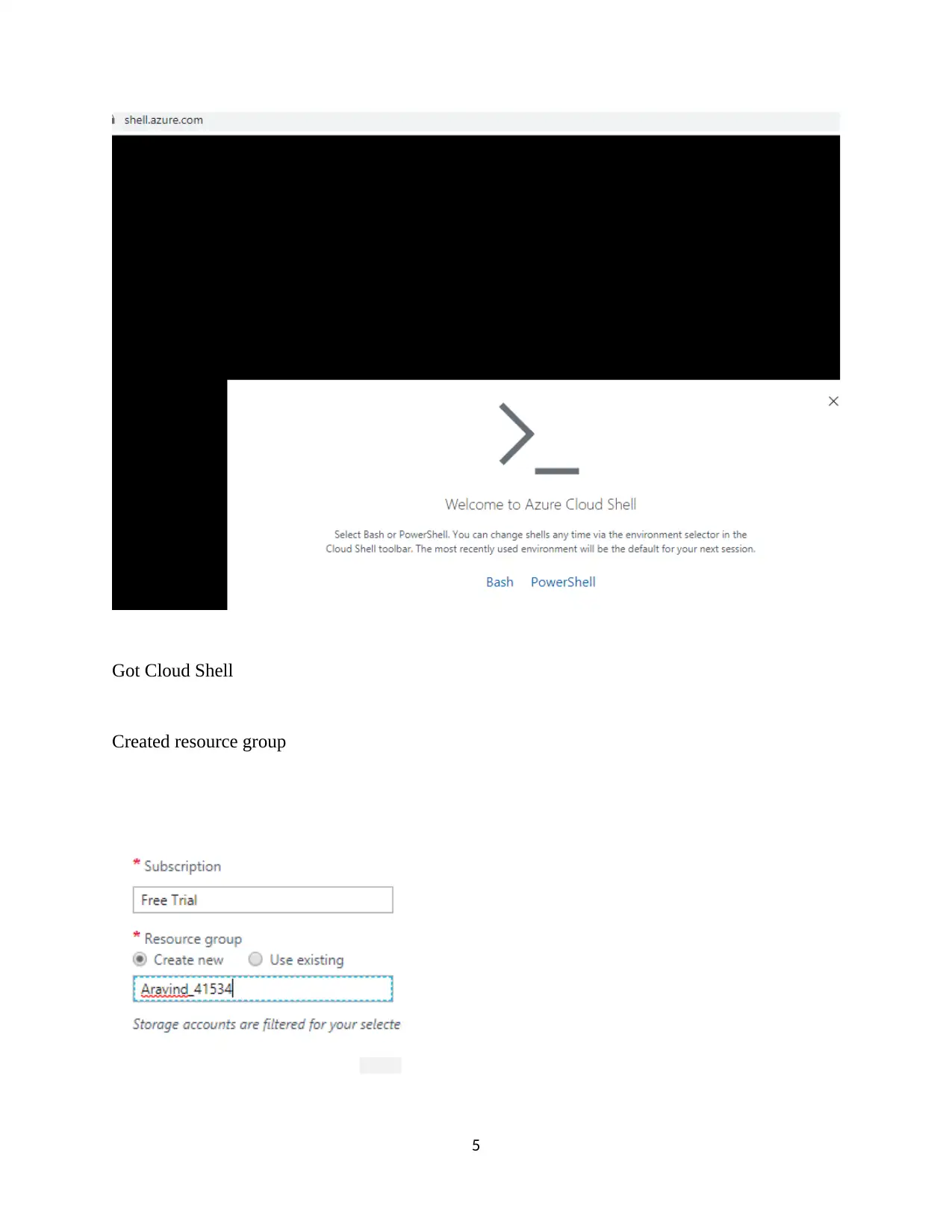
Opened https://shell.azure.com
4
Document Page
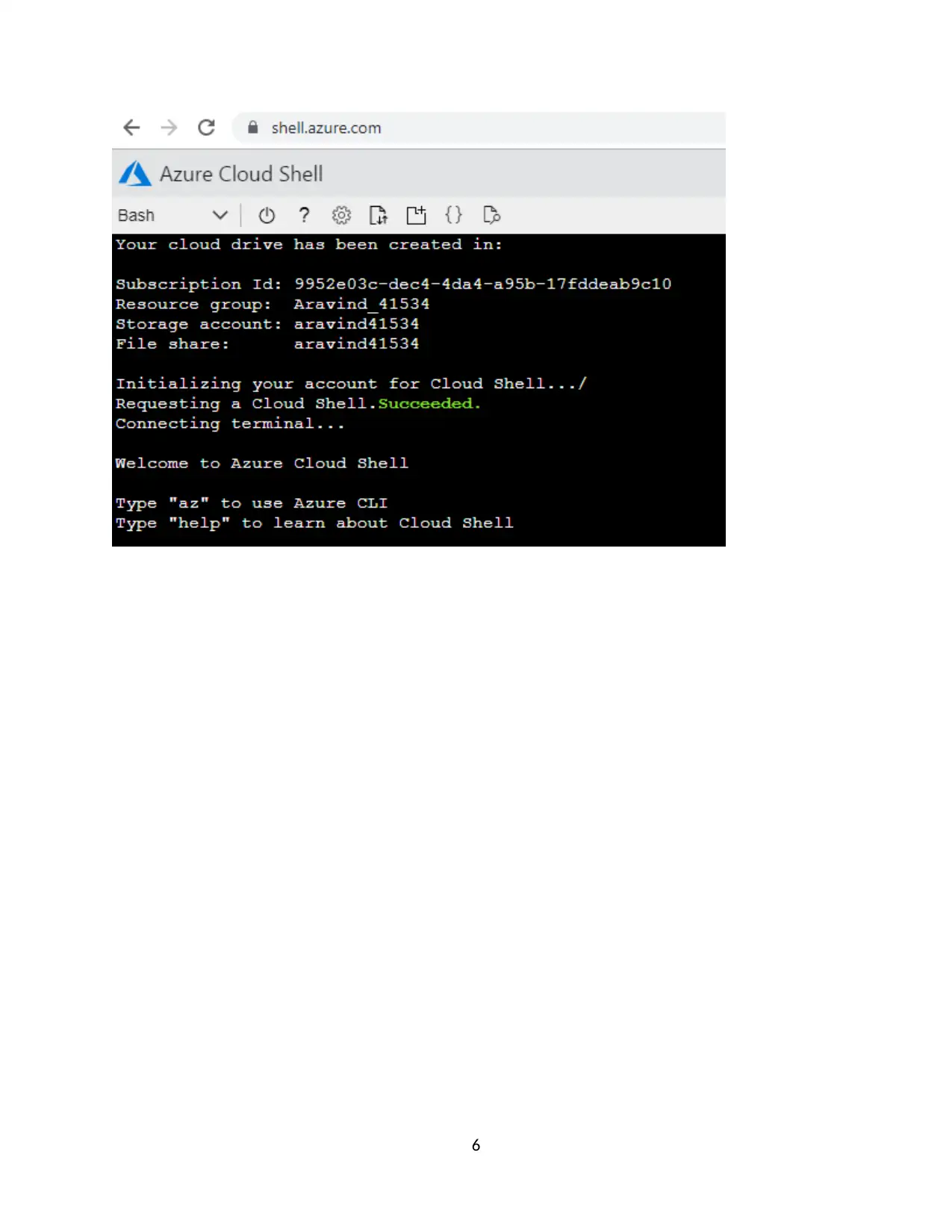
Got Cloud Shell
Created resource group
5
Document Page
6
tabler-icon-diamond-filled.svg

Paraphrase This Document

Need a fresh take? Get an instant paraphrase of this document with our AI Paraphraser
Document Page
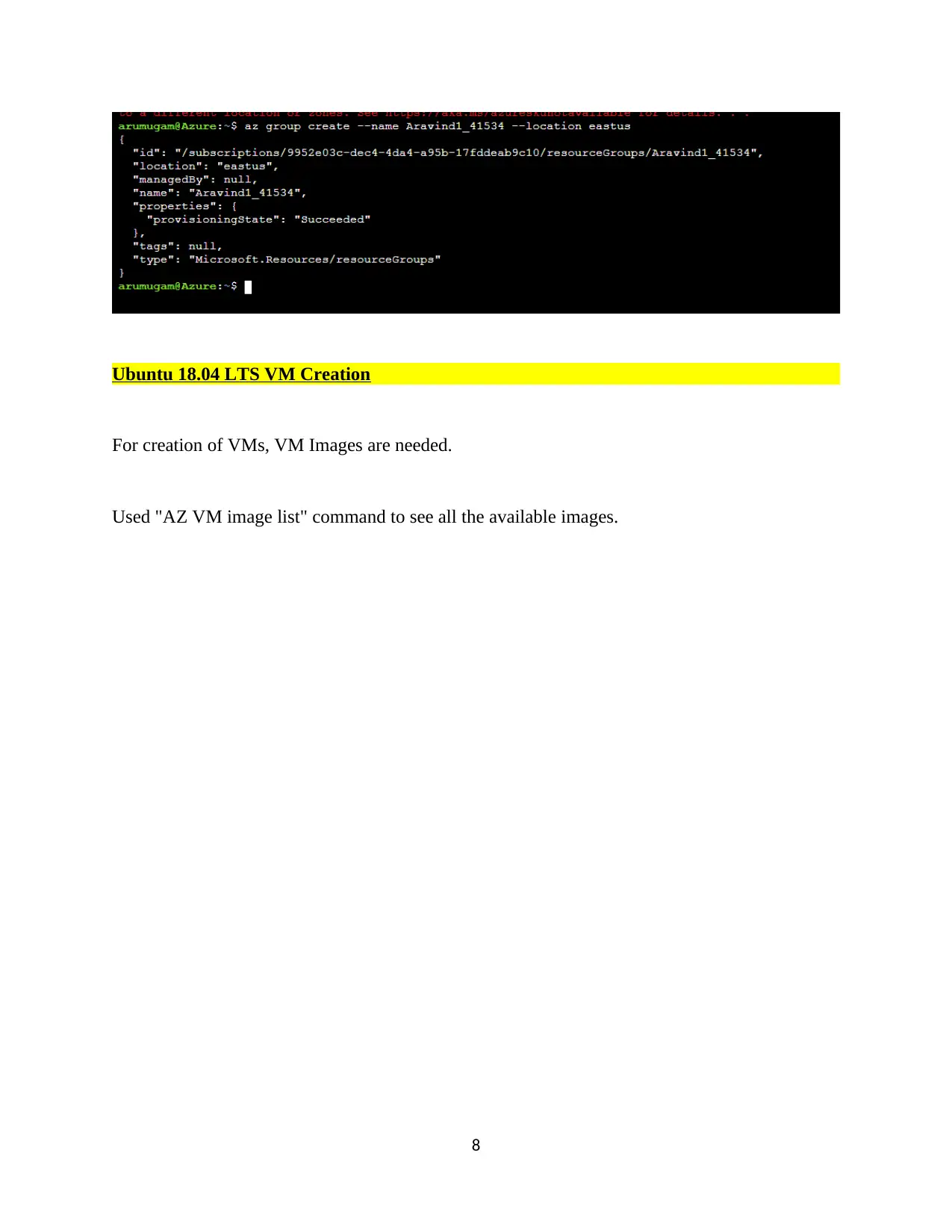
Created another resource group using "az group create" command
az group create --name Aravind1_41534 --location eastus
7
Document Page
Ubuntu 18.04 LTS VM Creation
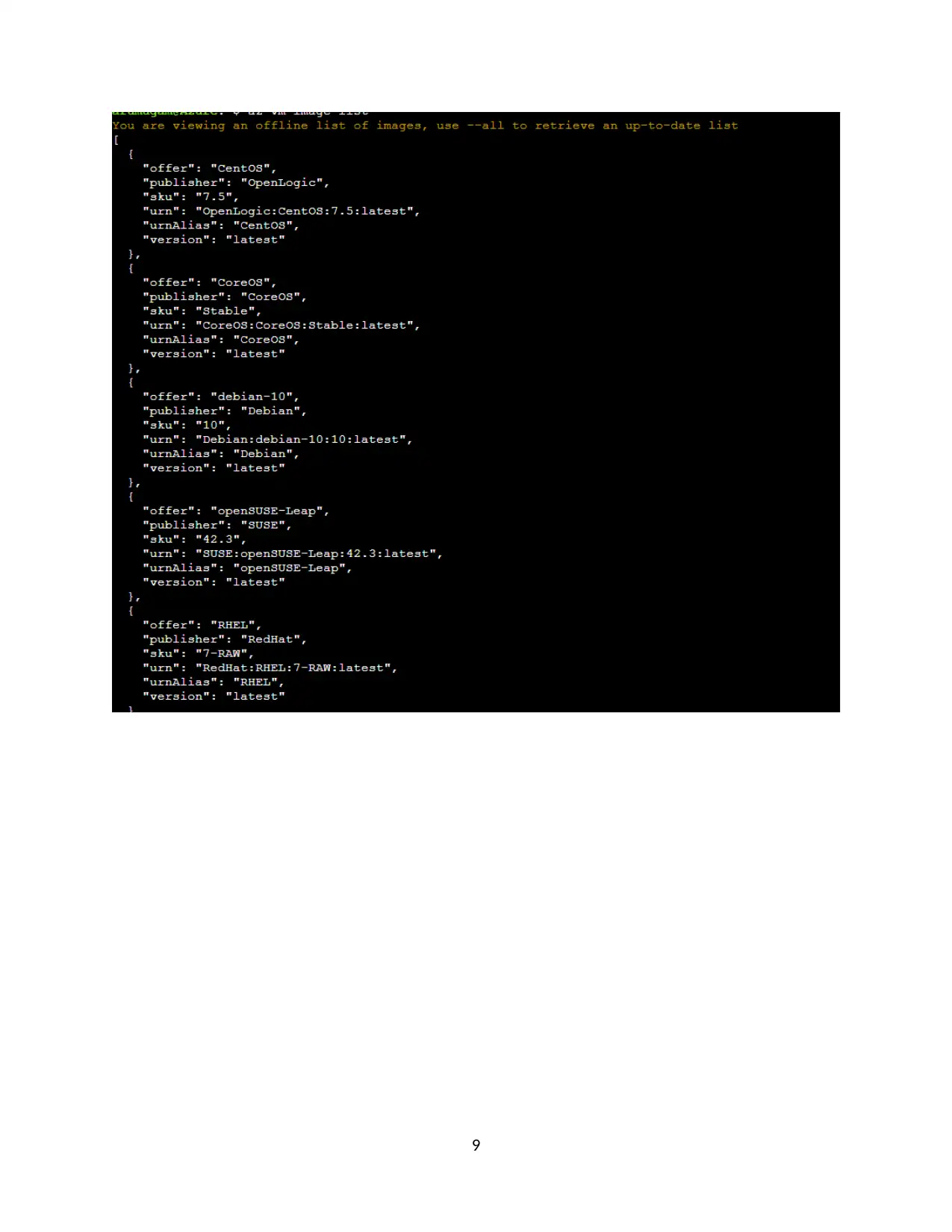
For creation of VMs, VM Images are needed.
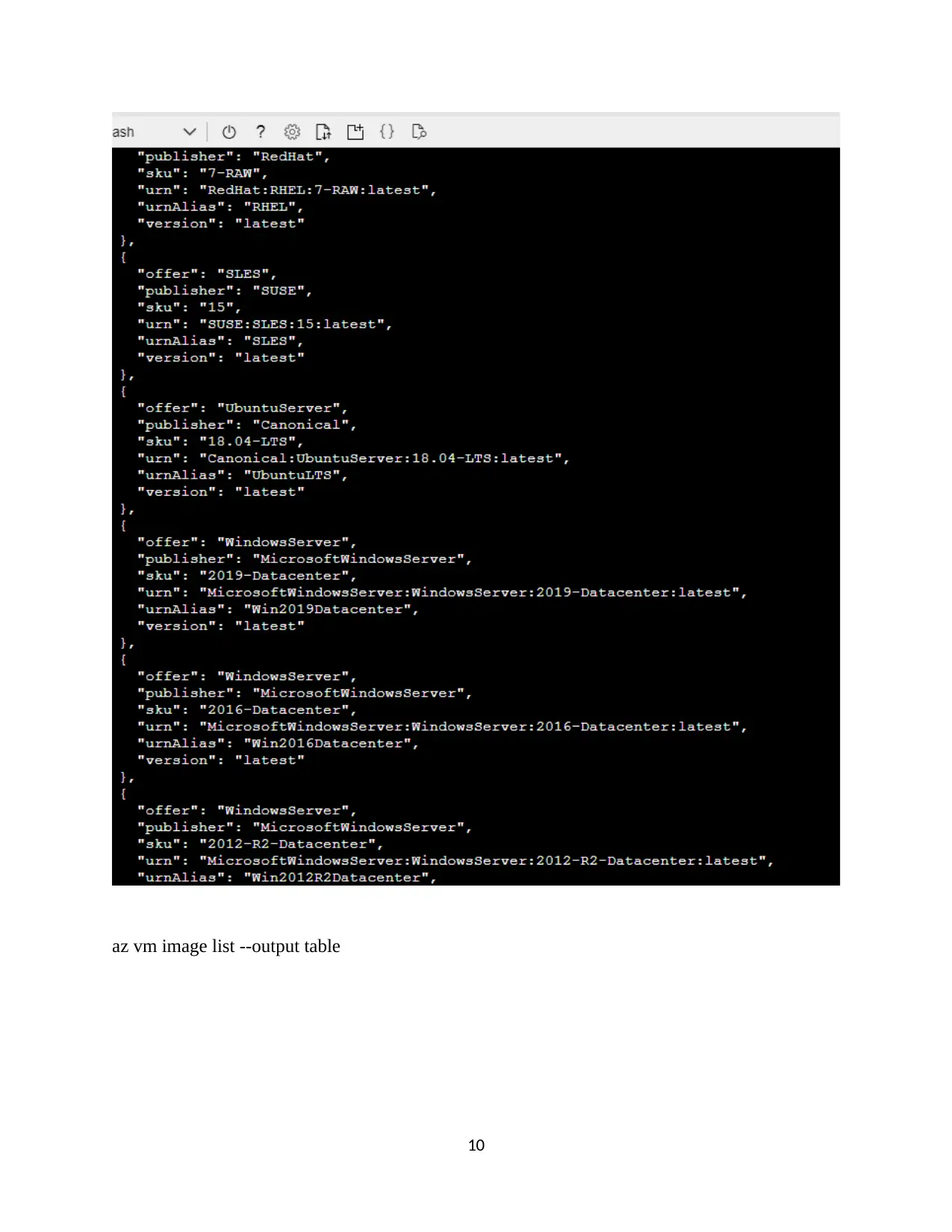
Used "AZ VM image list" command to see all the available images.
8
Document Page
9
tabler-icon-diamond-filled.svg

Paraphrase This Document

Need a fresh take? Get an instant paraphrase of this document with our AI Paraphraser
Document Page
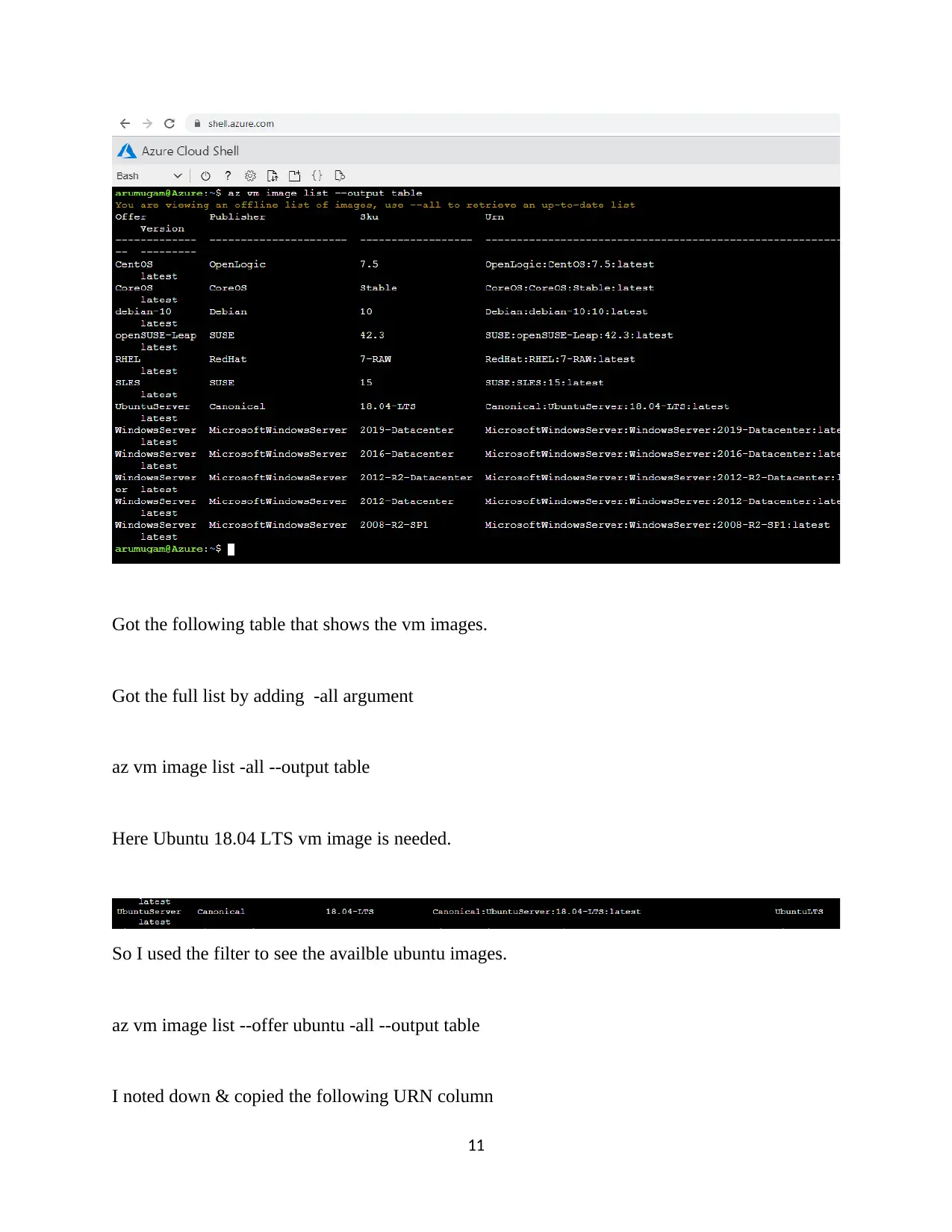
az vm image list --output table
10
Document Page
Got the following table that shows the vm images.
Got the full list by adding -all argument
az vm image list -all --output table
Here Ubuntu 18.04 LTS vm image is needed.
So I used the filter to see the availble ubuntu images.
az vm image list --offer ubuntu -all --output table
I noted down & copied the following URN column
11
chevron_up_icon
1 out of 21
circle_padding
hide_on_mobile
zoom_out_icon
[object Object]