IT163: Database Reports for Books2010: List of Books and Employees

Verified

Added on  2023/06/10

|7
|790
|351
Practical Assignment
AI Summary
This document presents a solution for a practical assignment involving the creation of reports using the Books2010 database in Microsoft Access. The assignment requires the student to construct two specific reports: one displaying a list of books, including book type, title, and price, sorted by book type; and another displaying a list of employees, including first name, last name, job title, and hire date, sorted by last name. The solution outlines the step-by-step process of creating these reports using the report wizard, including selecting tables and fields, sorting data, setting layout and orientation, and modifying the design for enhanced presentation. Screenshots of the reports are not included in the provided text. The document also includes a list of references used in the creation of the solution.

Document Page
Books2010 database 1
Books2010 database
Author name
tabler-icon-diamond-filled.svg

Paraphrase This Document

Need a fresh take? Get an instant paraphrase of this document with our AI Paraphraser
Document Page
Books2010 database 2
List of books
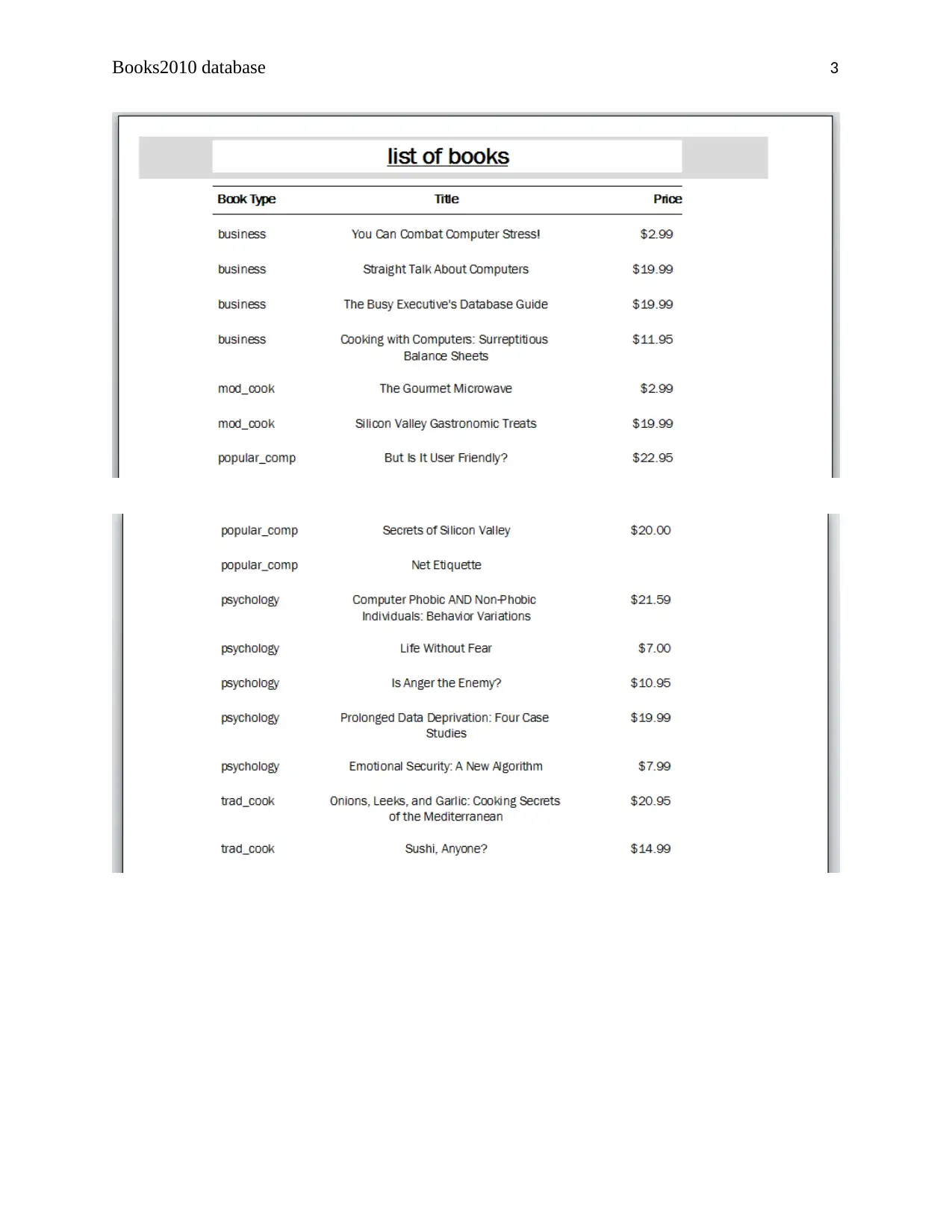
To create the list of books report according to the requirement I follow the following steps: -
I created the report by using the report wizard. Click on create option and then select
report wizard option from the report.
Then Report wizard dialogue box displays on the screen. Then select the table from
tables/Queries and select book table column from available fields. Then click on next
option from the dialogue box.
In this step, you group the recodes according to requirements. But I have no requirement
for the group the data so I click on next button.
In this step, you can sort the data according to the requirements. According to the
requirements I sort book type in ascending order. Then click on the next button.
In this step, we can set the report's layout and orientation. I set report layout as
justification and orientation as Portrait and click on next button.
This is the last step in this step you gave the name of the report. I give List of books
according to the requirements. There is also two option first one Preview the report and
the second one is to Modify the report's design. I select Modify the report's design
because I need to modify the report so it looks effective.
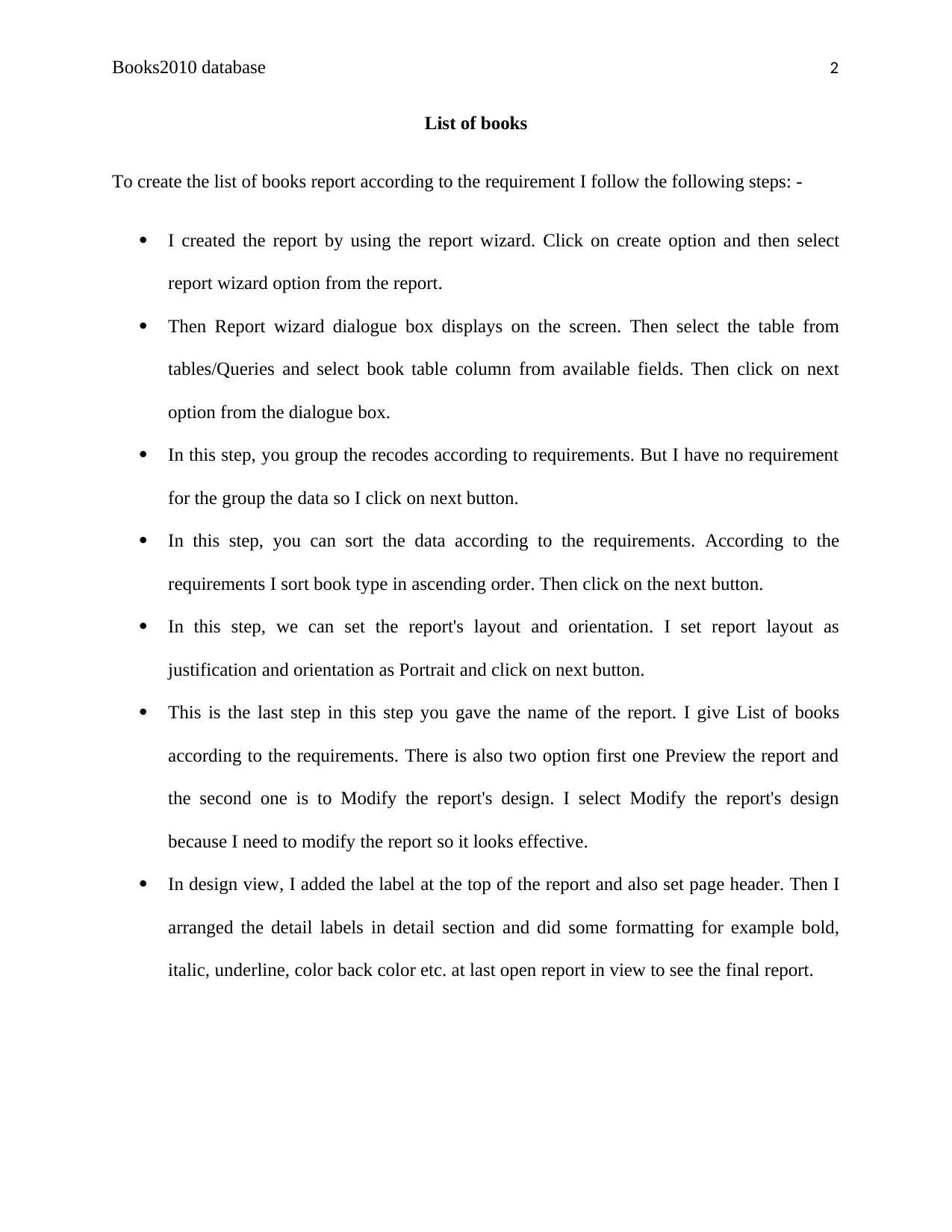
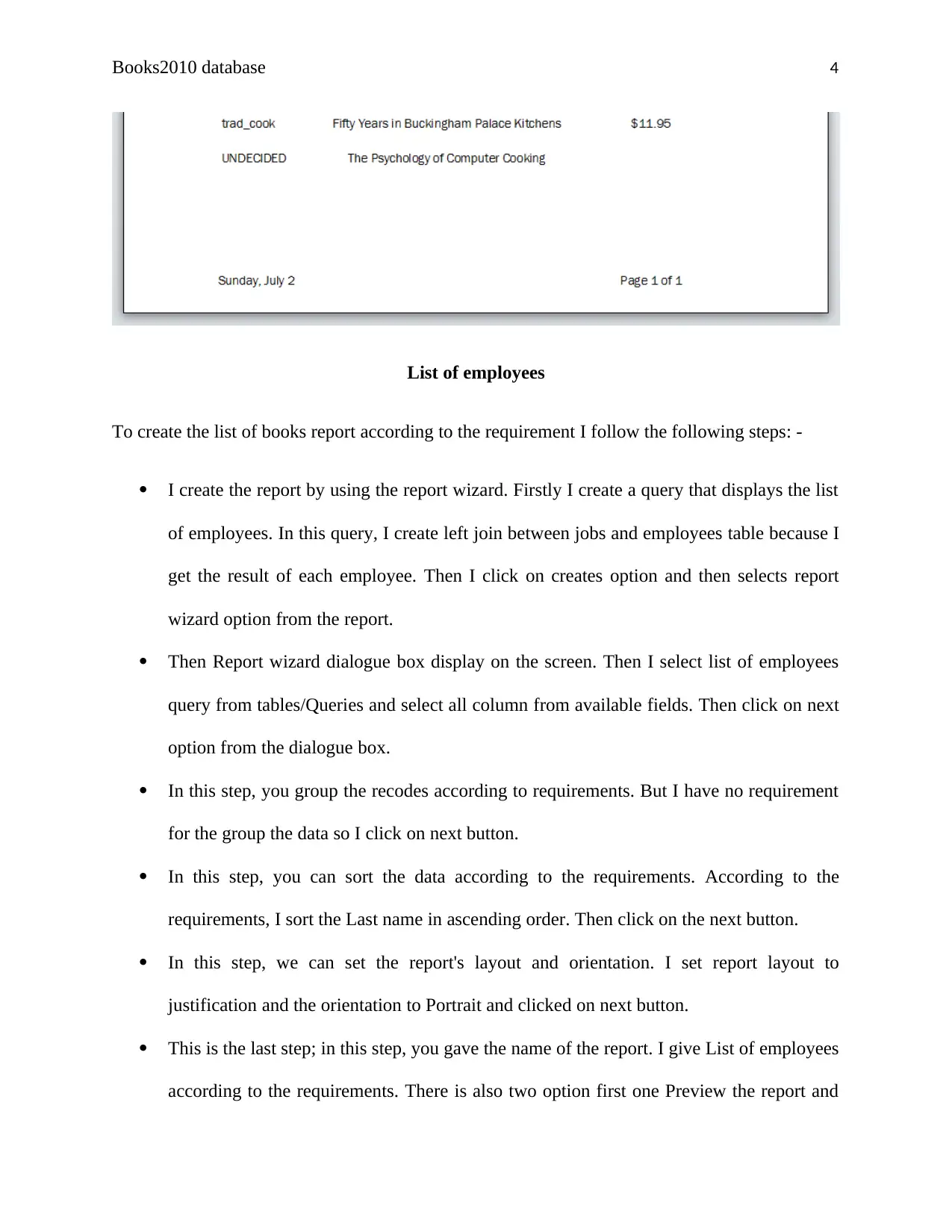
In design view, I added the label at the top of the report and also set page header. Then I
arranged the detail labels in detail section and did some formatting for example bold,
italic, underline, color back color etc. at last open report in view to see the final report.
Document Page
Books2010 database 3
Document Page
Books2010 database 4
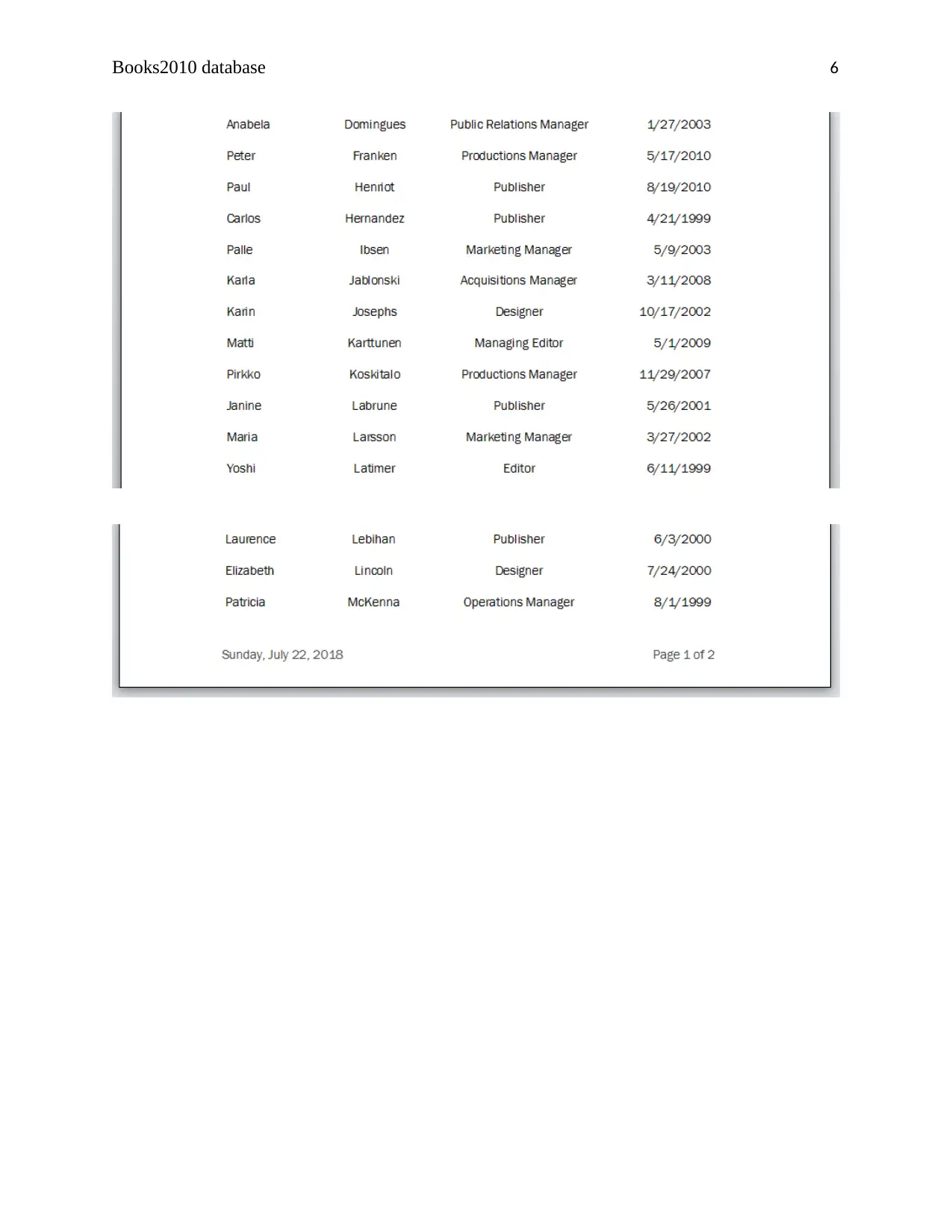
List of employees
To create the list of books report according to the requirement I follow the following steps: -
I create the report by using the report wizard. Firstly I create a query that displays the list
of employees. In this query, I create left join between jobs and employees table because I
get the result of each employee. Then I click on creates option and then selects report
wizard option from the report.
Then Report wizard dialogue box display on the screen. Then I select list of employees
query from tables/Queries and select all column from available fields. Then click on next
option from the dialogue box.
In this step, you group the recodes according to requirements. But I have no requirement
for the group the data so I click on next button.
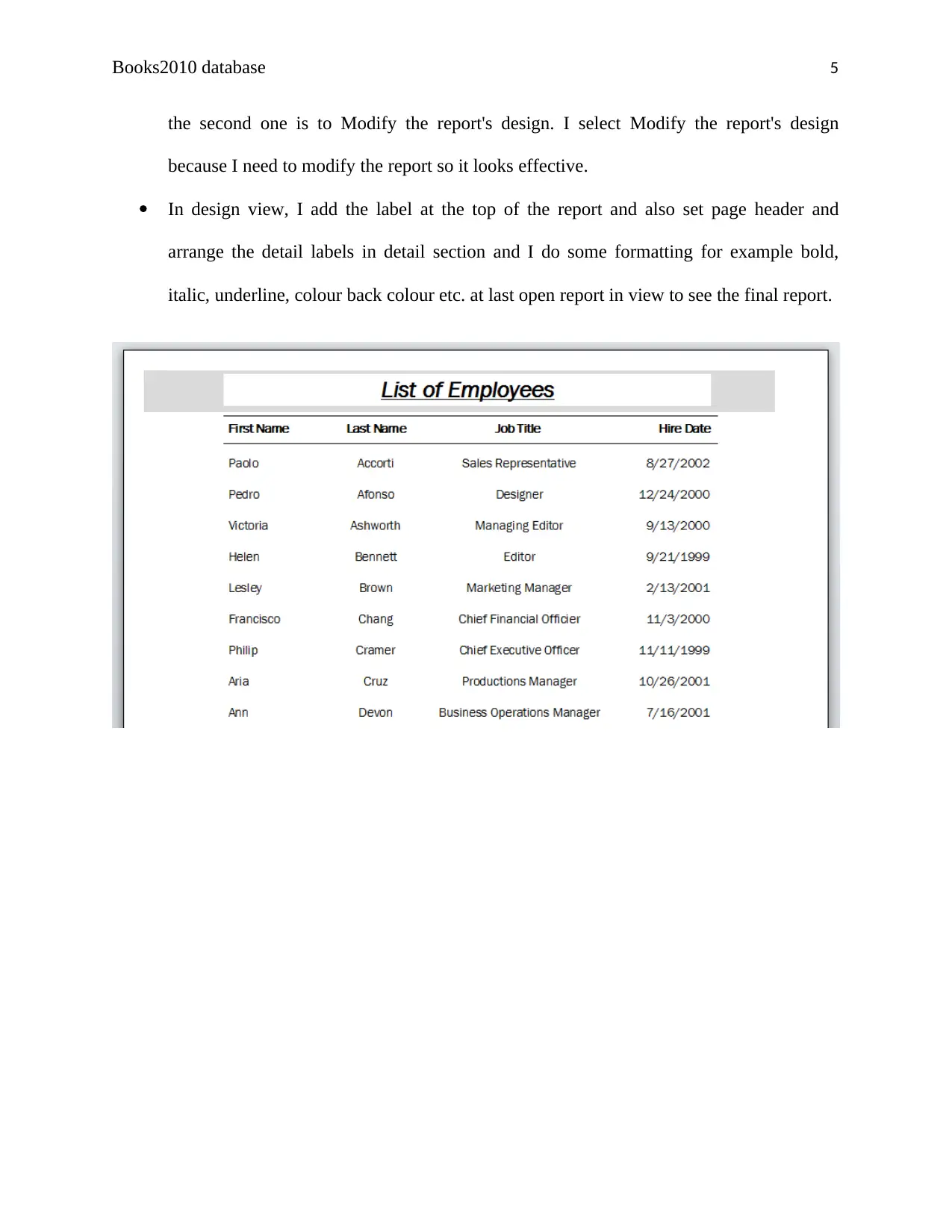
In this step, you can sort the data according to the requirements. According to the
requirements, I sort the Last name in ascending order. Then click on the next button.
In this step, we can set the report's layout and orientation. I set report layout to
justification and the orientation to Portrait and clicked on next button.
This is the last step; in this step, you gave the name of the report. I give List of employees
according to the requirements. There is also two option first one Preview the report and
tabler-icon-diamond-filled.svg

Paraphrase This Document

Need a fresh take? Get an instant paraphrase of this document with our AI Paraphraser
Document Page
Books2010 database 5
the second one is to Modify the report's design. I select Modify the report's design
because I need to modify the report so it looks effective.
In design view, I add the label at the top of the report and also set page header and
arrange the detail labels in detail section and I do some formatting for example bold,
italic, underline, colour back colour etc. at last open report in view to see the final report.
Document Page
Books2010 database 6
Document Page
Books2010 database 7
References
Cronan, J. (2010). Microsoft Office Access 2010. New York: McGraw-Hill.
Eaton, N. (2001). Microsoft Visio version 2002 inside out. Redmond: Microsoft.
Friedrichsen, L. (2011). Microsoft Access 2010 illustrated. Australia: Course Technology/Cengage
Learning.
Frye, C. (2010). Microsoft Access 2010 plain & simple. Sebastopol, Calif.: O'Reilly Media.
Parker, D. (2010). Microsoft Visio 2010 business process diagramming and validation. Birmingham UK:
Packt Pub.
Parker, D. (2016). Mastering Data Visualization with Microsoft Visio Professional 2016. Packt Publishing.
chevron_up_icon
1 out of 7
circle_padding
hide_on_mobile
zoom_out_icon
[object Object]