Newsletter Design
VerifiedAdded on 2019/09/16
|3
|850
|412
Creative Assignment
AI Summary
This assignment involves creating a newsletter. The provided content gives a template with placeholders for titles, company information, dates, quotes, and body text. The instructions emphasize using the document's formatting tools to create a visually appealing newsletter. The assignment likely assesses the student's ability to use word processing software and create a professional-looking document. The repetitive nature of some sections suggests a focus on understanding and applying formatting techniques consistently throughout the document.
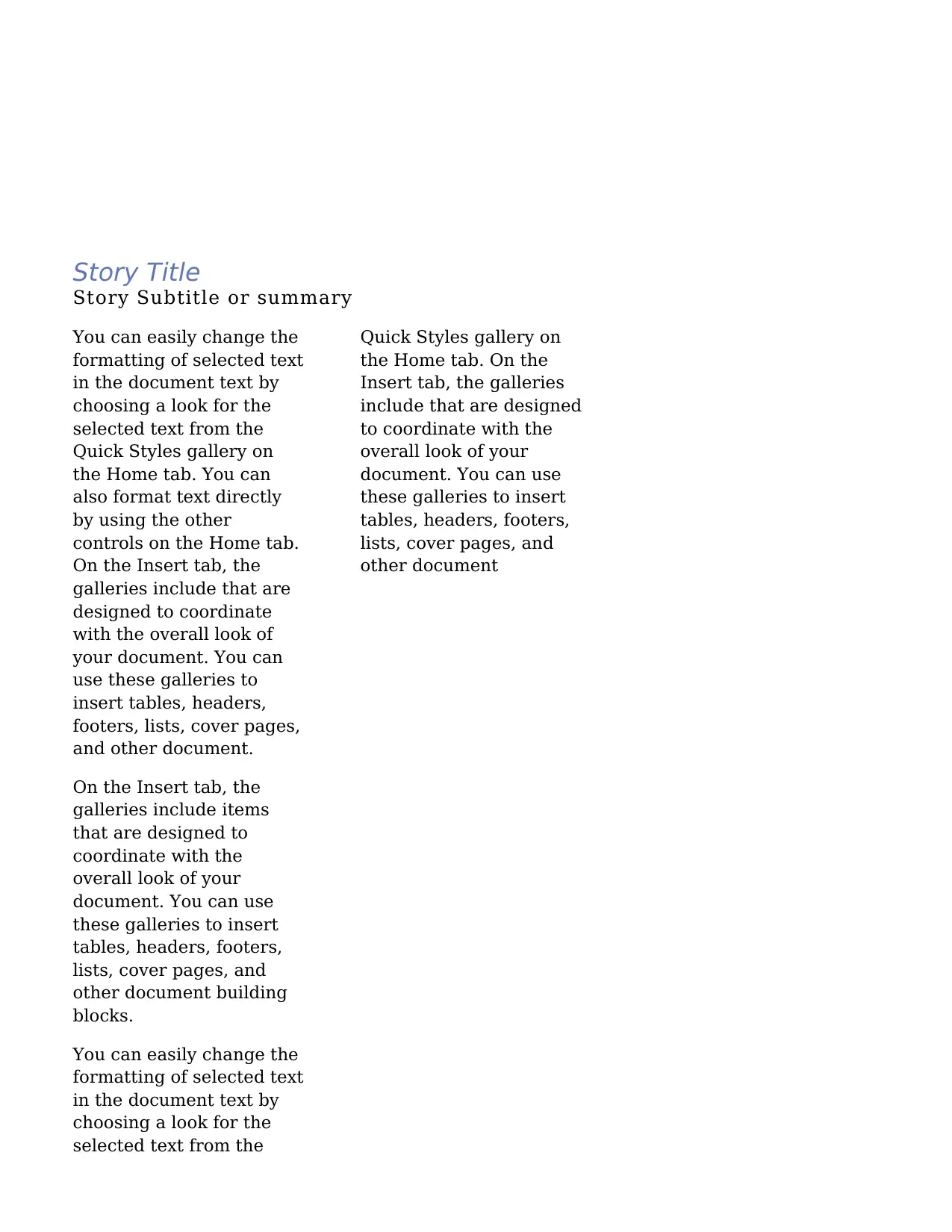
Story Title
Story Subtitle or summary
You can easily change the
formatting of selected text
in the document text by
choosing a look for the
selected text from the
Quick Styles gallery on
the Home tab. You can
also format text directly
by using the other
controls on the Home tab.
On the Insert tab, the
galleries include that are
designed to coordinate
with the overall look of
your document. You can
use these galleries to
insert tables, headers,
footers, lists, cover pages,
and other document.
On the Insert tab, the
galleries include items
that are designed to
coordinate with the
overall look of your
document. You can use
these galleries to
insert tables, headers,
footers, lists, cover
pages, and other
document building
blocks.
You can easily change
the formatting of
selected text in the
document text by
choosing a look for the
selected text from the
Quick Styles gallery on
the Home tab. On the
Insert tab, the galleries
include that are
designed to coordinate
with the overall look of
your document. You
can use these galleries
to insert tables,
headers, footers, lists,
cover pages, and other
document
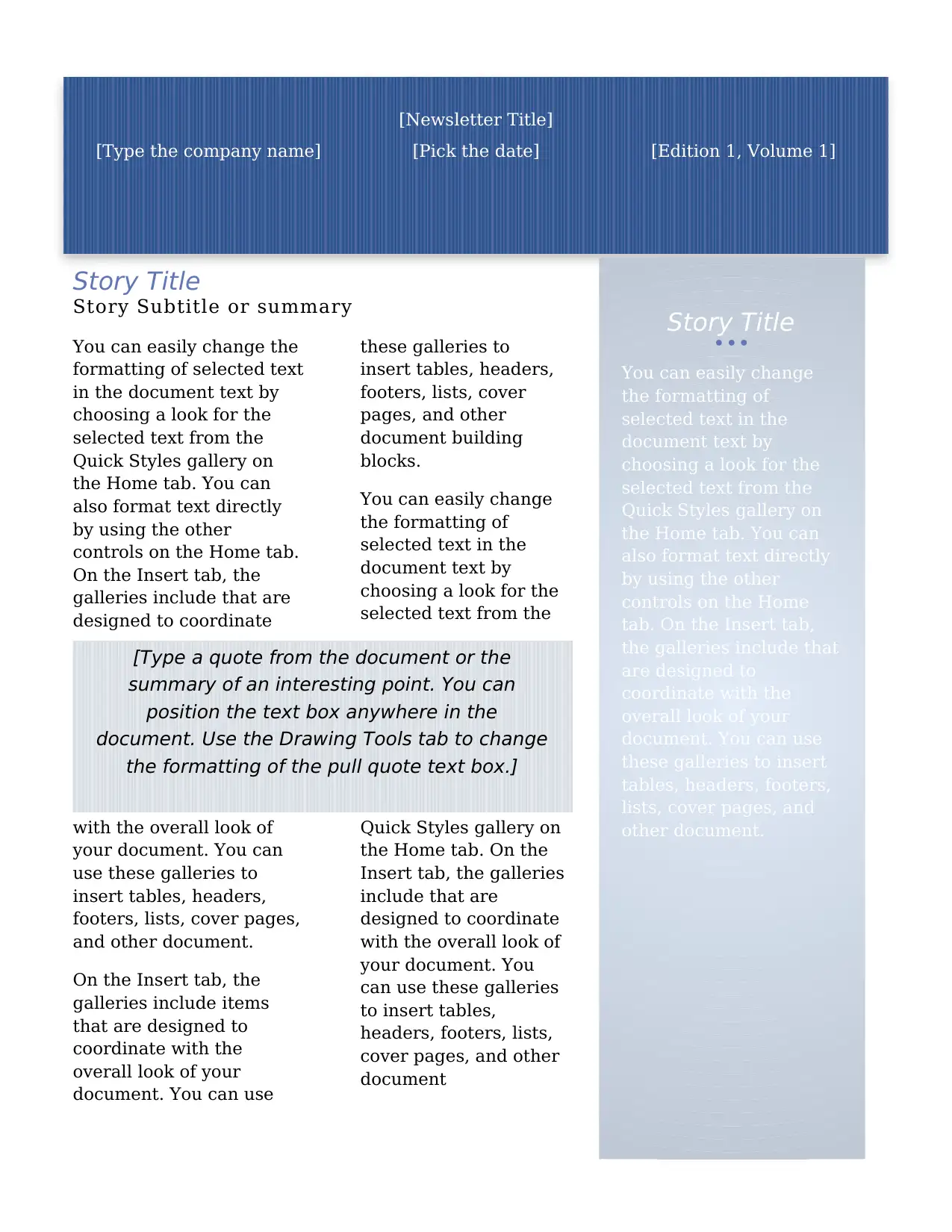
[Newsletter Title]
[Type the company name] [Pick the date] [Edition 1, Volume 1]
Story Title
You can easily change
the formatting of
selected text in the
document text by
choosing a look for the
selected text from the
Quick Styles gallery on
the Home tab. You can
also format text directly
by using the other
controls on the Home
tab. On the Insert tab,
the galleries include that
are designed to
coordinate with the
overall look of your
document. You can use
these galleries to insert
tables, headers, footers,
lists, cover pages, and
other document.
[Type a quote from the document or the
summary of an interesting point. You can
position the text box anywhere in the
document. Use the Drawing Tools tab to change
the formatting of the pull quote text box.]
Story Subtitle or summary
You can easily change the
formatting of selected text
in the document text by
choosing a look for the
selected text from the
Quick Styles gallery on
the Home tab. You can
also format text directly
by using the other
controls on the Home tab.
On the Insert tab, the
galleries include that are
designed to coordinate
with the overall look of
your document. You can
use these galleries to
insert tables, headers,
footers, lists, cover pages,
and other document.
On the Insert tab, the
galleries include items
that are designed to
coordinate with the
overall look of your
document. You can use
these galleries to
insert tables, headers,
footers, lists, cover
pages, and other
document building
blocks.
You can easily change
the formatting of
selected text in the
document text by
choosing a look for the
selected text from the
Quick Styles gallery on
the Home tab. On the
Insert tab, the galleries
include that are
designed to coordinate
with the overall look of
your document. You
can use these galleries
to insert tables,
headers, footers, lists,
cover pages, and other
document
[Newsletter Title]
[Type the company name] [Pick the date] [Edition 1, Volume 1]
Story Title
You can easily change
the formatting of
selected text in the
document text by
choosing a look for the
selected text from the
Quick Styles gallery on
the Home tab. You can
also format text directly
by using the other
controls on the Home
tab. On the Insert tab,
the galleries include that
are designed to
coordinate with the
overall look of your
document. You can use
these galleries to insert
tables, headers, footers,
lists, cover pages, and
other document.
[Type a quote from the document or the
summary of an interesting point. You can
position the text box anywhere in the
document. Use the Drawing Tools tab to change
the formatting of the pull quote text box.]
Paraphrase This Document
Need a fresh take? Get an instant paraphrase of this document with our AI Paraphraser

Story Title
Story Subtitle or summary
You can easily change the
formatting of selected text
in the document text by
choosing a look for the
selected text from the
Quick Styles gallery on
the Home tab. You can
also format text directly
by using the other
controls on the Home tab.
On the Insert tab, the
galleries include that are
designed to coordinate
with the overall look of
your document. You can
use these galleries to
insert tables, headers,
footers, lists, cover pages,
and other document.
On the Insert tab, the
galleries include items
that are designed to
coordinate with the
overall look of your
document. You can use
these galleries to insert
tables, headers, footers,
lists, cover pages, and
other document building
blocks.
You can easily change the
formatting of selected text
in the document text by
choosing a look for the
selected text from the
Quick Styles gallery on
the Home tab. On the
Insert tab, the galleries
include that are designed
to coordinate with the
overall look of your
document. You can use
these galleries to insert
tables, headers, footers,
lists, cover pages, and
other document
Story Subtitle or summary
You can easily change the
formatting of selected text
in the document text by
choosing a look for the
selected text from the
Quick Styles gallery on
the Home tab. You can
also format text directly
by using the other
controls on the Home tab.
On the Insert tab, the
galleries include that are
designed to coordinate
with the overall look of
your document. You can
use these galleries to
insert tables, headers,
footers, lists, cover pages,
and other document.
On the Insert tab, the
galleries include items
that are designed to
coordinate with the
overall look of your
document. You can use
these galleries to insert
tables, headers, footers,
lists, cover pages, and
other document building
blocks.
You can easily change the
formatting of selected text
in the document text by
choosing a look for the
selected text from the
Quick Styles gallery on
the Home tab. On the
Insert tab, the galleries
include that are designed
to coordinate with the
overall look of your
document. You can use
these galleries to insert
tables, headers, footers,
lists, cover pages, and
other document

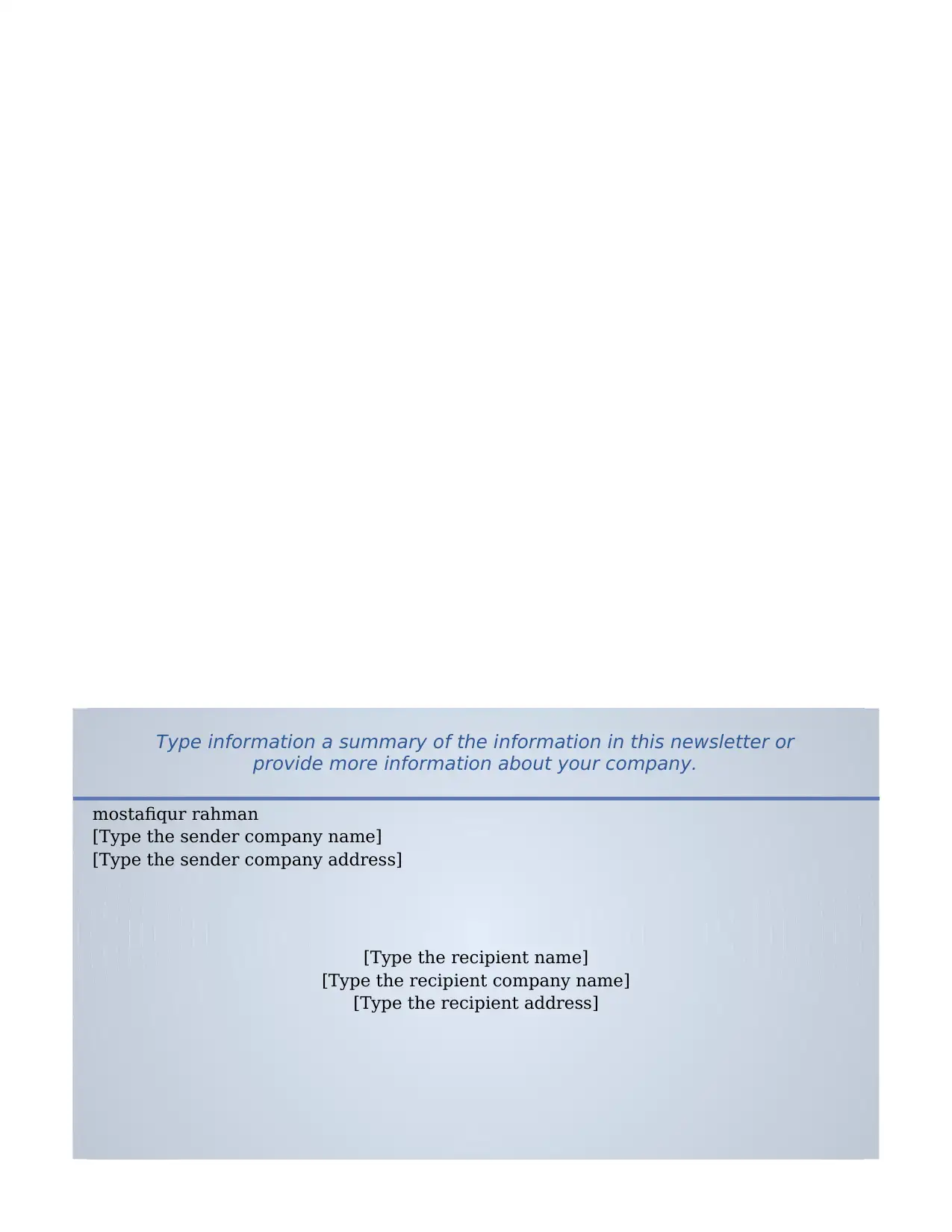
Type information a summary of the information in this newsletter or
provide more information about your company.
mostafiqur rahman
[Type the sender company name]
[Type the sender company address]
[Type the recipient name]
[Type the recipient company name]
[Type the recipient address]
provide more information about your company.
mostafiqur rahman
[Type the sender company name]
[Type the sender company address]
[Type the recipient name]
[Type the recipient company name]
[Type the recipient address]
⊘ This is a preview!⊘
Do you want full access?
Subscribe today to unlock all pages.

Trusted by 1+ million students worldwide
1 out of 3
Related Documents
Your All-in-One AI-Powered Toolkit for Academic Success.
+13062052269
info@desklib.com
Available 24*7 on WhatsApp / Email
Unlock your academic potential
Copyright © 2020–2026 A2Z Services. All Rights Reserved. Developed and managed by ZUCOL.