Developing and Deploying Hello World Web App on Azure with Eclipse IDE
VerifiedAdded on 2023/03/23
|19
|2255
|92
Practical Assignment
AI Summary
This assignment details the process of creating and deploying a simple Hello World web application on Microsoft Azure using the Eclipse IDE. The project begins with an introduction to the Eclipse IDE and Azure cloud computing services, followed by a critical evaluation of the tools and technologies used. The core of the assignment involves a step-by-step guide to creating the Hello World application, including logging into Azure via Eclipse, creating a dynamic web project, and developing a JSP page to display the "Hello World!" message. The document meticulously outlines each step, from signing into Azure to deploying the application, with screenshots to aid the process. It also discusses the features of the cloud environment and concludes with a reflection on the development and deployment experience, emphasizing the efficiency of Eclipse and Azure for Java EE projects. Finally, it includes a bibliography of related research.
Running head: HELLO WORLD WEB APP FOR AZURE USING ECLIPSE
Hello World web app for Azure using Eclipse
Name of the Student
Name of the University
Author’s name:
Hello World web app for Azure using Eclipse
Name of the Student
Name of the University
Author’s name:
Paraphrase This Document
Need a fresh take? Get an instant paraphrase of this document with our AI Paraphraser

1HELLO WORLD WEB APP FOR AZURE USING ECLIPSE
Table of Contents
Introduction:....................................................................................................................................2
Critical Evaluation:..........................................................................................................................2
Creating the Hello World Application:............................................................................................2
Cloud Environment Features:........................................................................................................15
Conclusion:....................................................................................................................................16
Bibliography:.................................................................................................................................17
Table of Contents
Introduction:....................................................................................................................................2
Critical Evaluation:..........................................................................................................................2
Creating the Hello World Application:............................................................................................2
Cloud Environment Features:........................................................................................................15
Conclusion:....................................................................................................................................16
Bibliography:.................................................................................................................................17

2HELLO WORLD WEB APP FOR AZURE USING ECLIPSE
Introduction:
The eclipse is an IDE or integrated development environment that allow the developers to
create projects (Baset and Denning 2017). Microsoft Azure is a cloud computing service. This
service allows the users to deploy different types of database and other applications in the cloud.
The eclipse supports integration of Azure through Azure Toolkit.
The project is developed for the purpose of showing the deployment of a Java Server
Application through eclipse. The Java 11 platform has been used for coding. The application will
be developed and deployed through eclipse only.
Critical Evaluation:
The software development to be done in this assignment is a JSP or Java Server Page.
This application is run in Glassfish or Tomcat Server. The selected option is Tomcat as it is more
popular and reliable. The MS Azure cloud computing platform is selected for deploying the
application. Azure is more appropriate for the Java Server Applications. It is more reliable and
feature enriched. The other options were Google Cloud and AWS. The testing of the application
is done through various methods like black box or white box. However, for Java Server Pages,
the white box testing is more suitable as it will allow evaluate the cloud server host capability.
Creating the Hello World Application:
The hello world application is the simplest form of web application. It has been used for
concentrating more on the eclipse platform and Azure Cloud Environment. At the end of this
application development process, the web page can be accessed which will display the dialog
“Hello World!”
Introduction:
The eclipse is an IDE or integrated development environment that allow the developers to
create projects (Baset and Denning 2017). Microsoft Azure is a cloud computing service. This
service allows the users to deploy different types of database and other applications in the cloud.
The eclipse supports integration of Azure through Azure Toolkit.
The project is developed for the purpose of showing the deployment of a Java Server
Application through eclipse. The Java 11 platform has been used for coding. The application will
be developed and deployed through eclipse only.
Critical Evaluation:
The software development to be done in this assignment is a JSP or Java Server Page.
This application is run in Glassfish or Tomcat Server. The selected option is Tomcat as it is more
popular and reliable. The MS Azure cloud computing platform is selected for deploying the
application. Azure is more appropriate for the Java Server Applications. It is more reliable and
feature enriched. The other options were Google Cloud and AWS. The testing of the application
is done through various methods like black box or white box. However, for Java Server Pages,
the white box testing is more suitable as it will allow evaluate the cloud server host capability.
Creating the Hello World Application:
The hello world application is the simplest form of web application. It has been used for
concentrating more on the eclipse platform and Azure Cloud Environment. At the end of this
application development process, the web page can be accessed which will display the dialog
“Hello World!”
⊘ This is a preview!⊘
Do you want full access?
Subscribe today to unlock all pages.

Trusted by 1+ million students worldwide

3HELLO WORLD WEB APP FOR AZURE USING ECLIPSE
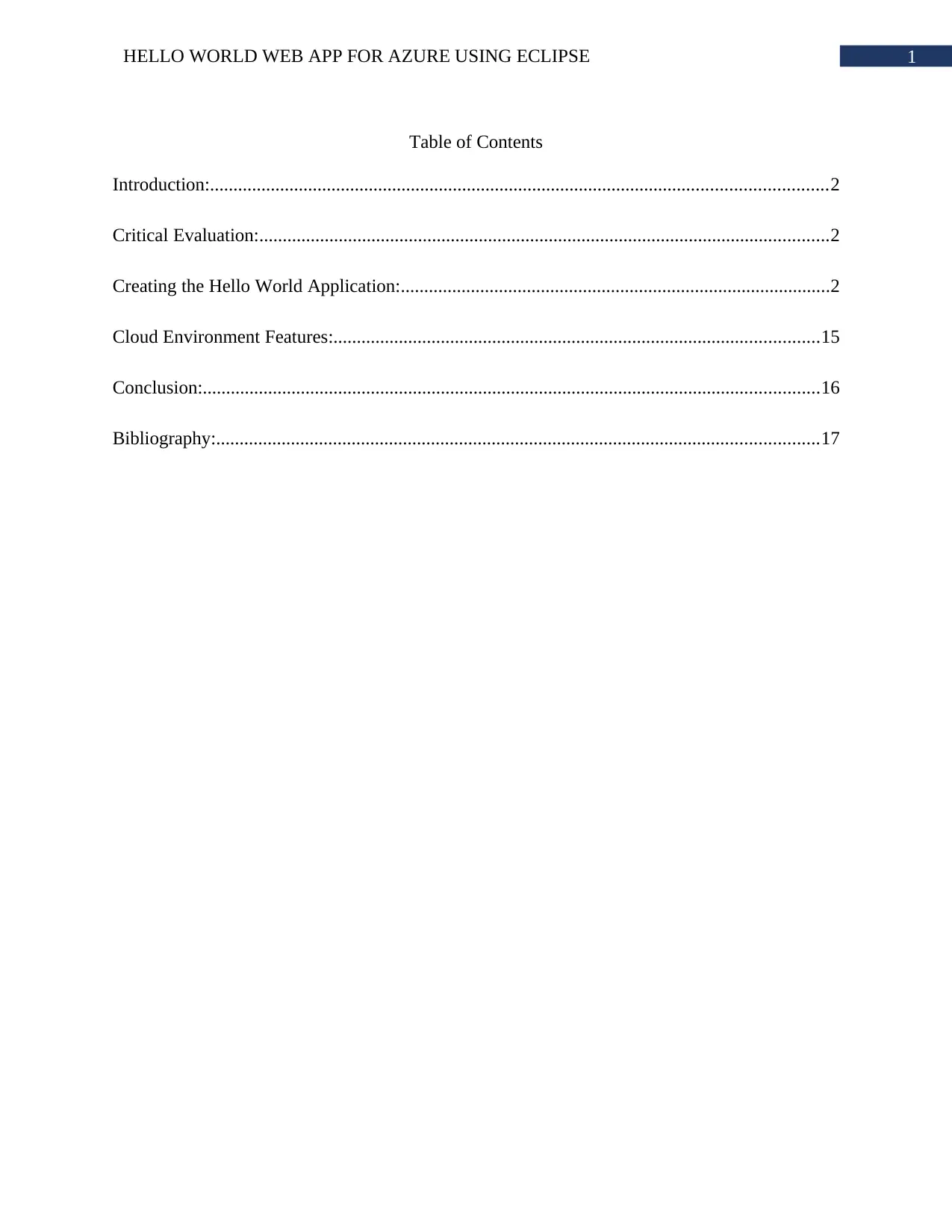
The first step in the application development is logging into the azure account using
eclipse tool feature. It is to be remembered, often the Azure account is logged out from eclipse
after exiting. This process may be repeated several times for creating a huge java based web
application. Now click on the Azure in the tool option. The sign in option will appear. Click on
the sign in.
The first step in the application development is logging into the azure account using
eclipse tool feature. It is to be remembered, often the Azure account is logged out from eclipse
after exiting. This process may be repeated several times for creating a huge java based web
application. Now click on the Azure in the tool option. The sign in option will appear. Click on
the sign in.
Paraphrase This Document
Need a fresh take? Get an instant paraphrase of this document with our AI Paraphraser

4HELLO WORLD WEB APP FOR AZURE USING ECLIPSE
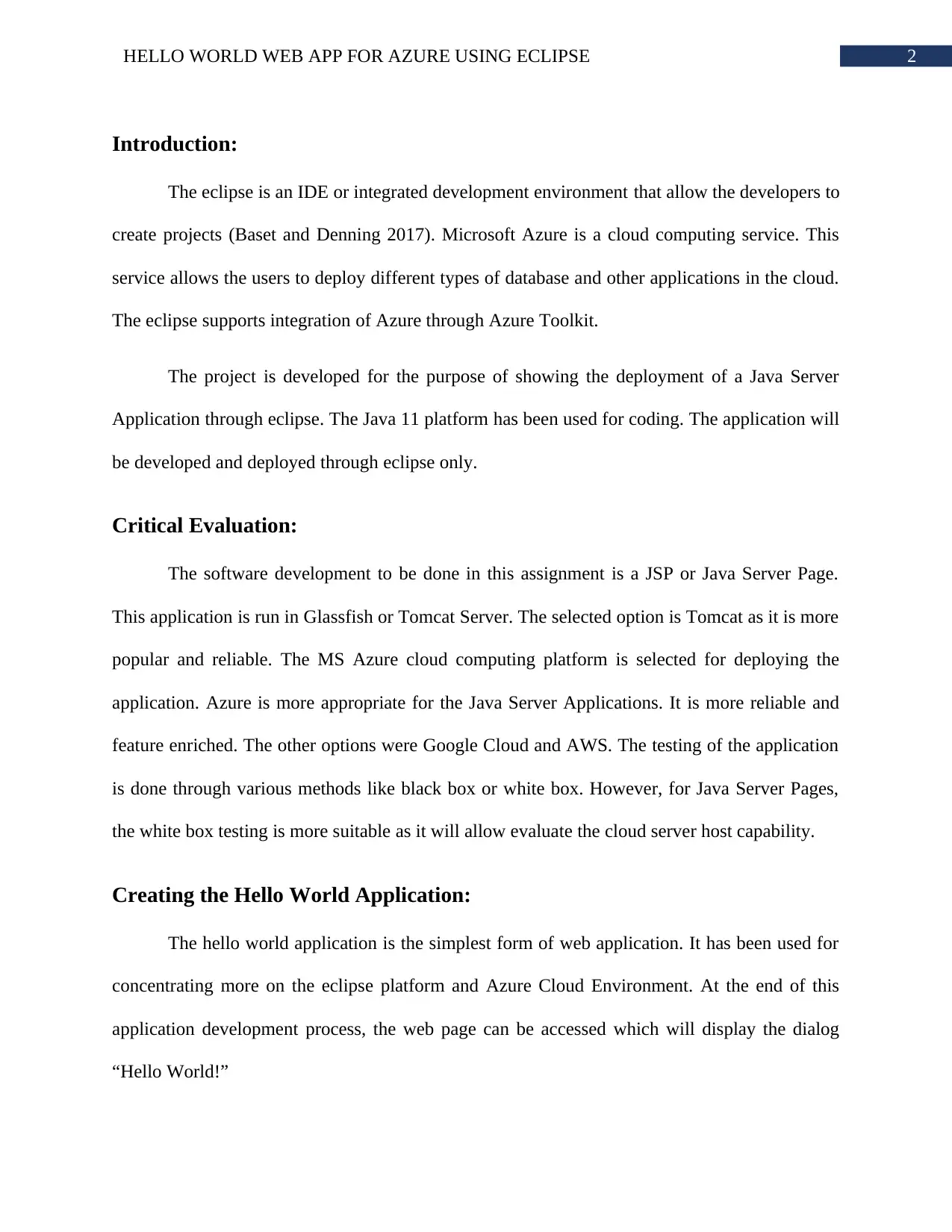
After clicking on the sign in, a window will appear which will ask the user to choose
between login options. Choose the device login.
After clicking on the sign in, a window will appear which will ask the user to choose
between login options. Choose the device login.

5HELLO WORLD WEB APP FOR AZURE USING ECLIPSE
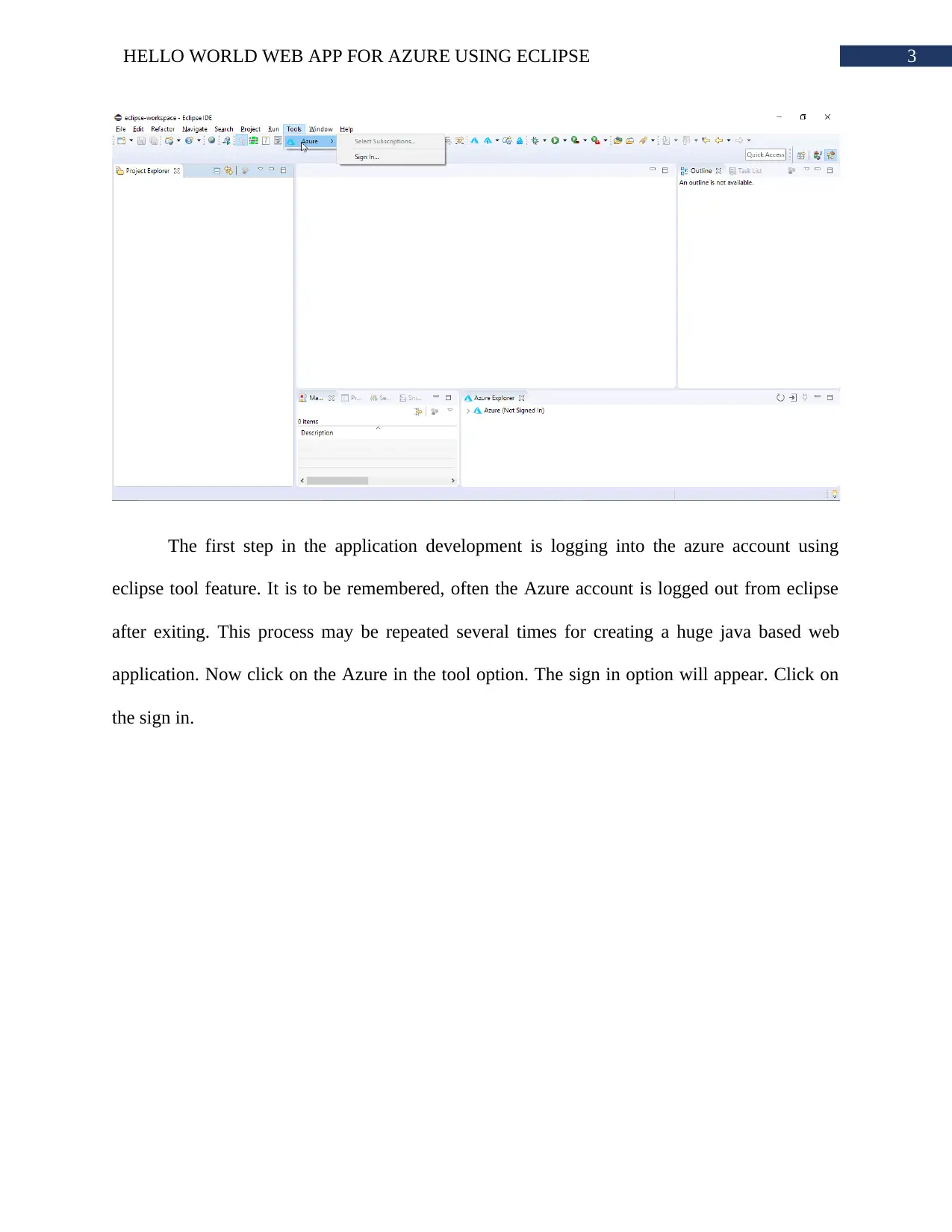
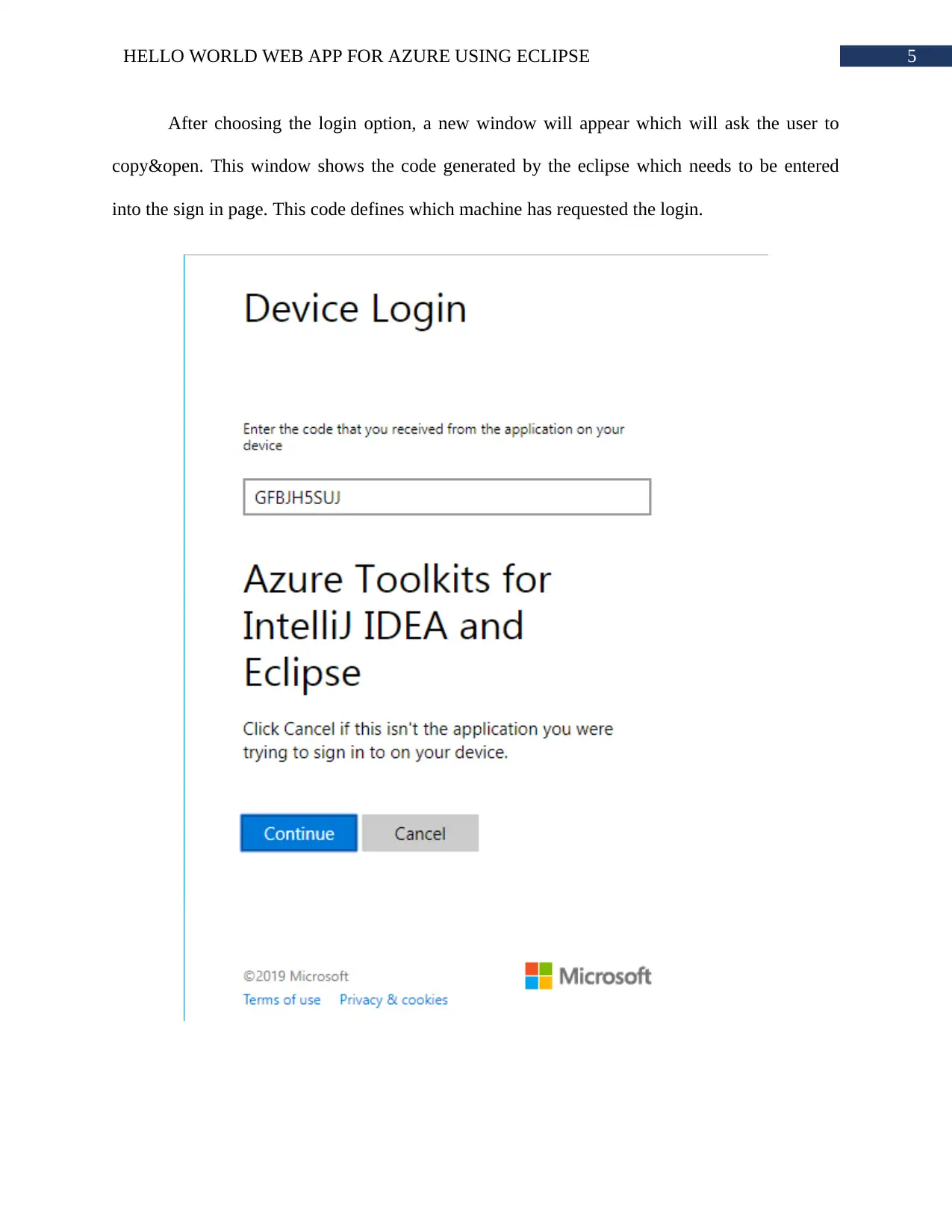
After choosing the login option, a new window will appear which will ask the user to
copy&open. This window shows the code generated by the eclipse which needs to be entered
into the sign in page. This code defines which machine has requested the login.
After choosing the login option, a new window will appear which will ask the user to
copy&open. This window shows the code generated by the eclipse which needs to be entered
into the sign in page. This code defines which machine has requested the login.
⊘ This is a preview!⊘
Do you want full access?
Subscribe today to unlock all pages.

Trusted by 1+ million students worldwide

6HELLO WORLD WEB APP FOR AZURE USING ECLIPSE
After the copy&open option is clicked. The above page will open in the default web
browser. The code input text filed remain empty at first and there are no other options to choose.
After the copied code is pasted in the empty field, the page automatically shows the ‘continue’
and ‘cancel’ option. Note, if the copied code is not working then user can go back to eclipse and
cope the code again by selecting the code shown in the window. After clicking the continue
button, the website redirects the user to the login page where the user have to put login details. If
the user login is already done, then sleeting the active user account will be enough.
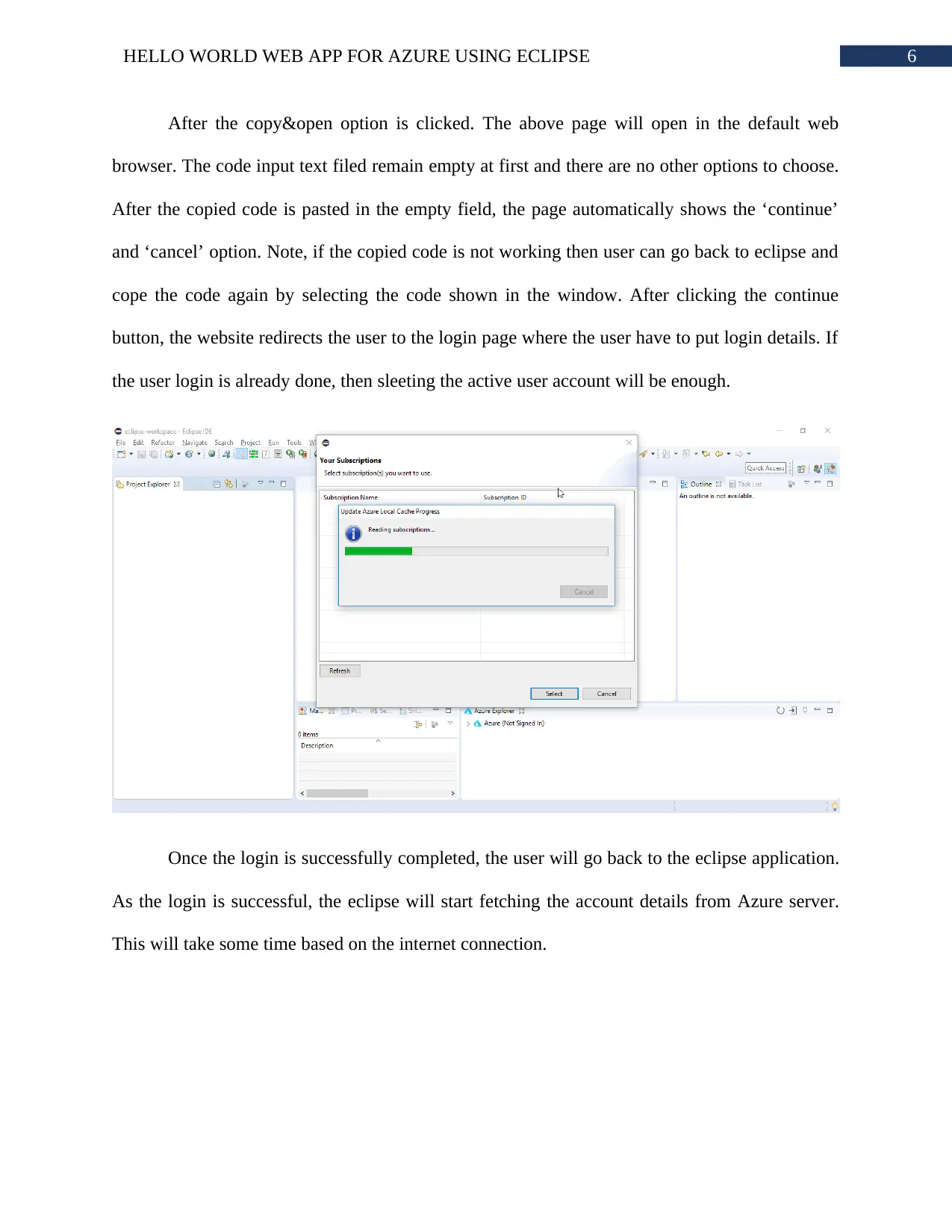
Once the login is successfully completed, the user will go back to the eclipse application.
As the login is successful, the eclipse will start fetching the account details from Azure server.
This will take some time based on the internet connection.
After the copy&open option is clicked. The above page will open in the default web
browser. The code input text filed remain empty at first and there are no other options to choose.
After the copied code is pasted in the empty field, the page automatically shows the ‘continue’
and ‘cancel’ option. Note, if the copied code is not working then user can go back to eclipse and
cope the code again by selecting the code shown in the window. After clicking the continue
button, the website redirects the user to the login page where the user have to put login details. If
the user login is already done, then sleeting the active user account will be enough.
Once the login is successfully completed, the user will go back to the eclipse application.
As the login is successful, the eclipse will start fetching the account details from Azure server.
This will take some time based on the internet connection.
Paraphrase This Document
Need a fresh take? Get an instant paraphrase of this document with our AI Paraphraser

7HELLO WORLD WEB APP FOR AZURE USING ECLIPSE
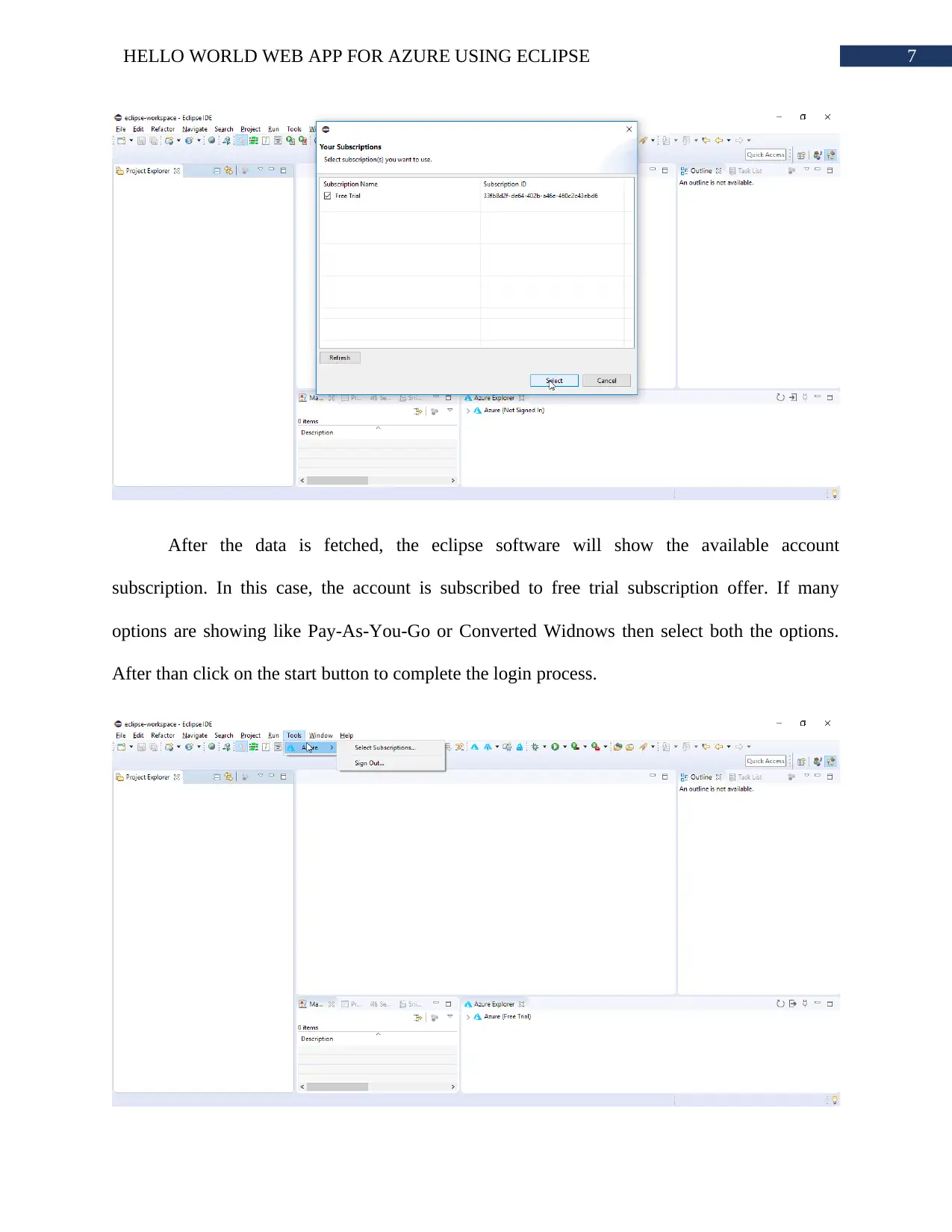
After the data is fetched, the eclipse software will show the available account
subscription. In this case, the account is subscribed to free trial subscription offer. If many
options are showing like Pay-As-You-Go or Converted Widnows then select both the options.
After than click on the start button to complete the login process.
After the data is fetched, the eclipse software will show the available account
subscription. In this case, the account is subscribed to free trial subscription offer. If many
options are showing like Pay-As-You-Go or Converted Widnows then select both the options.
After than click on the start button to complete the login process.

8HELLO WORLD WEB APP FOR AZURE USING ECLIPSE
Once the dialog boxes and windows are closed. Click on the Azure in the tools option.
This for making sure if the azure login is done successfully. If the option sign out is visible
instead of sign in then the login has been done successfully.
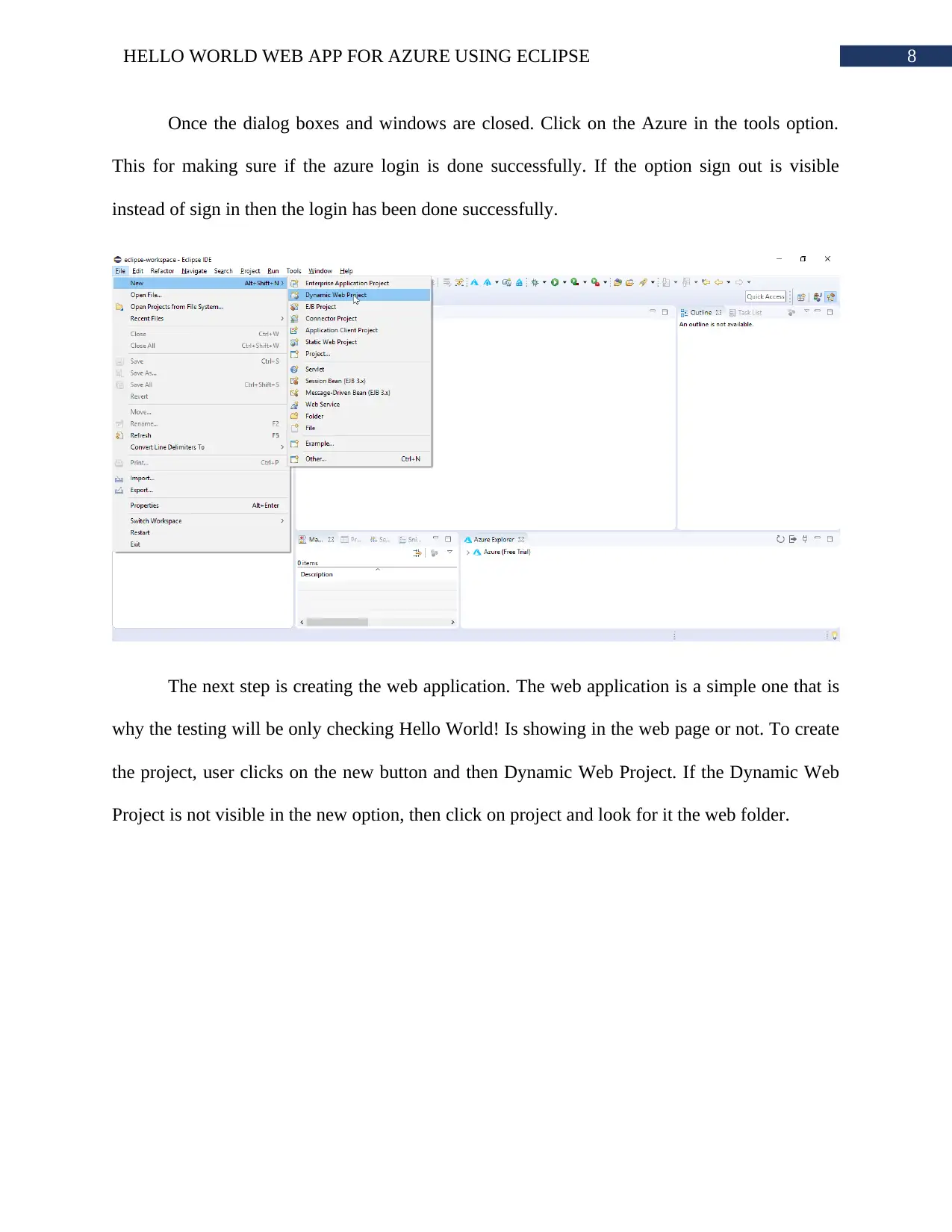
The next step is creating the web application. The web application is a simple one that is
why the testing will be only checking Hello World! Is showing in the web page or not. To create
the project, user clicks on the new button and then Dynamic Web Project. If the Dynamic Web
Project is not visible in the new option, then click on project and look for it the web folder.
Once the dialog boxes and windows are closed. Click on the Azure in the tools option.
This for making sure if the azure login is done successfully. If the option sign out is visible
instead of sign in then the login has been done successfully.
The next step is creating the web application. The web application is a simple one that is
why the testing will be only checking Hello World! Is showing in the web page or not. To create
the project, user clicks on the new button and then Dynamic Web Project. If the Dynamic Web
Project is not visible in the new option, then click on project and look for it the web folder.
⊘ This is a preview!⊘
Do you want full access?
Subscribe today to unlock all pages.

Trusted by 1+ million students worldwide

9HELLO WORLD WEB APP FOR AZURE USING ECLIPSE
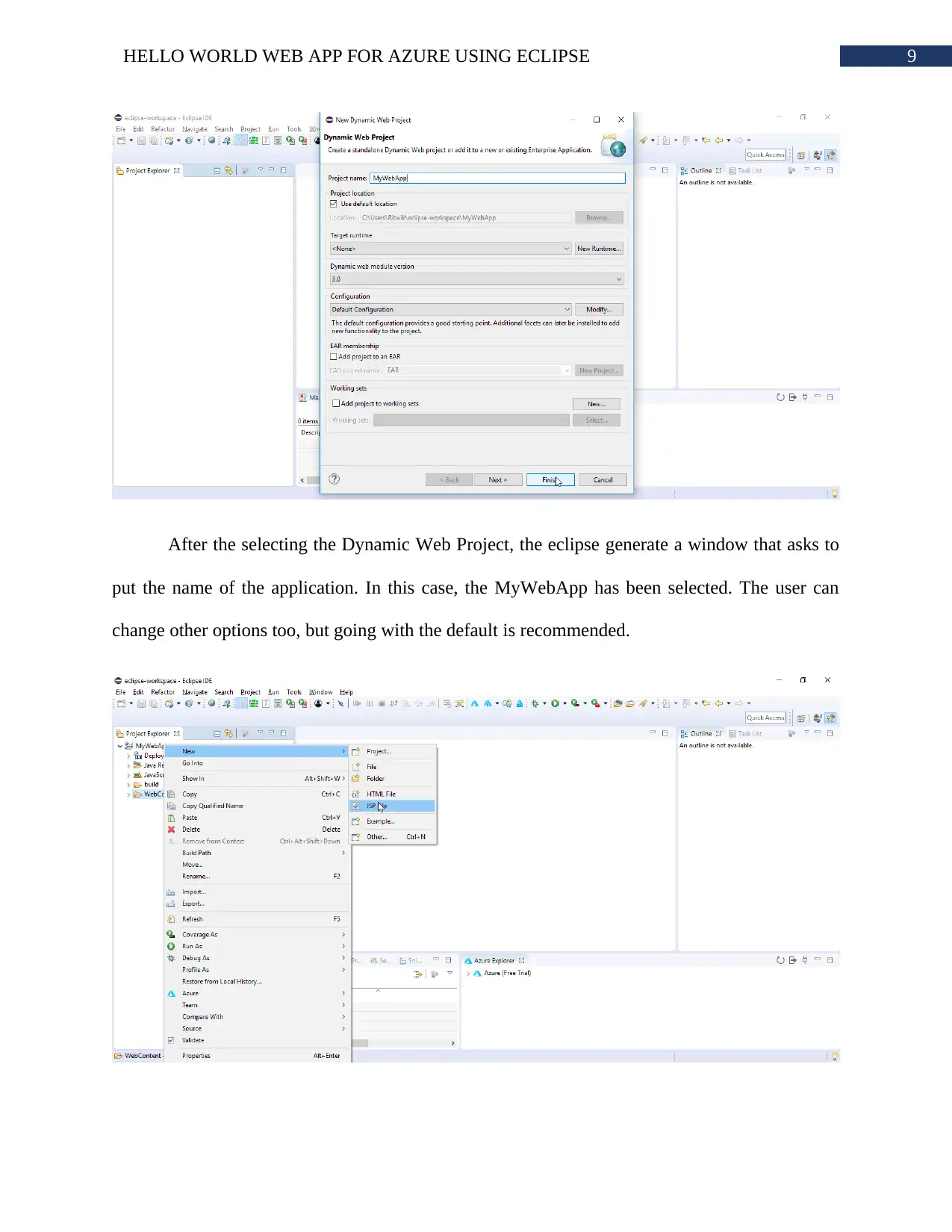
After the selecting the Dynamic Web Project, the eclipse generate a window that asks to
put the name of the application. In this case, the MyWebApp has been selected. The user can
change other options too, but going with the default is recommended.
After the selecting the Dynamic Web Project, the eclipse generate a window that asks to
put the name of the application. In this case, the MyWebApp has been selected. The user can
change other options too, but going with the default is recommended.
Paraphrase This Document
Need a fresh take? Get an instant paraphrase of this document with our AI Paraphraser

10HELLO WORLD WEB APP FOR AZURE USING ECLIPSE
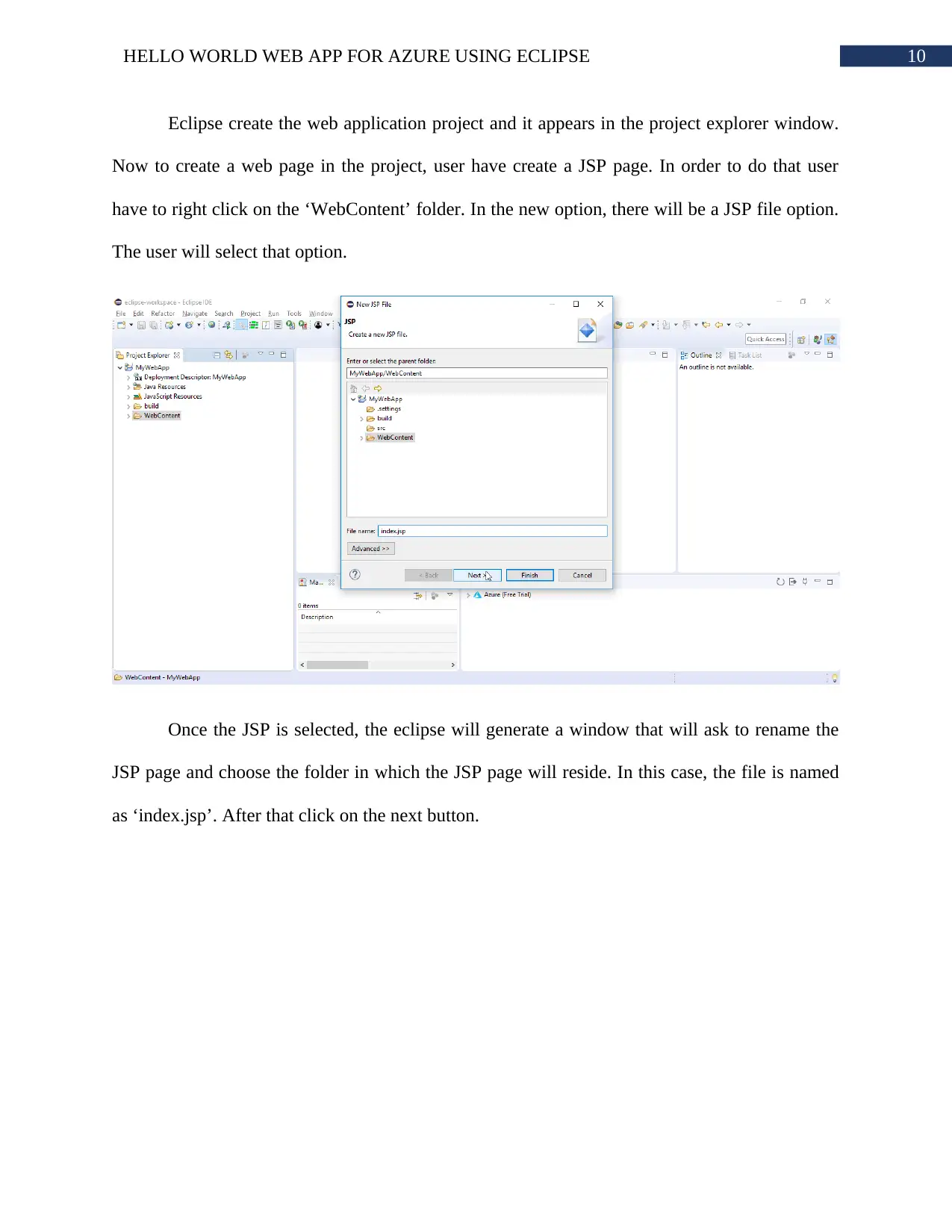
Eclipse create the web application project and it appears in the project explorer window.
Now to create a web page in the project, user have create a JSP page. In order to do that user
have to right click on the ‘WebContent’ folder. In the new option, there will be a JSP file option.
The user will select that option.
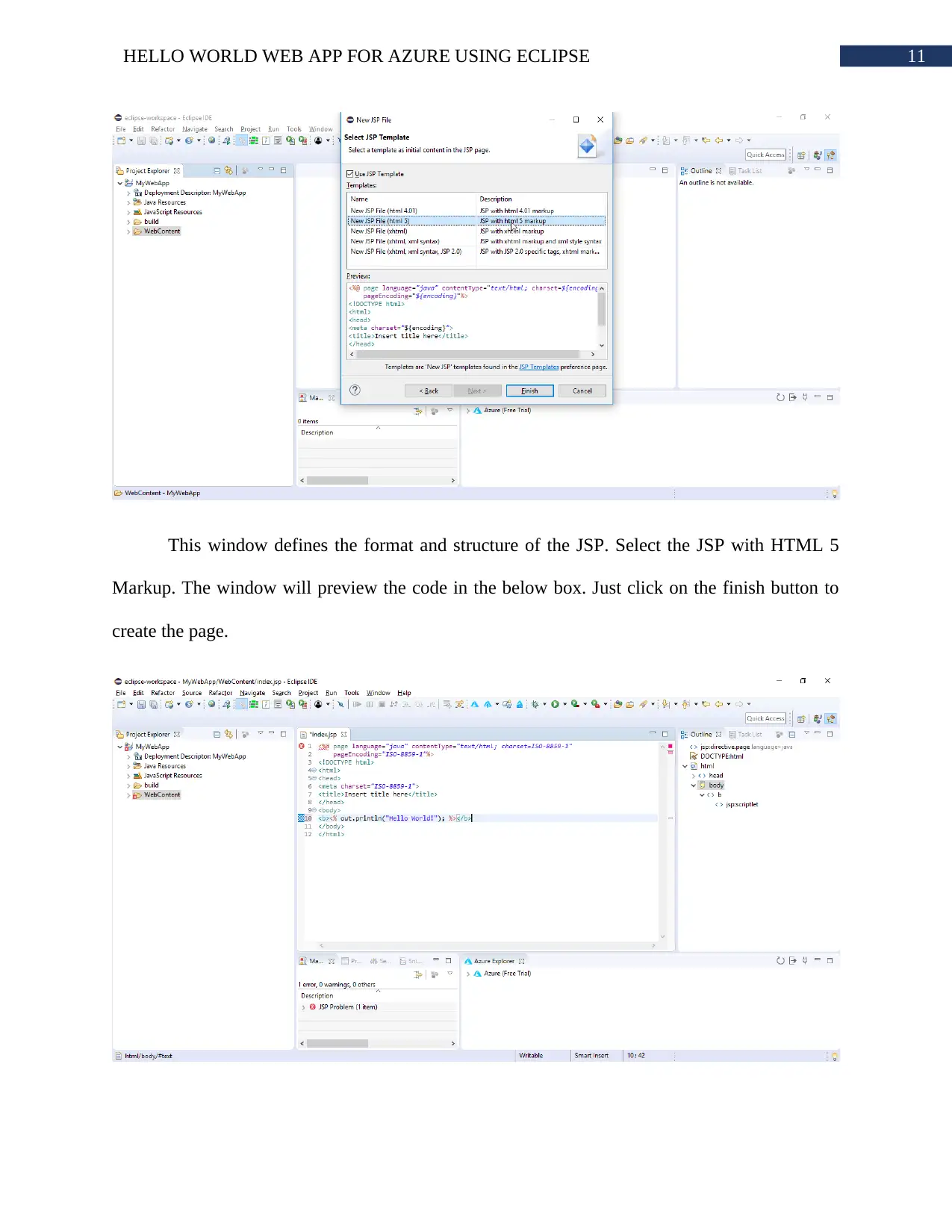
Once the JSP is selected, the eclipse will generate a window that will ask to rename the
JSP page and choose the folder in which the JSP page will reside. In this case, the file is named
as ‘index.jsp’. After that click on the next button.
Eclipse create the web application project and it appears in the project explorer window.
Now to create a web page in the project, user have create a JSP page. In order to do that user
have to right click on the ‘WebContent’ folder. In the new option, there will be a JSP file option.
The user will select that option.
Once the JSP is selected, the eclipse will generate a window that will ask to rename the
JSP page and choose the folder in which the JSP page will reside. In this case, the file is named
as ‘index.jsp’. After that click on the next button.

11HELLO WORLD WEB APP FOR AZURE USING ECLIPSE
This window defines the format and structure of the JSP. Select the JSP with HTML 5
Markup. The window will preview the code in the below box. Just click on the finish button to
create the page.
This window defines the format and structure of the JSP. Select the JSP with HTML 5
Markup. The window will preview the code in the below box. Just click on the finish button to
create the page.
⊘ This is a preview!⊘
Do you want full access?
Subscribe today to unlock all pages.

Trusted by 1+ million students worldwide
1 out of 19
Related Documents
Your All-in-One AI-Powered Toolkit for Academic Success.
+13062052269
info@desklib.com
Available 24*7 on WhatsApp / Email
Unlock your academic potential
Copyright © 2020–2025 A2Z Services. All Rights Reserved. Developed and managed by ZUCOL.