ITC 597 Digital Forensics: Project Reflection, Case Study & Research
VerifiedAdded on 2023/06/14
|15
|1809
|111
Report
AI Summary
This document presents a solution to a digital forensics assignment (ITC 597) involving hands-on projects and a case study. The hands-on projects utilize ProDiscover Basic to analyze disk images, search for keywords, recover deleted files, and generate evidence reports. The case study focuses on investigating a USB drive for potential patent infringement evidence. The report details the steps taken in each project, including creating projects in ProDiscover, adding image files, searching for specific content, and extracting relevant data. The analysis includes reflections on the tools and techniques used, as well as the findings from the investigations. The final section includes a research report discussing the scope and challenges of digital investigations, including data validation and integrity.
Digital Forensics (ITC 597)
Assessment No. 2
Name
Adm NO
Lecturer’s Name:
Date of submission
Couse Code
Table of Contents
1.0 Task 1: REFLECTION OF HANDS ON PROJECT..............................................................2
0 | P a g e
Assessment No. 2
Name
Adm NO
Lecturer’s Name:
Date of submission
Couse Code
Table of Contents
1.0 Task 1: REFLECTION OF HANDS ON PROJECT..............................................................2
0 | P a g e
Paraphrase This Document
Need a fresh take? Get an instant paraphrase of this document with our AI Paraphraser

1.1 Hands-On Project 1-1................................................................................................................2
1.2 Hands-On Project 1-2................................................................................................................3
1.3 Hands-On Project 1-3................................................................................................................4
1.4 Hands-On Project 1-4................................................................................................................4
1.5 Hands-On Project 1-5................................................................................................................5
2.0 Task 2: Case Project......................................................................................................................6
3. 0 Task 3: Research Report............................................................................................................12
References...........................................................................................................................................14
1 | P a g e
1.2 Hands-On Project 1-2................................................................................................................3
1.3 Hands-On Project 1-3................................................................................................................4
1.4 Hands-On Project 1-4................................................................................................................4
1.5 Hands-On Project 1-5................................................................................................................5
2.0 Task 2: Case Project......................................................................................................................6
3. 0 Task 3: Research Report............................................................................................................12
References...........................................................................................................................................14
1 | P a g e

1.0 Task 1: REFLECTION OF HANDS ON PROJECT
1.1 Hands-On Project 1-1
Step 1 - 3: Create project C1Prj01 in ProDiscover Basic with project number, and a brief
description about the project.
Step 4: Adding the image File to our C1Prj01 Project. This is done by expanding the Add
item in the Action Menu.
Step 5: Selecting the C1Prj01.eve image to be added to C1Prj01.
Step 6: Viewing the content of C1Prj01.eve by Expanding the Content View for the
C1Prj01.eve image.
Step 7: Viewing the Content of the Files in C1Prj01.eve image with associated programs.
Step 8: Generating C1Prj01 Evidence Report.
Report:
From the Tasks Carried out, an image of the USB Drive was backed-up bit-to-bit before
being analysed. Both a text file and excel document were found indicating the possibility of
an incidence of suicide as a result of tough financial times as seen in suicide1.txt located in
the C1Prj01.eve image. Using associated programs, the suicide1.txt could be read in a note
pad thus allowing us to view its content.
2 | P a g e
1.1 Hands-On Project 1-1
Step 1 - 3: Create project C1Prj01 in ProDiscover Basic with project number, and a brief
description about the project.
Step 4: Adding the image File to our C1Prj01 Project. This is done by expanding the Add
item in the Action Menu.
Step 5: Selecting the C1Prj01.eve image to be added to C1Prj01.
Step 6: Viewing the content of C1Prj01.eve by Expanding the Content View for the
C1Prj01.eve image.
Step 7: Viewing the Content of the Files in C1Prj01.eve image with associated programs.
Step 8: Generating C1Prj01 Evidence Report.
Report:
From the Tasks Carried out, an image of the USB Drive was backed-up bit-to-bit before
being analysed. Both a text file and excel document were found indicating the possibility of
an incidence of suicide as a result of tough financial times as seen in suicide1.txt located in
the C1Prj01.eve image. Using associated programs, the suicide1.txt could be read in a note
pad thus allowing us to view its content.
2 | P a g e
⊘ This is a preview!⊘
Do you want full access?
Subscribe today to unlock all pages.

Trusted by 1+ million students worldwide

1.2 Hands-On Project 1-2
Step 1: Create a project called C1Prj02 with a project number and a brief description of what
it is about.
Step 2: Adding the image File to our C1Prj02 Project. This is done by expanding the Add
item in the Action Menu.
Step 3: Viewing the content of C1Prj02.eve by Expanding the Content View for the
C1Prj02.eve image.
Step 4: Searching for the keyword “book,” by clicking the Search Menu Button to open the
Search dialog box.
Step 5: Viewing Cluster Search Results after the “Book” Search.
Report:
The purpose of this report is to find out a word “book” out of twenty-four very personal files.
ProDiscover tool provides us with means of searching for specified keywords. This simple
feature helps us find keywords of interest through a search dialog thus reducing on time taken
to carry out an investigation as one does not need to manually look for them.
3 | P a g e
Step 1: Create a project called C1Prj02 with a project number and a brief description of what
it is about.
Step 2: Adding the image File to our C1Prj02 Project. This is done by expanding the Add
item in the Action Menu.
Step 3: Viewing the content of C1Prj02.eve by Expanding the Content View for the
C1Prj02.eve image.
Step 4: Searching for the keyword “book,” by clicking the Search Menu Button to open the
Search dialog box.
Step 5: Viewing Cluster Search Results after the “Book” Search.
Report:
The purpose of this report is to find out a word “book” out of twenty-four very personal files.
ProDiscover tool provides us with means of searching for specified keywords. This simple
feature helps us find keywords of interest through a search dialog thus reducing on time taken
to carry out an investigation as one does not need to manually look for them.
3 | P a g e
Paraphrase This Document
Need a fresh take? Get an instant paraphrase of this document with our AI Paraphraser

1.3 Hands-On Project 1-3
Step 1: Create a new project C1Prj03 with a project number and a brief description of what it
is about.
Step 2-3: Adding C1Prj03.dd, Navigating to Content and Sorting by “Deleted”
Step 4: Searching for 461562 as the search keyword and any other Interesting picture.
Report:
From searching through the gallery view, I came across a COUNT.GIF with an account
number 461562 which we were looking in the first place. It is possible to search for keywords
not only in documents but also in not text files such as images.
1.4 Hands-On Project 1-4
Step 1: C1Prj04 project with a project number and a brief description
Step 2-3: Adding the C1Prj04.eve to Our Project & Navigating to Content
Step 5: Sorting files by “Deleted” Column into YES-NO groups.
Step 6: Extracting files not deleted from image.
Report:
In this project, content which was not deleted on the backed-up image could easily be
retrieved. Retrieval of these allocated files gives us clues for further investigations. Also, files
that had been deleted were shown by their names, sizes along other attributes. Files from the
image being investigated can be saved or exported to other places for further investigation or
safe keeping as evidence. It is possible to search for occurrences of the specified keywords in
an image. A detailed report is also generated. This report has details of the findings and is
termed as an Evidence Report.
4 | P a g e
Step 1: Create a new project C1Prj03 with a project number and a brief description of what it
is about.
Step 2-3: Adding C1Prj03.dd, Navigating to Content and Sorting by “Deleted”
Step 4: Searching for 461562 as the search keyword and any other Interesting picture.
Report:
From searching through the gallery view, I came across a COUNT.GIF with an account
number 461562 which we were looking in the first place. It is possible to search for keywords
not only in documents but also in not text files such as images.
1.4 Hands-On Project 1-4
Step 1: C1Prj04 project with a project number and a brief description
Step 2-3: Adding the C1Prj04.eve to Our Project & Navigating to Content
Step 5: Sorting files by “Deleted” Column into YES-NO groups.
Step 6: Extracting files not deleted from image.
Report:
In this project, content which was not deleted on the backed-up image could easily be
retrieved. Retrieval of these allocated files gives us clues for further investigations. Also, files
that had been deleted were shown by their names, sizes along other attributes. Files from the
image being investigated can be saved or exported to other places for further investigation or
safe keeping as evidence. It is possible to search for occurrences of the specified keywords in
an image. A detailed report is also generated. This report has details of the findings and is
termed as an Evidence Report.
4 | P a g e

1.5 Hands-On Project 1-5
Step 1: All the steps from project 4 are repeated.
Step 2: Write a comment in the investigator text box.
Step 3: Export the report by typing C1Prj05Report and exit.
Report:
Documentation of the investigations and the findings is an important practice that
distinguishes forensic experts. In this project, we have final file to be saved in a word
document or an image by giving a comment. That is, we name them in a meaningful way so
as to prioritize them during examination.
5 | P a g e
Step 1: All the steps from project 4 are repeated.
Step 2: Write a comment in the investigator text box.
Step 3: Export the report by typing C1Prj05Report and exit.
Report:
Documentation of the investigations and the findings is an important practice that
distinguishes forensic experts. In this project, we have final file to be saved in a word
document or an image by giving a comment. That is, we name them in a meaningful way so
as to prioritize them during examination.
5 | P a g e
⊘ This is a preview!⊘
Do you want full access?
Subscribe today to unlock all pages.

Trusted by 1+ million students worldwide

2.0 Task 2: Case Project
2.1 Hands-On Project 4:1-3
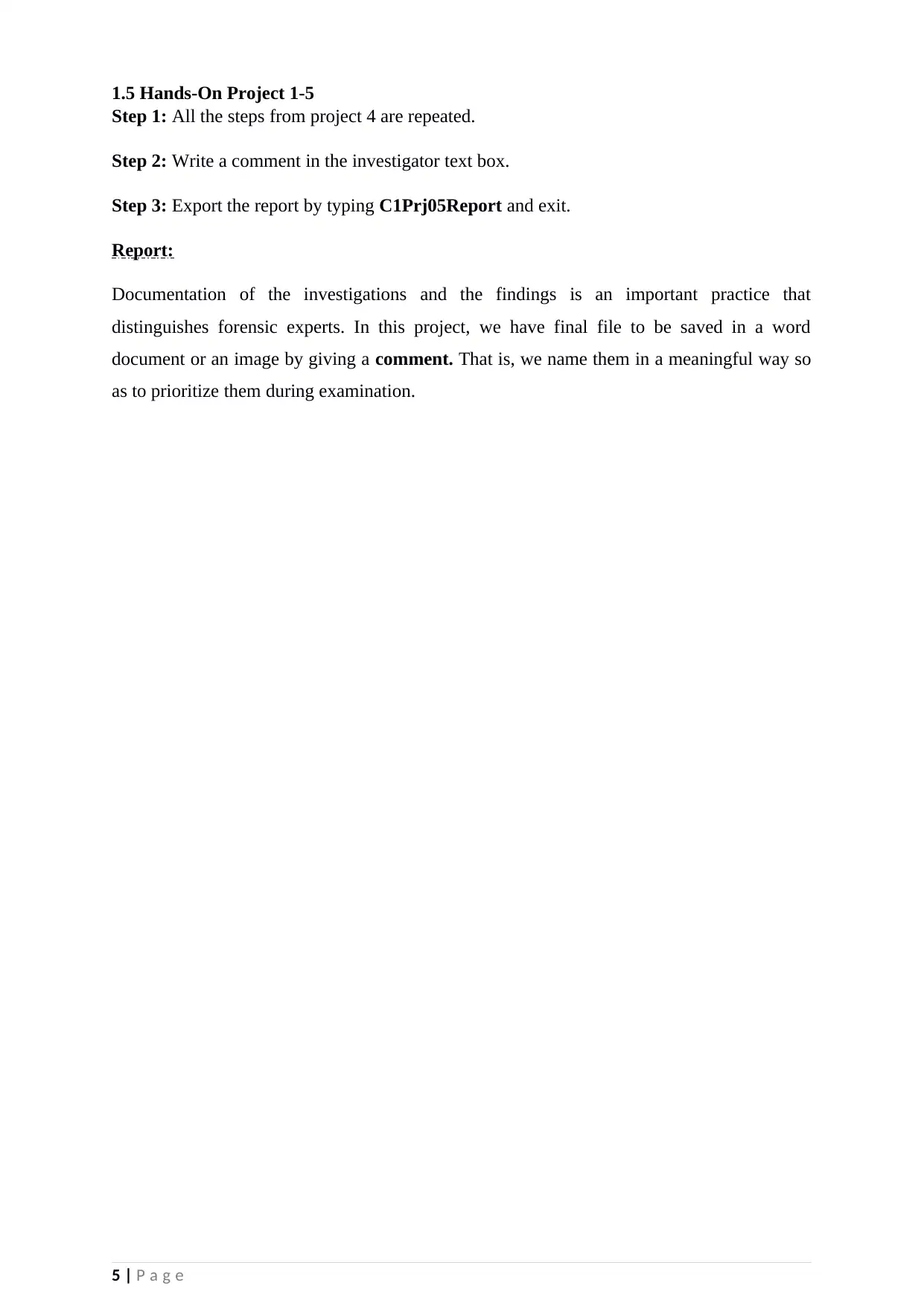
Step 1-2: Create case with Forensics.
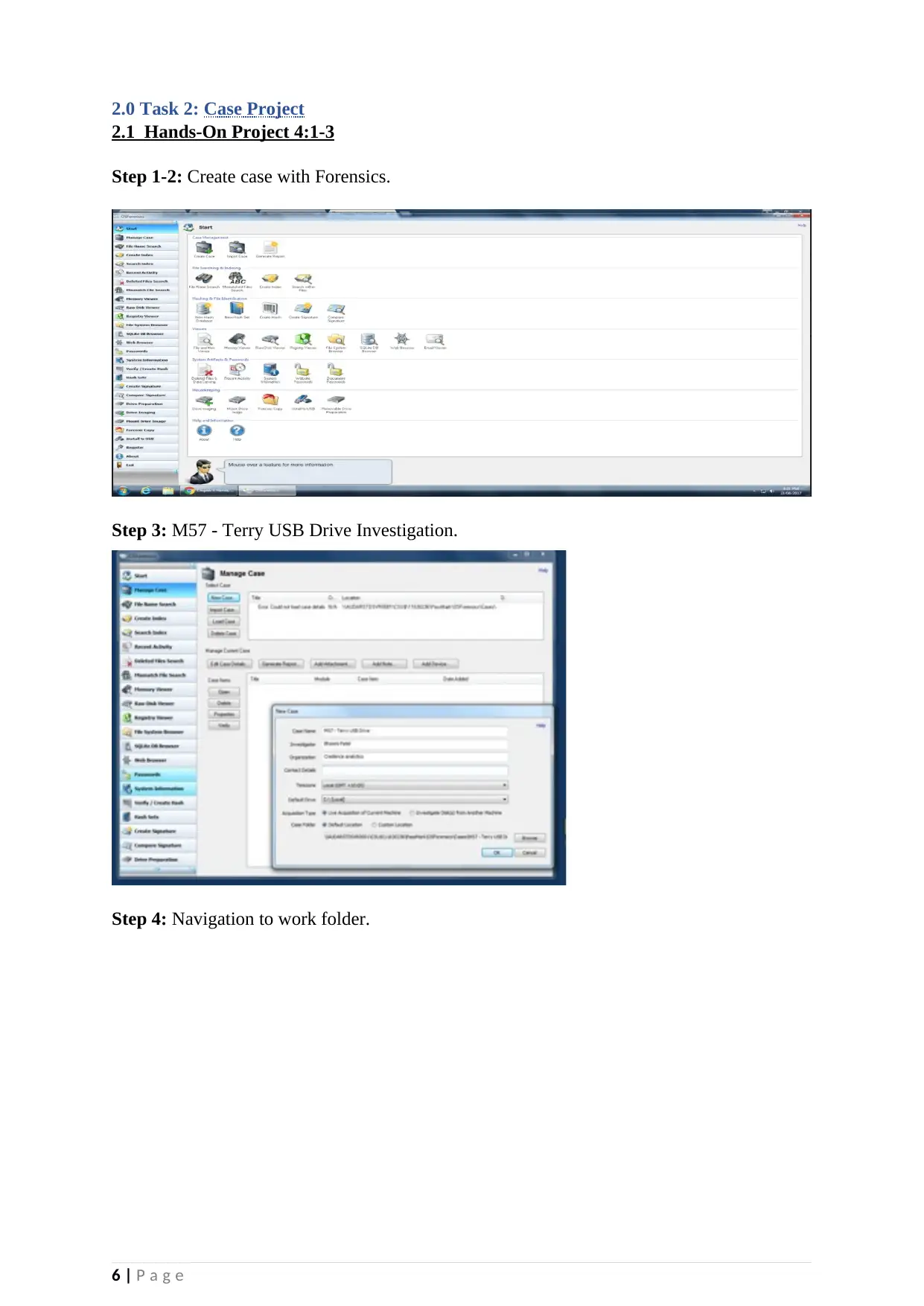
Step 3: M57 - Terry USB Drive Investigation.
Step 4: Navigation to work folder.
6 | P a g e
2.1 Hands-On Project 4:1-3
Step 1-2: Create case with Forensics.
Step 3: M57 - Terry USB Drive Investigation.
Step 4: Navigation to work folder.
6 | P a g e
Paraphrase This Document
Need a fresh take? Get an instant paraphrase of this document with our AI Paraphraser

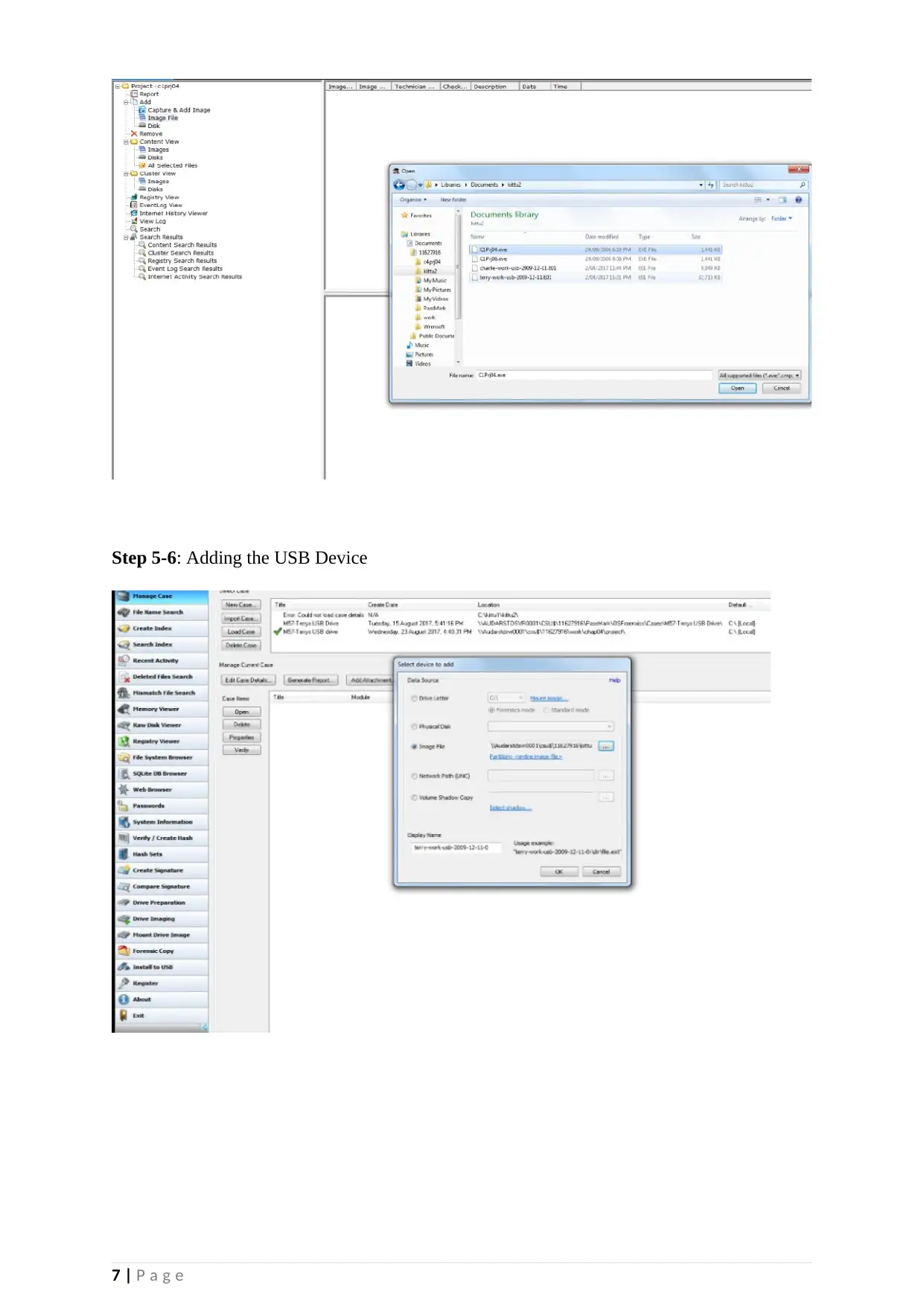
Step 5-6: Adding the USB Device
7 | P a g e
7 | P a g e

Step 7: Open terry work USB in system browser.
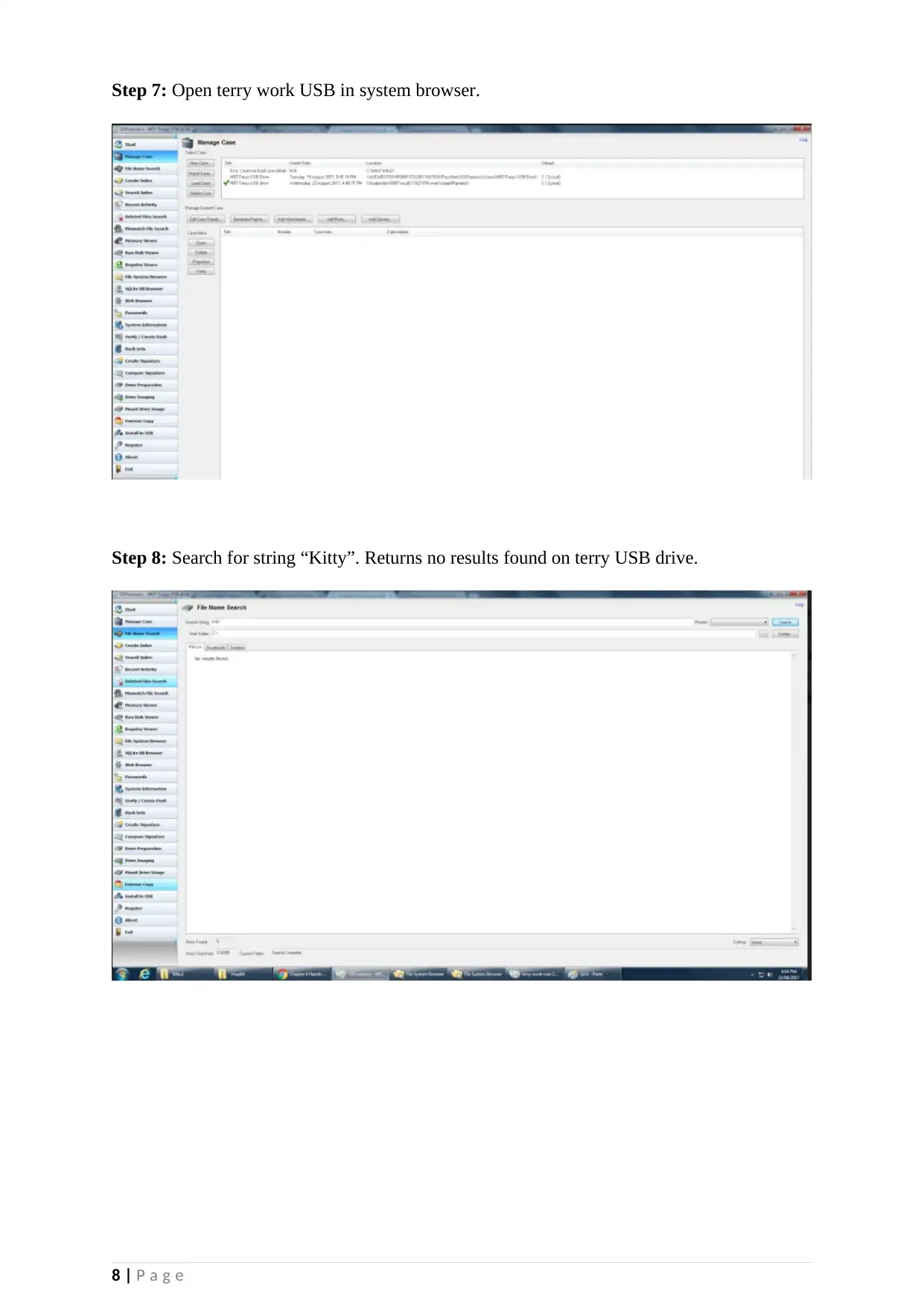
Step 8: Search for string “Kitty”. Returns no results found on terry USB drive.
8 | P a g e
Step 8: Search for string “Kitty”. Returns no results found on terry USB drive.
8 | P a g e
⊘ This is a preview!⊘
Do you want full access?
Subscribe today to unlock all pages.

Trusted by 1+ million students worldwide

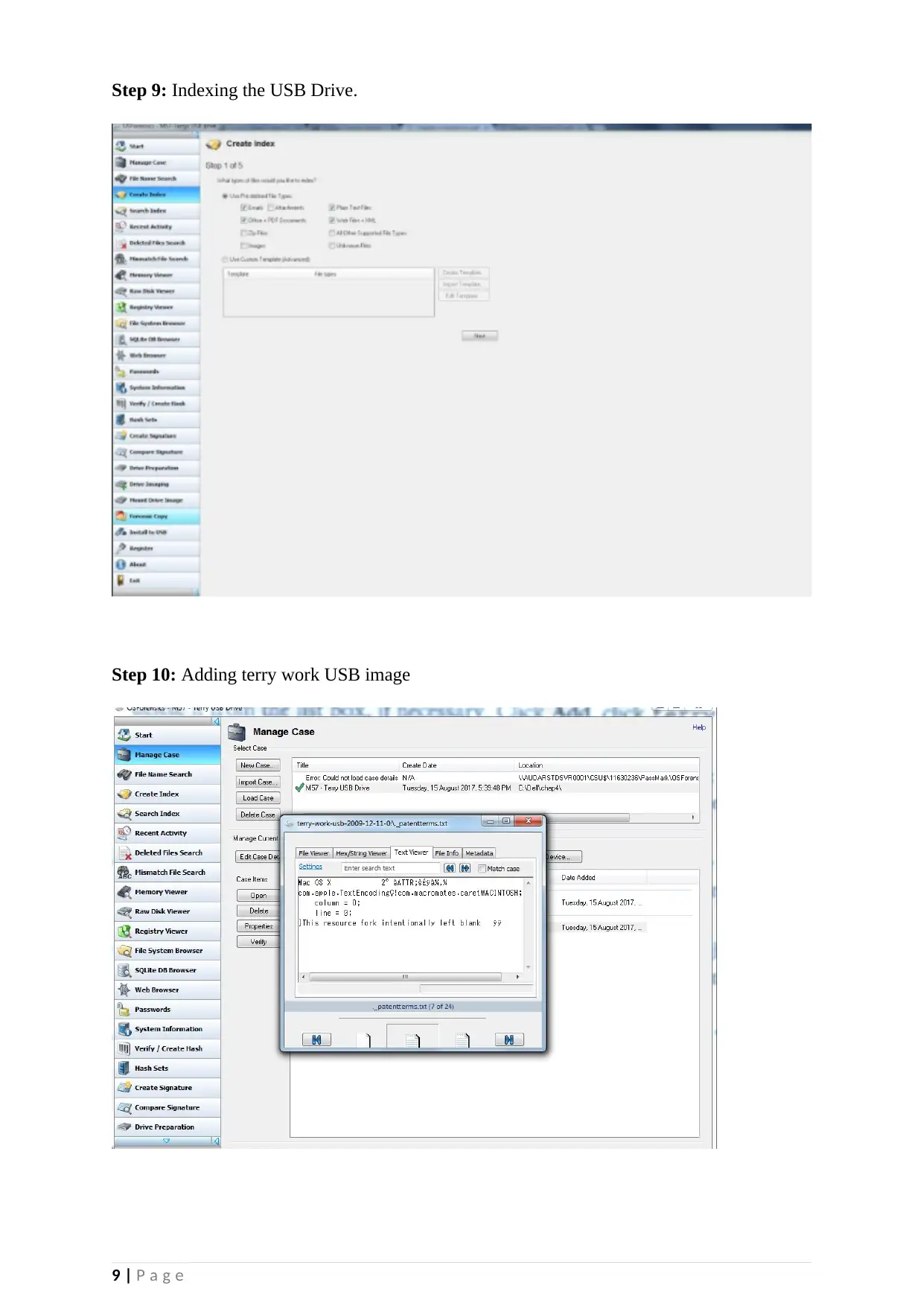
Step 9: Indexing the USB Drive.
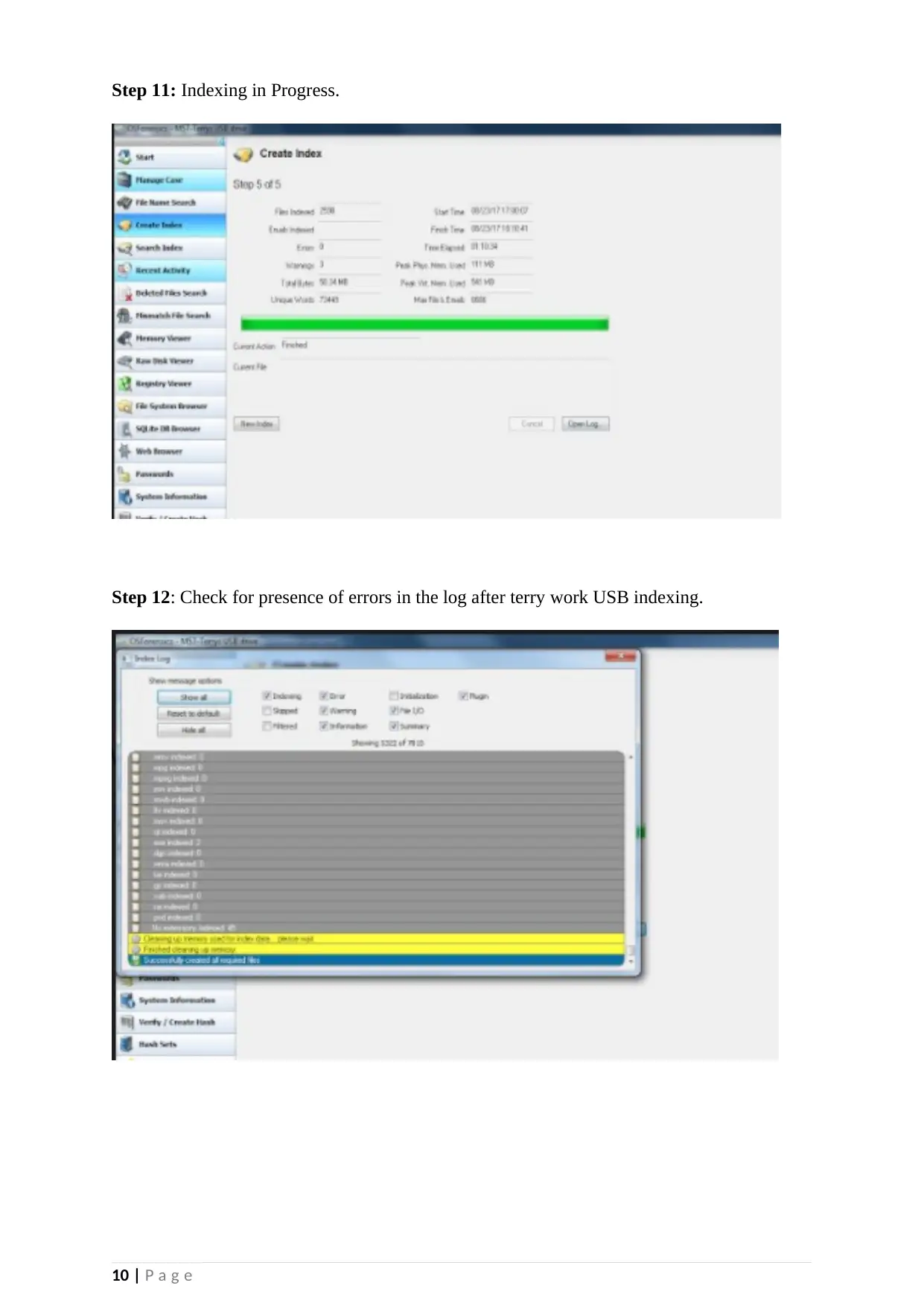
Step 10: Adding terry work USB image
9 | P a g e
Step 10: Adding terry work USB image
9 | P a g e
Paraphrase This Document
Need a fresh take? Get an instant paraphrase of this document with our AI Paraphraser

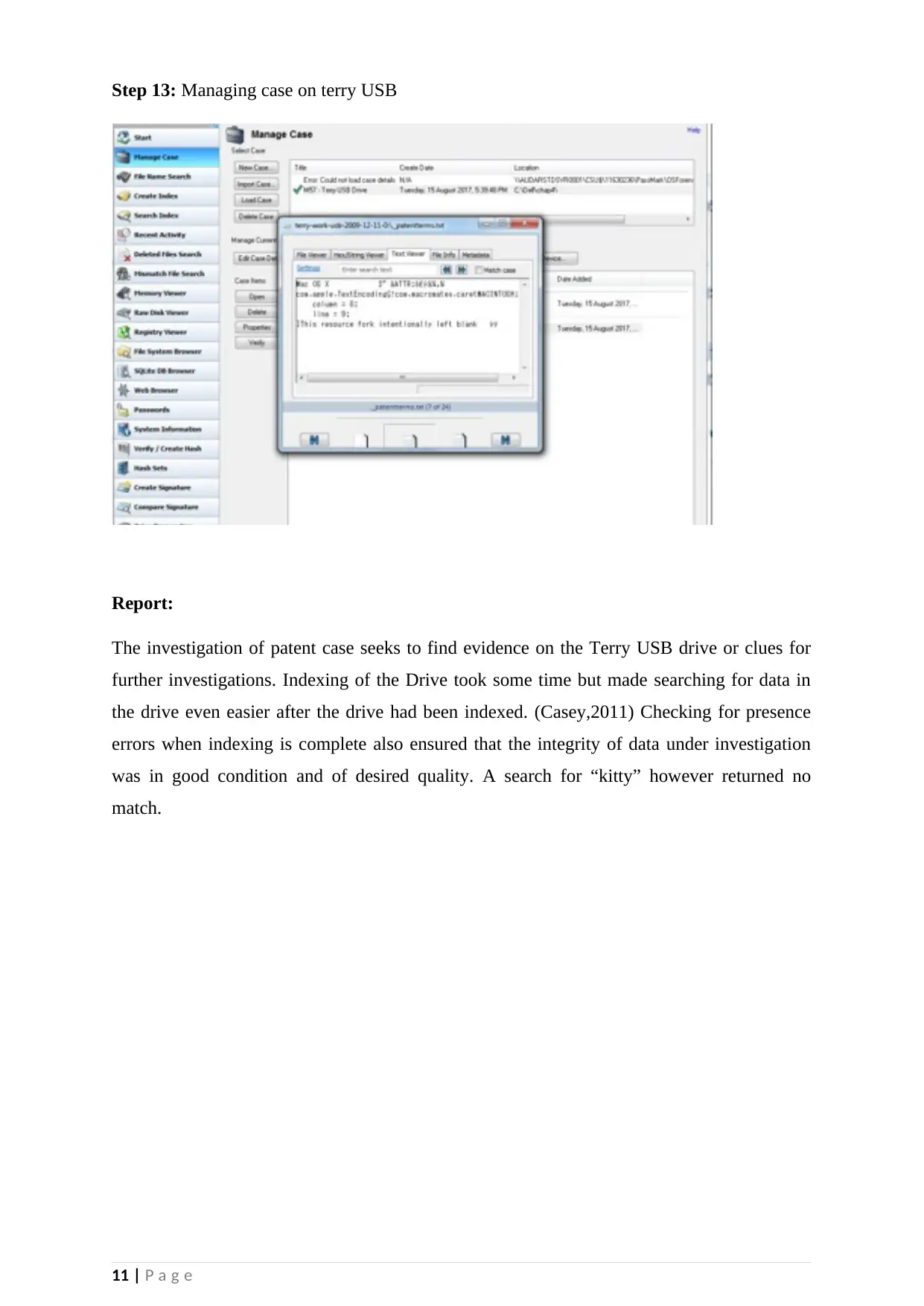
Step 11: Indexing in Progress.
Step 12: Check for presence of errors in the log after terry work USB indexing.
10 | P a g e
Step 12: Check for presence of errors in the log after terry work USB indexing.
10 | P a g e

Step 13: Managing case on terry USB
Report:
The investigation of patent case seeks to find evidence on the Terry USB drive or clues for
further investigations. Indexing of the Drive took some time but made searching for data in
the drive even easier after the drive had been indexed. (Casey,2011) Checking for presence
errors when indexing is complete also ensured that the integrity of data under investigation
was in good condition and of desired quality. A search for “kitty” however returned no
match.
11 | P a g e
Report:
The investigation of patent case seeks to find evidence on the Terry USB drive or clues for
further investigations. Indexing of the Drive took some time but made searching for data in
the drive even easier after the drive had been indexed. (Casey,2011) Checking for presence
errors when indexing is complete also ensured that the integrity of data under investigation
was in good condition and of desired quality. A search for “kitty” however returned no
match.
11 | P a g e
⊘ This is a preview!⊘
Do you want full access?
Subscribe today to unlock all pages.

Trusted by 1+ million students worldwide
1 out of 15
Related Documents
Your All-in-One AI-Powered Toolkit for Academic Success.
+13062052269
info@desklib.com
Available 24*7 on WhatsApp / Email
Unlock your academic potential
Copyright © 2020–2025 A2Z Services. All Rights Reserved. Developed and managed by ZUCOL.