Road Lane Detection Using Digital Image Processing
VerifiedAdded on 2020/05/16
|15
|2867
|148
Project
AI Summary
The project delves into the application of digital image processing techniques using MATLAB to detect lanes on roads from images. Initially, images are converted from RGB to a binary format to simplify the analysis by focusing on significant features such as lane lines. Subsequent steps include employing transformations like the Hough transform to identify and highlight potential lanes in the processed images. The project provides a comprehensive study of how different parameters affect the outcome and offers insights into optimizing these processes for improved accuracy. By manipulating image data effectively, this project exemplifies practical digital image processing applications and demonstrates MATLAB's capability as a powerful tool in this domain.

1
Digital Image Processing
Digital Image Processing

Paraphrase This Document
Need a fresh take? Get an instant paraphrase of this document with our AI Paraphraser
2
Contents
Digital Image Processing................................................................................................................1
Introduction...................................................................................................................................3
Types of Image Processing.............................................................................................................3
Introduction to Mobile Robotics....................................................................................................3
Description of the project..............................................................................................................4
The Methodology...................................................................................................................... 4
RGB in to Binary Conversion..................................................................................................4
Hough Transformation...........................................................................................................4
Generalized Discussion of Thresholds............................................................................................5
Implementation & Results.............................................................................................................5
Converting image into black and white using threshold............................................................6
Code....................................................................................................................................... 6
Results................................................................................................................................... 7
Make each line solid by ‘dilating’ scatter lines......................................................................7
Code....................................................................................................................................... 8
Results................................................................................................................................... 8
Reduce the thickness of each solid line by ‘thinning’ process..............................................9
Code....................................................................................................................................... 9
Results................................................................................................................................... 9
Using Hough Transform to work out the two most prominent lines.......................................10
Code..................................................................................................................................... 10
Results................................................................................................................................. 11
Code..................................................................................................................................... 11
Results................................................................................................................................. 12
Code..................................................................................................................................... 13
Results................................................................................................................................. 13
Conclusion................................................................................................................................... 14
References................................................................................................................................... 15
Contents
Digital Image Processing................................................................................................................1
Introduction...................................................................................................................................3
Types of Image Processing.............................................................................................................3
Introduction to Mobile Robotics....................................................................................................3
Description of the project..............................................................................................................4
The Methodology...................................................................................................................... 4
RGB in to Binary Conversion..................................................................................................4
Hough Transformation...........................................................................................................4
Generalized Discussion of Thresholds............................................................................................5
Implementation & Results.............................................................................................................5
Converting image into black and white using threshold............................................................6
Code....................................................................................................................................... 6
Results................................................................................................................................... 7
Make each line solid by ‘dilating’ scatter lines......................................................................7
Code....................................................................................................................................... 8
Results................................................................................................................................... 8
Reduce the thickness of each solid line by ‘thinning’ process..............................................9
Code....................................................................................................................................... 9
Results................................................................................................................................... 9
Using Hough Transform to work out the two most prominent lines.......................................10
Code..................................................................................................................................... 10
Results................................................................................................................................. 11
Code..................................................................................................................................... 11
Results................................................................................................................................. 12
Code..................................................................................................................................... 13
Results................................................................................................................................. 13
Conclusion................................................................................................................................... 14
References................................................................................................................................... 15
3
Introduction
The digital image processing is a technique which is used to improve the information and
representation of an image. It is also responsible for processing the image data for storage and
transmission along with it represents autonomous machine perception.
In digital image processing, the input is an image consisting of few properties while the output is
also an image which consists of more enhanced features. As digital image processing has many
applications therefore it is one of the most growing technologies. It is used in research area
because it is used in medical applications and industrial applications. Digital image processing
improves quality of an image and reduces the associated noise [1].
The common steps which are taken during the process of image processing is described below,
Pre-processing- The image is being imported with the help of image acquisition tools
Enhancement- The imported image is then investigated and various operations are
applied on it
Information extraction- After the operations are applied, the output image is generated
which is according to the manipulation and analysis of the input image.
Types of Image Processing
On the basis of the type of enhancement and information extraction the image processing can be
classified into two types.
1. Analogue image processing- In analogue image processing, there is a requirement of the
hard copies which includes print outs, photographs, etc. The generated output image is
also in a hard copy format.
2. Digital image processing- The manipulation process is done by digital arrangements. The
software which is mostly used in digital image processing is MATLAB. The generated
output images are in a soft copy format [2].
Introduction to Mobile Robotics
As day by day, the digital image processing is taking over the other technologies because it has
many applications. For example, these days this technology took over a wide range of
applications like, medical industry, media industry and the commercial industries. It is observed
recently that digital image processing is used in the vehicles with the help of which it is easy to
detect the road lanes and the road obstacle detection.
This project focuses to build a tool which will work as a driving path detection application and
will help the drivers to avoid accidents. The project is based on MATLAB analysis of the image
processing toolbox and is of great priority with respect to the conditions of the vehicles on the
road.
Introduction
The digital image processing is a technique which is used to improve the information and
representation of an image. It is also responsible for processing the image data for storage and
transmission along with it represents autonomous machine perception.
In digital image processing, the input is an image consisting of few properties while the output is
also an image which consists of more enhanced features. As digital image processing has many
applications therefore it is one of the most growing technologies. It is used in research area
because it is used in medical applications and industrial applications. Digital image processing
improves quality of an image and reduces the associated noise [1].
The common steps which are taken during the process of image processing is described below,
Pre-processing- The image is being imported with the help of image acquisition tools
Enhancement- The imported image is then investigated and various operations are
applied on it
Information extraction- After the operations are applied, the output image is generated
which is according to the manipulation and analysis of the input image.
Types of Image Processing
On the basis of the type of enhancement and information extraction the image processing can be
classified into two types.
1. Analogue image processing- In analogue image processing, there is a requirement of the
hard copies which includes print outs, photographs, etc. The generated output image is
also in a hard copy format.
2. Digital image processing- The manipulation process is done by digital arrangements. The
software which is mostly used in digital image processing is MATLAB. The generated
output images are in a soft copy format [2].
Introduction to Mobile Robotics
As day by day, the digital image processing is taking over the other technologies because it has
many applications. For example, these days this technology took over a wide range of
applications like, medical industry, media industry and the commercial industries. It is observed
recently that digital image processing is used in the vehicles with the help of which it is easy to
detect the road lanes and the road obstacle detection.
This project focuses to build a tool which will work as a driving path detection application and
will help the drivers to avoid accidents. The project is based on MATLAB analysis of the image
processing toolbox and is of great priority with respect to the conditions of the vehicles on the
road.
⊘ This is a preview!⊘
Do you want full access?
Subscribe today to unlock all pages.

Trusted by 1+ million students worldwide
4
Description of the project
This project is an exercise of the assignment which is provided to solve. All the questions were
asked to be solved using the MATLAB code. Hence, I have successfully evaluated and solved all
of the five questions and got the best results. A brief analysis of each and every code along with
the snapshot of its results is mentioned below.
The Methodology
By default, all of the images are always in the form of RGB i.e. Red Green Blue format
whenever they are taken as an input in the MATLAB software. It has been observed that the
resolution of the image is very high and hence the quality of the output is peculiar. The image
which is taken is already provided in the assignment. To acquire the image in the MATLAB, the
following code is taken into use [3],
I =imread('road1.jpg');
Here, “I” is a variable were the output image is getting stored and the command “imread”
reads the image and gets it from the computer. After the command, the name of the image along
with the address of the image is mentioned. It has been observed that the images which are in the
format of “jpg and .png” are best when it come to analysis through MATLAB software.
The image processing toolbox of MATLAB is used in solving different questions and parts of
the assignment. The code of the entire question is mentioned and then the snapshot of its result is
given.
RGB in to Binary Conversion
When the image file is acquired into the MATLAB software, the very first step which is
done is the conversion of the image from RGB format to binary format. The binary format of an
image consists of only two colors which are black and white. As the RGB format of the image
takes more space therefore the core concept of converting the image from RGB format to binary
format is to lower down the storage space. If more space will be available it will be easy to
manipulate the image and the output generated will be precise and the information generated will
be detailed [4].
As the roads on the highways and in the cities mostly consist of more than two lanes, therefore
many type of transformations are carried out so that the lanes get merge with each other easily
for example by dilation. With the help of dilation, the thick lanes of the roads get easily
converted into thin lanes. As a result, the image is now ready to undergo the Hough
Transformation.
Hough Transformation
There are many advantages of converting the image from RGB format into the binary format. It
gets easy to use binary format images in Hough transformation as it helps in detection of the
lanes of the road very easily. When the binary image is being transformed into the Hough
Description of the project
This project is an exercise of the assignment which is provided to solve. All the questions were
asked to be solved using the MATLAB code. Hence, I have successfully evaluated and solved all
of the five questions and got the best results. A brief analysis of each and every code along with
the snapshot of its results is mentioned below.
The Methodology
By default, all of the images are always in the form of RGB i.e. Red Green Blue format
whenever they are taken as an input in the MATLAB software. It has been observed that the
resolution of the image is very high and hence the quality of the output is peculiar. The image
which is taken is already provided in the assignment. To acquire the image in the MATLAB, the
following code is taken into use [3],
I =imread('road1.jpg');
Here, “I” is a variable were the output image is getting stored and the command “imread”
reads the image and gets it from the computer. After the command, the name of the image along
with the address of the image is mentioned. It has been observed that the images which are in the
format of “jpg and .png” are best when it come to analysis through MATLAB software.
The image processing toolbox of MATLAB is used in solving different questions and parts of
the assignment. The code of the entire question is mentioned and then the snapshot of its result is
given.
RGB in to Binary Conversion
When the image file is acquired into the MATLAB software, the very first step which is
done is the conversion of the image from RGB format to binary format. The binary format of an
image consists of only two colors which are black and white. As the RGB format of the image
takes more space therefore the core concept of converting the image from RGB format to binary
format is to lower down the storage space. If more space will be available it will be easy to
manipulate the image and the output generated will be precise and the information generated will
be detailed [4].
As the roads on the highways and in the cities mostly consist of more than two lanes, therefore
many type of transformations are carried out so that the lanes get merge with each other easily
for example by dilation. With the help of dilation, the thick lanes of the roads get easily
converted into thin lanes. As a result, the image is now ready to undergo the Hough
Transformation.
Hough Transformation
There are many advantages of converting the image from RGB format into the binary format. It
gets easy to use binary format images in Hough transformation as it helps in detection of the
lanes of the road very easily. When the binary image is being transformed into the Hough
Paraphrase This Document
Need a fresh take? Get an instant paraphrase of this document with our AI Paraphraser
5
equivalent, the images are on their peak values and we get a real representation of the binary
image and the white objects.
The Hough Transformation comes into use when the feature extraction of the image has to be
done i.e. this transformation is a technique by which the image processing is done for the feature
extraction of the image. The main objective of the Hough Transformation is that it finds the
imperfect details of the objects in the image. This is done within a particular range of shapes by
applying different types of procedures [5].
In this assignment, Hough transformation helps in feature extraction of the lanes of the road. The
Hough transformation is a part of MATLAB and is used throughout the project to carry out
different functions on the road like detection of lanes and extraction of different features of the
road lanes.
Generalized Discussion of Thresholds
Before the images of the roads are employed differently there were few pre-defined parameters.
The thresholds required for the examination and manipulation of images is already defined for
different parameters. These parameters consists of the thresholds values which are required to
convert an image from RGB format to a binary format, and for thickening and thinning the ratios
of the road lanes along with many other measures. As there are many advantages and drawbacks
associated with the pre-defined parameters therefore these parameters has to be changed in a way
that the best results are provided.
Implementation & Results
Many types of devices are used for recognition of the road lanes for example the camera easily
identifies the yellow and white color of the road lanes. Camera is also used by the drivers to
identify the lanes and in determining the lanes precisely.
As the project is all about implementing the questions of the assignment with the help of
MATLAB code. Therefore, all the questions are solved in MATLAB with the usage of different
types of codes.
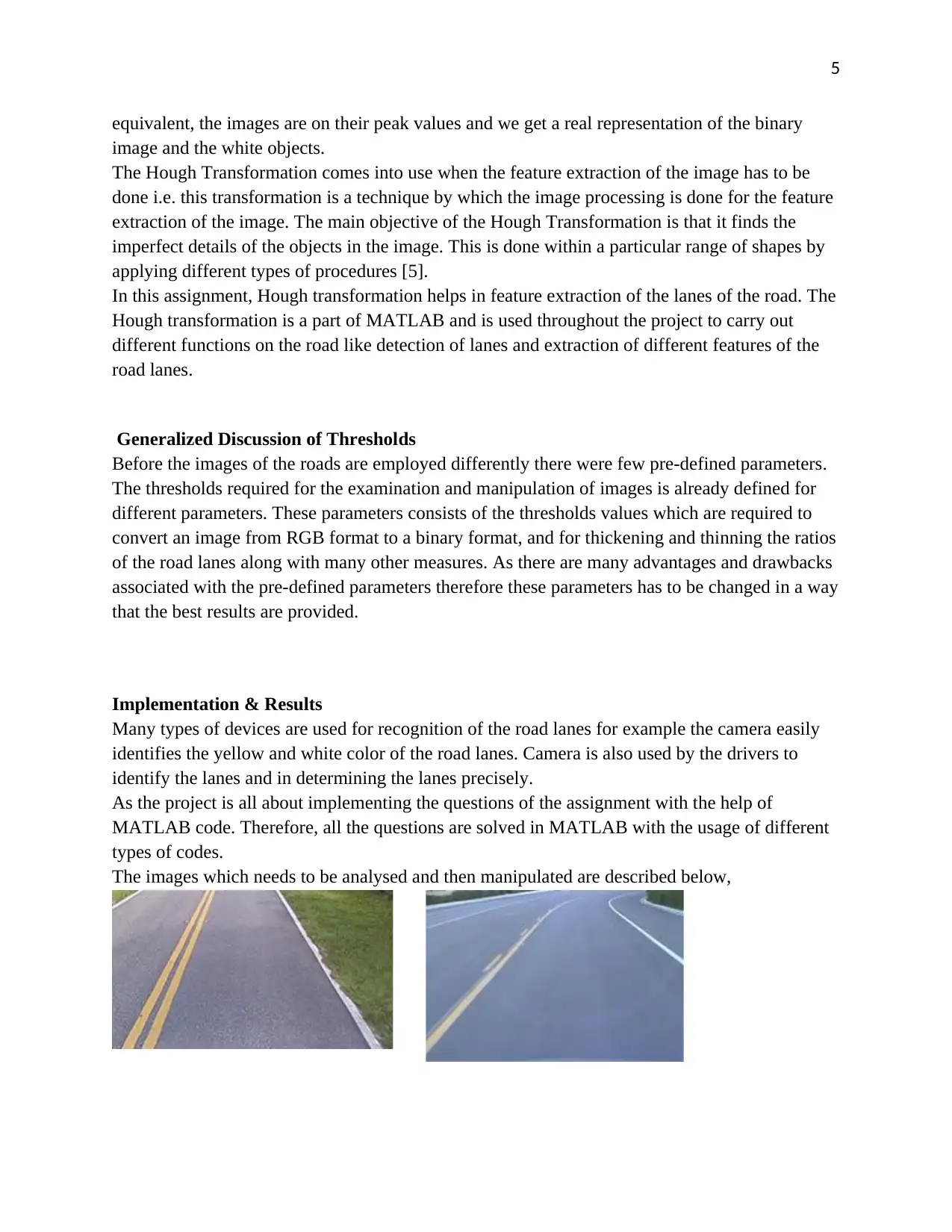
The images which needs to be analysed and then manipulated are described below,
equivalent, the images are on their peak values and we get a real representation of the binary
image and the white objects.
The Hough Transformation comes into use when the feature extraction of the image has to be
done i.e. this transformation is a technique by which the image processing is done for the feature
extraction of the image. The main objective of the Hough Transformation is that it finds the
imperfect details of the objects in the image. This is done within a particular range of shapes by
applying different types of procedures [5].
In this assignment, Hough transformation helps in feature extraction of the lanes of the road. The
Hough transformation is a part of MATLAB and is used throughout the project to carry out
different functions on the road like detection of lanes and extraction of different features of the
road lanes.
Generalized Discussion of Thresholds
Before the images of the roads are employed differently there were few pre-defined parameters.
The thresholds required for the examination and manipulation of images is already defined for
different parameters. These parameters consists of the thresholds values which are required to
convert an image from RGB format to a binary format, and for thickening and thinning the ratios
of the road lanes along with many other measures. As there are many advantages and drawbacks
associated with the pre-defined parameters therefore these parameters has to be changed in a way
that the best results are provided.
Implementation & Results
Many types of devices are used for recognition of the road lanes for example the camera easily
identifies the yellow and white color of the road lanes. Camera is also used by the drivers to
identify the lanes and in determining the lanes precisely.
As the project is all about implementing the questions of the assignment with the help of
MATLAB code. Therefore, all the questions are solved in MATLAB with the usage of different
types of codes.
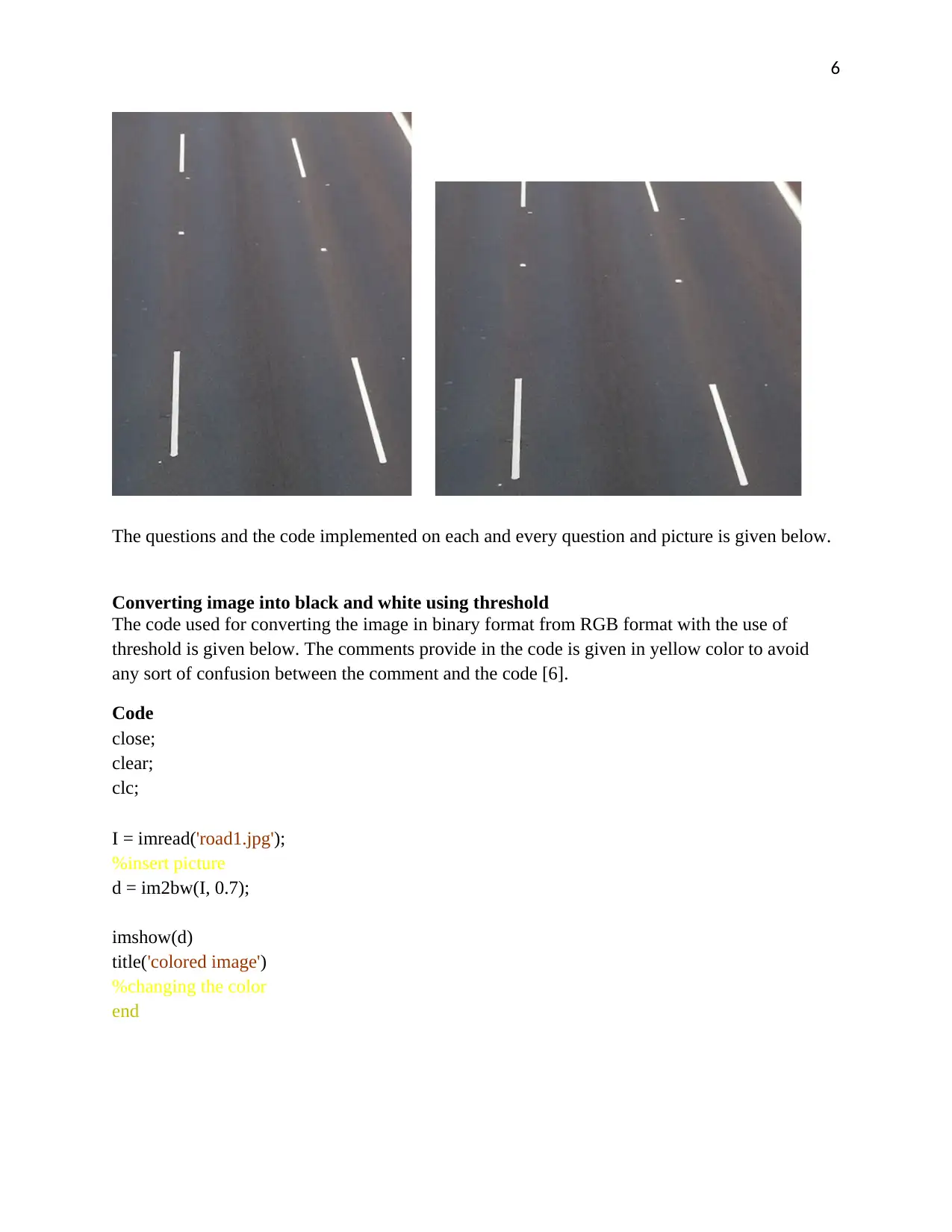
The images which needs to be analysed and then manipulated are described below,
6
The questions and the code implemented on each and every question and picture is given below.
Converting image into black and white using threshold
The code used for converting the image in binary format from RGB format with the use of
threshold is given below. The comments provide in the code is given in yellow color to avoid
any sort of confusion between the comment and the code [6].
Code
close;
clear;
clc;
I = imread('road1.jpg');
%insert picture
d = im2bw(I, 0.7);
imshow(d)
title('colored image')
%changing the color
end
The questions and the code implemented on each and every question and picture is given below.
Converting image into black and white using threshold
The code used for converting the image in binary format from RGB format with the use of
threshold is given below. The comments provide in the code is given in yellow color to avoid
any sort of confusion between the comment and the code [6].
Code
close;
clear;
clc;
I = imread('road1.jpg');
%insert picture
d = im2bw(I, 0.7);
imshow(d)
title('colored image')
%changing the color
end
⊘ This is a preview!⊘
Do you want full access?
Subscribe today to unlock all pages.
Trusted by 1+ million students worldwide
7
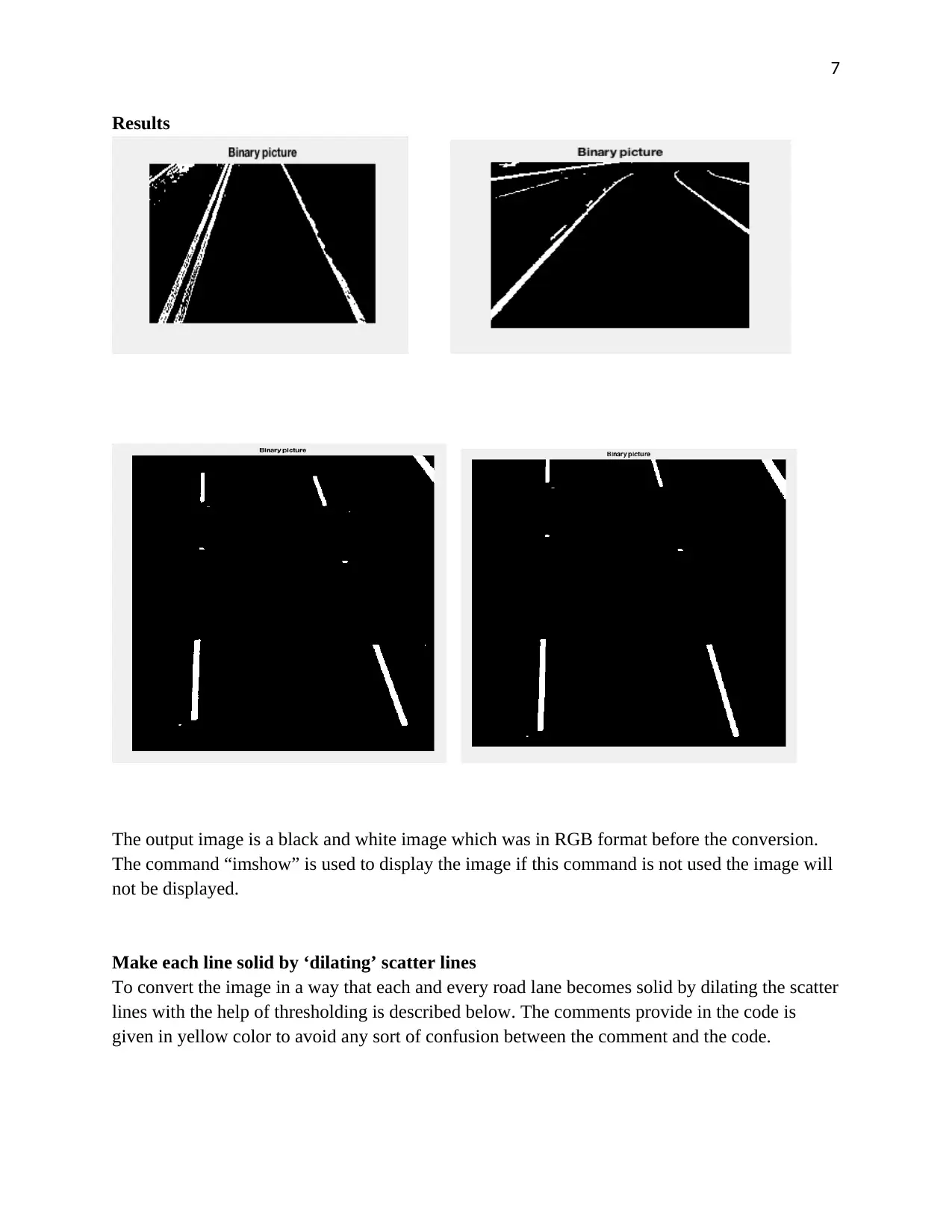
Results
The output image is a black and white image which was in RGB format before the conversion.
The command “imshow” is used to display the image if this command is not used the image will
not be displayed.
Make each line solid by ‘dilating’ scatter lines
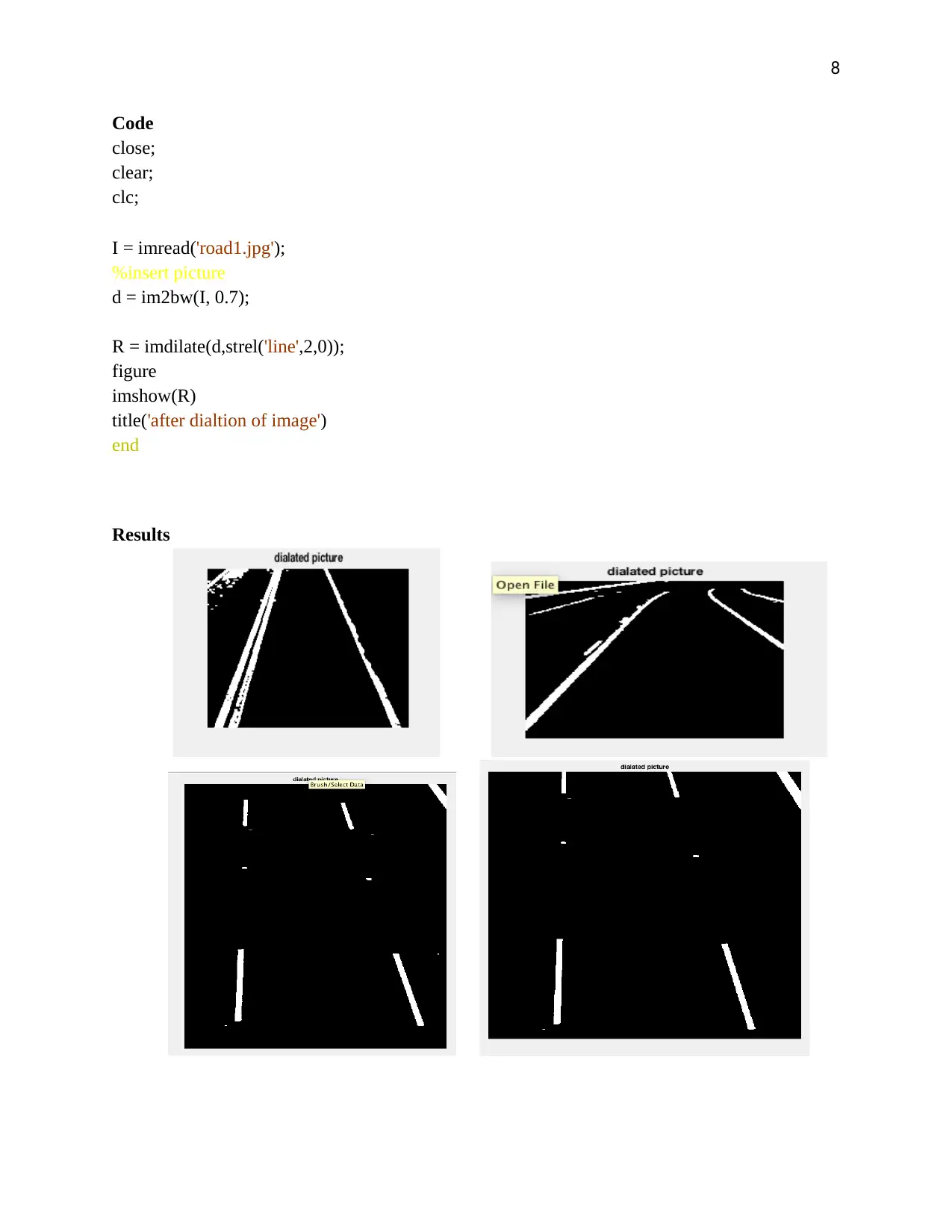
To convert the image in a way that each and every road lane becomes solid by dilating the scatter
lines with the help of thresholding is described below. The comments provide in the code is
given in yellow color to avoid any sort of confusion between the comment and the code.
Results
The output image is a black and white image which was in RGB format before the conversion.
The command “imshow” is used to display the image if this command is not used the image will
not be displayed.
Make each line solid by ‘dilating’ scatter lines
To convert the image in a way that each and every road lane becomes solid by dilating the scatter
lines with the help of thresholding is described below. The comments provide in the code is
given in yellow color to avoid any sort of confusion between the comment and the code.
Paraphrase This Document
Need a fresh take? Get an instant paraphrase of this document with our AI Paraphraser
8
Code
close;
clear;
clc;
I = imread('road1.jpg');
%insert picture
d = im2bw(I, 0.7);
R = imdilate(d,strel('line',2,0));
figure
imshow(R)
title('after dialtion of image')
end
Results
Code
close;
clear;
clc;
I = imread('road1.jpg');
%insert picture
d = im2bw(I, 0.7);
R = imdilate(d,strel('line',2,0));
figure
imshow(R)
title('after dialtion of image')
end
Results
9
The output image is a dilated image with the road lanes solid in nature. First of all the
image is converted into a black and white format and after that the dilate command is used to
convert the image in dilated form and the road lanes are solid.
Reduce the thickness of each solid line by ‘thinning’ process
For reducing the thickness of the lanes of the lanes by using the thinning process and the
threshold is described below. The comments provide in the code is given in yellow color to avoid
any sort of confusion between the comment and the code.
Code
close;
clear;
clc;
I = imread('road1.jpg');
%insert picture
d = im2bw(I, 0.7);
w = bwmorph(R,'thin',inf);
figure,
imshow(w),
title('the thinned image')
end
Results
The output image is a dilated image with the road lanes solid in nature. First of all the
image is converted into a black and white format and after that the dilate command is used to
convert the image in dilated form and the road lanes are solid.
Reduce the thickness of each solid line by ‘thinning’ process
For reducing the thickness of the lanes of the lanes by using the thinning process and the
threshold is described below. The comments provide in the code is given in yellow color to avoid
any sort of confusion between the comment and the code.
Code
close;
clear;
clc;
I = imread('road1.jpg');
%insert picture
d = im2bw(I, 0.7);
w = bwmorph(R,'thin',inf);
figure,
imshow(w),
title('the thinned image')
end
Results
⊘ This is a preview!⊘
Do you want full access?
Subscribe today to unlock all pages.
Trusted by 1+ million students worldwide
10
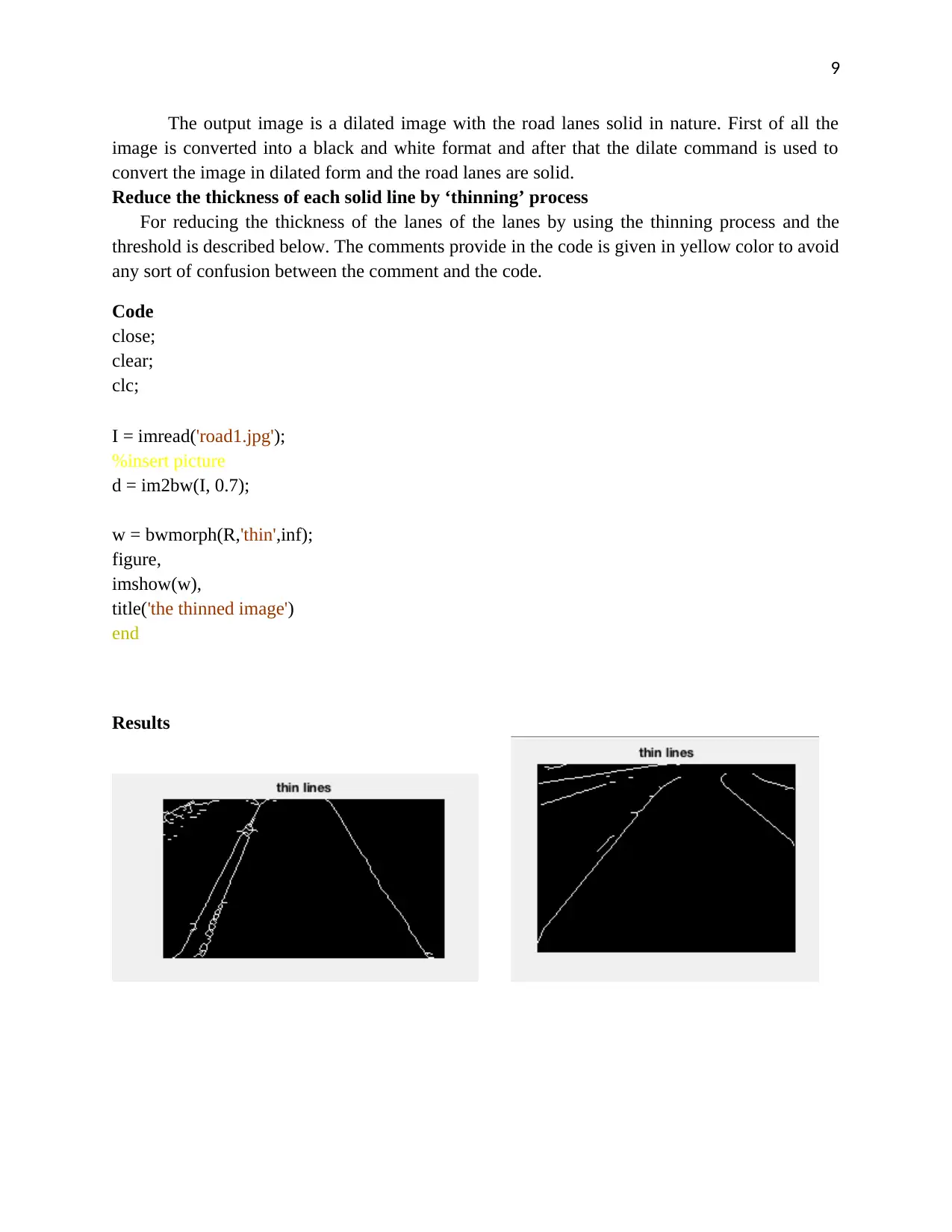
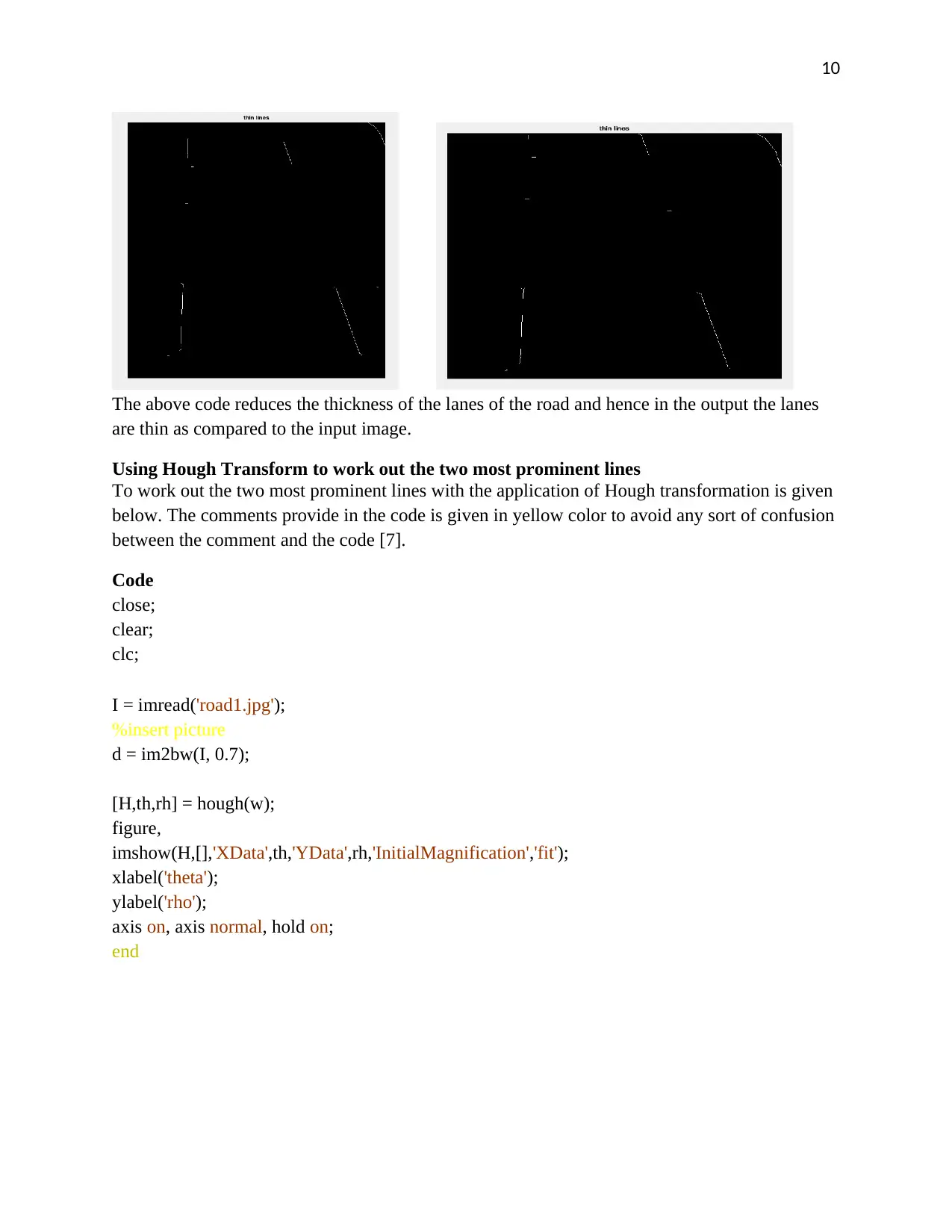
The above code reduces the thickness of the lanes of the road and hence in the output the lanes
are thin as compared to the input image.
Using Hough Transform to work out the two most prominent lines
To work out the two most prominent lines with the application of Hough transformation is given
below. The comments provide in the code is given in yellow color to avoid any sort of confusion
between the comment and the code [7].
Code
close;
clear;
clc;
I = imread('road1.jpg');
%insert picture
d = im2bw(I, 0.7);
[H,th,rh] = hough(w);
figure,
imshow(H,[],'XData',th,'YData',rh,'InitialMagnification','fit');
xlabel('theta');
ylabel('rho');
axis on, axis normal, hold on;
end
The above code reduces the thickness of the lanes of the road and hence in the output the lanes
are thin as compared to the input image.
Using Hough Transform to work out the two most prominent lines
To work out the two most prominent lines with the application of Hough transformation is given
below. The comments provide in the code is given in yellow color to avoid any sort of confusion
between the comment and the code [7].
Code
close;
clear;
clc;
I = imread('road1.jpg');
%insert picture
d = im2bw(I, 0.7);
[H,th,rh] = hough(w);
figure,
imshow(H,[],'XData',th,'YData',rh,'InitialMagnification','fit');
xlabel('theta');
ylabel('rho');
axis on, axis normal, hold on;
end
Paraphrase This Document
Need a fresh take? Get an instant paraphrase of this document with our AI Paraphraser
11
Results
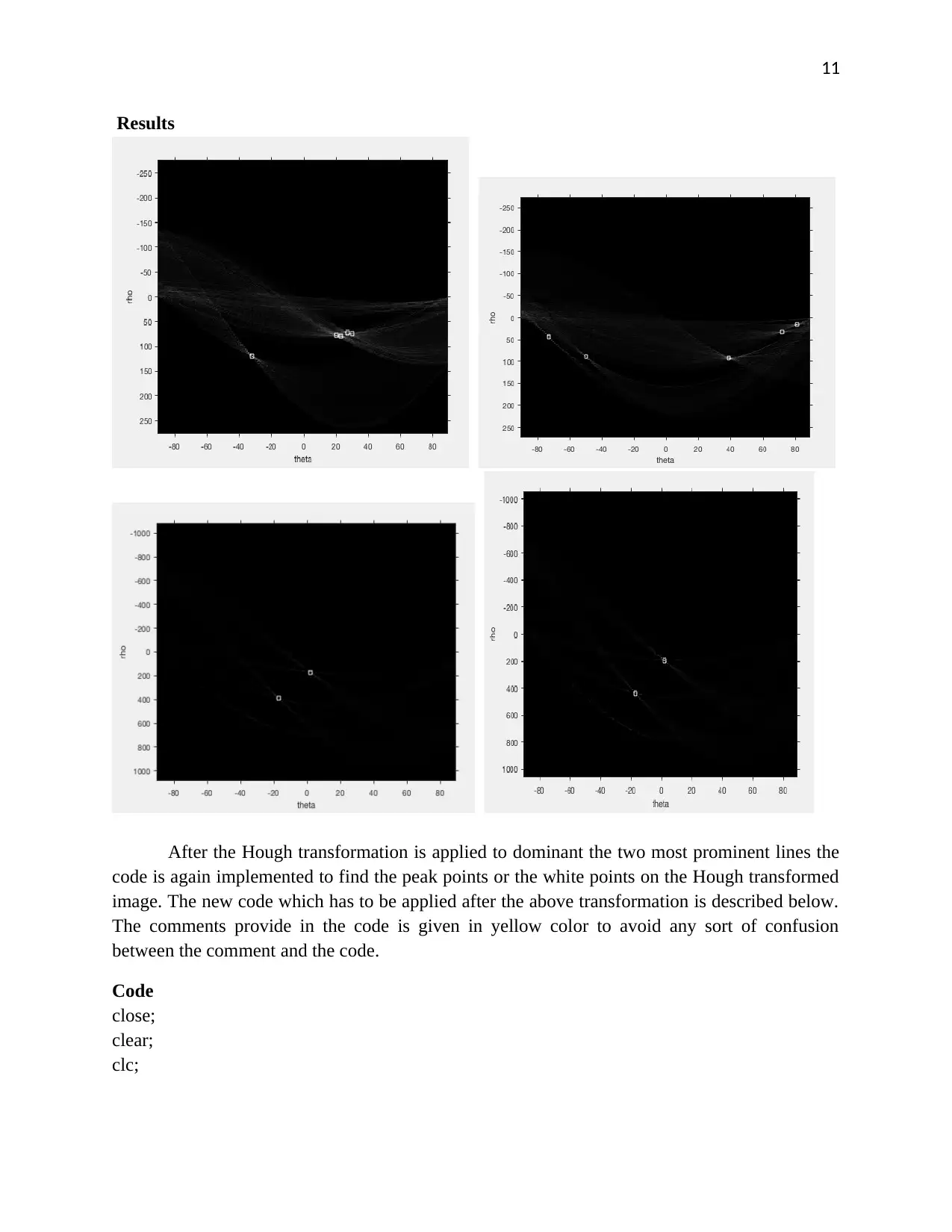
After the Hough transformation is applied to dominant the two most prominent lines the
code is again implemented to find the peak points or the white points on the Hough transformed
image. The new code which has to be applied after the above transformation is described below.
The comments provide in the code is given in yellow color to avoid any sort of confusion
between the comment and the code.
Code
close;
clear;
clc;
Results
After the Hough transformation is applied to dominant the two most prominent lines the
code is again implemented to find the peak points or the white points on the Hough transformed
image. The new code which has to be applied after the above transformation is described below.
The comments provide in the code is given in yellow color to avoid any sort of confusion
between the comment and the code.
Code
close;
clear;
clc;
12
I = imread('road1.jpg');
%insert picture
d = im2bw(I, 0.7);
k=houghpeaks(H,5,'threshold',ceil(0.3*max(H(:))));
xa = th(k(:,2));
ya = rh(k(:,1));
plot(xa,ya,'s','color','white');
end
Results
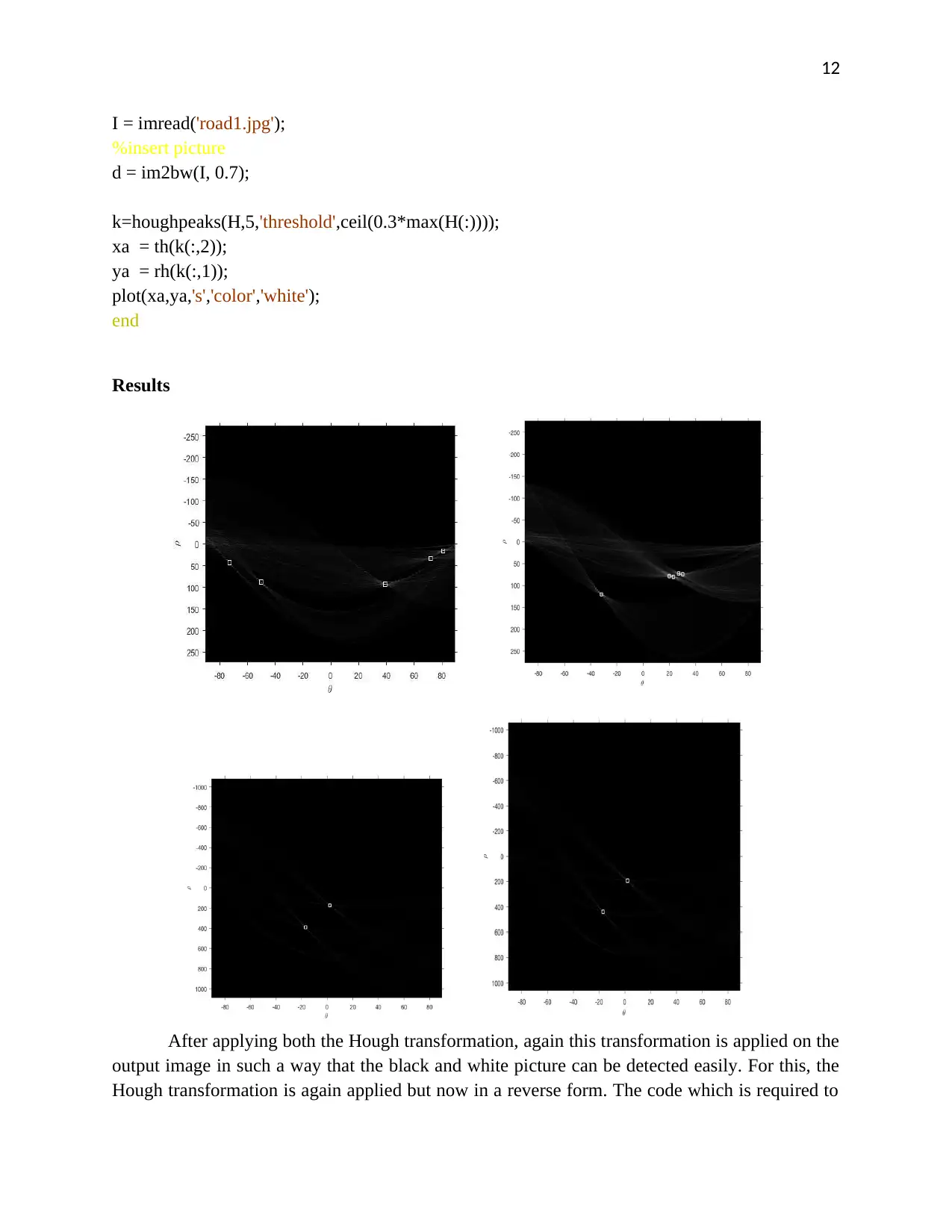
After applying both the Hough transformation, again this transformation is applied on the
output image in such a way that the black and white picture can be detected easily. For this, the
Hough transformation is again applied but now in a reverse form. The code which is required to
I = imread('road1.jpg');
%insert picture
d = im2bw(I, 0.7);
k=houghpeaks(H,5,'threshold',ceil(0.3*max(H(:))));
xa = th(k(:,2));
ya = rh(k(:,1));
plot(xa,ya,'s','color','white');
end
Results
After applying both the Hough transformation, again this transformation is applied on the
output image in such a way that the black and white picture can be detected easily. For this, the
Hough transformation is again applied but now in a reverse form. The code which is required to
⊘ This is a preview!⊘
Do you want full access?
Subscribe today to unlock all pages.
Trusted by 1+ million students worldwide

1 out of 15


Your All-in-One AI-Powered Toolkit for Academic Success.
+13062052269
info@desklib.com
Available 24*7 on WhatsApp / Email
![[object Object]](/_next/static/media/star-bottom.7253800d.svg)
Unlock your academic potential
Copyright © 2020–2026 A2Z Services. All Rights Reserved. Developed and managed by ZUCOL.