University Network Vulnerability and Penetration Testing Report

Verified

Added on  2022/10/01

|26
|1373
|25
Report
AI Summary
This report details a comprehensive exploration of network vulnerability and penetration testing, fulfilling the requirements of a BIT354 assignment. The report begins by outlining the installation of Windows 7, Ubuntu, and Fedora operating systems within a VirtualBox environment. It then proceeds to describe the creation of a network utilizing these three virtual machines, including the configuration of routers and the establishment of internal network connections to ensure communication between the systems. The core of the report focuses on researching and implementing various network hardening techniques, such as changing default passwords, installing updates and firewalls, and utilizing antivirus software and group policies to enhance system security. Screenshots are included to document the implementation of these techniques. The report concludes with an evaluation of the implemented strategies and provides recommendations for further improving network security, emphasizing the importance of proactive measures to mitigate potential cyber threats.
Document Page
Network Vulnerability and Penetration Testing 1
BIT354: Network Vulnerability and Penetration Testing
By (Name)
(Course Name)
(Tutor’s Name)
(University’s Name)
(City)
(Date)
tabler-icon-diamond-filled.svg

Paraphrase This Document

Need a fresh take? Get an instant paraphrase of this document with our AI Paraphraser
Document Page
Network Vulnerability and Penetration Testing 2
Introduction
Designing an organization network is not just about placing intrusion detection system,
routers, or firewalls but it is about having clear reasons for placing a certain hardware in its
place. This paper will outline how to go about installing a network and describe network security
best practices.
Task 1: Installing windows 7, Ubuntu, and Fedora on VirtualBox
Installing windows on VirtualBox
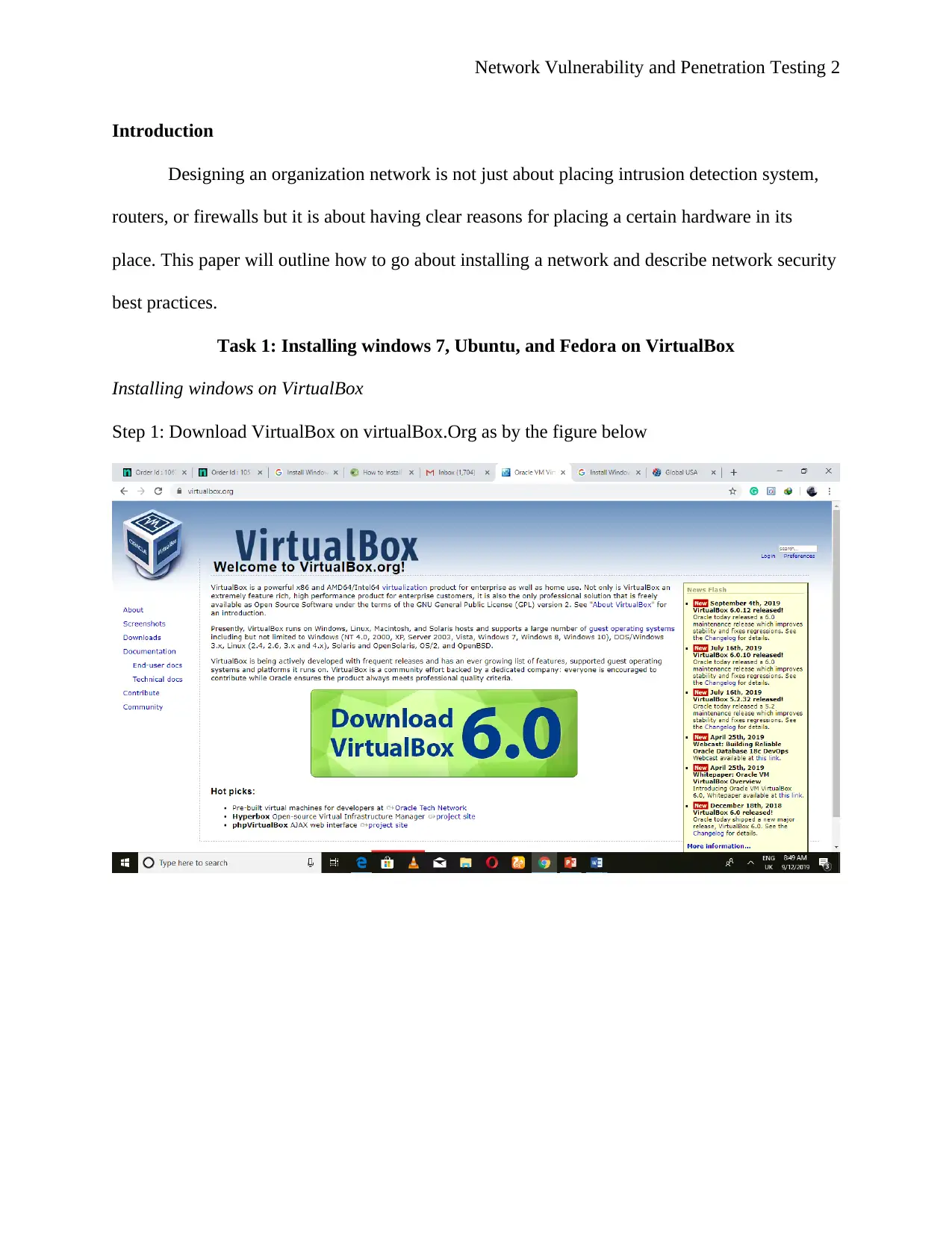
Step 1: Download VirtualBox on virtualBox.Org as by the figure below
Document Page
Network Vulnerability and Penetration Testing 3
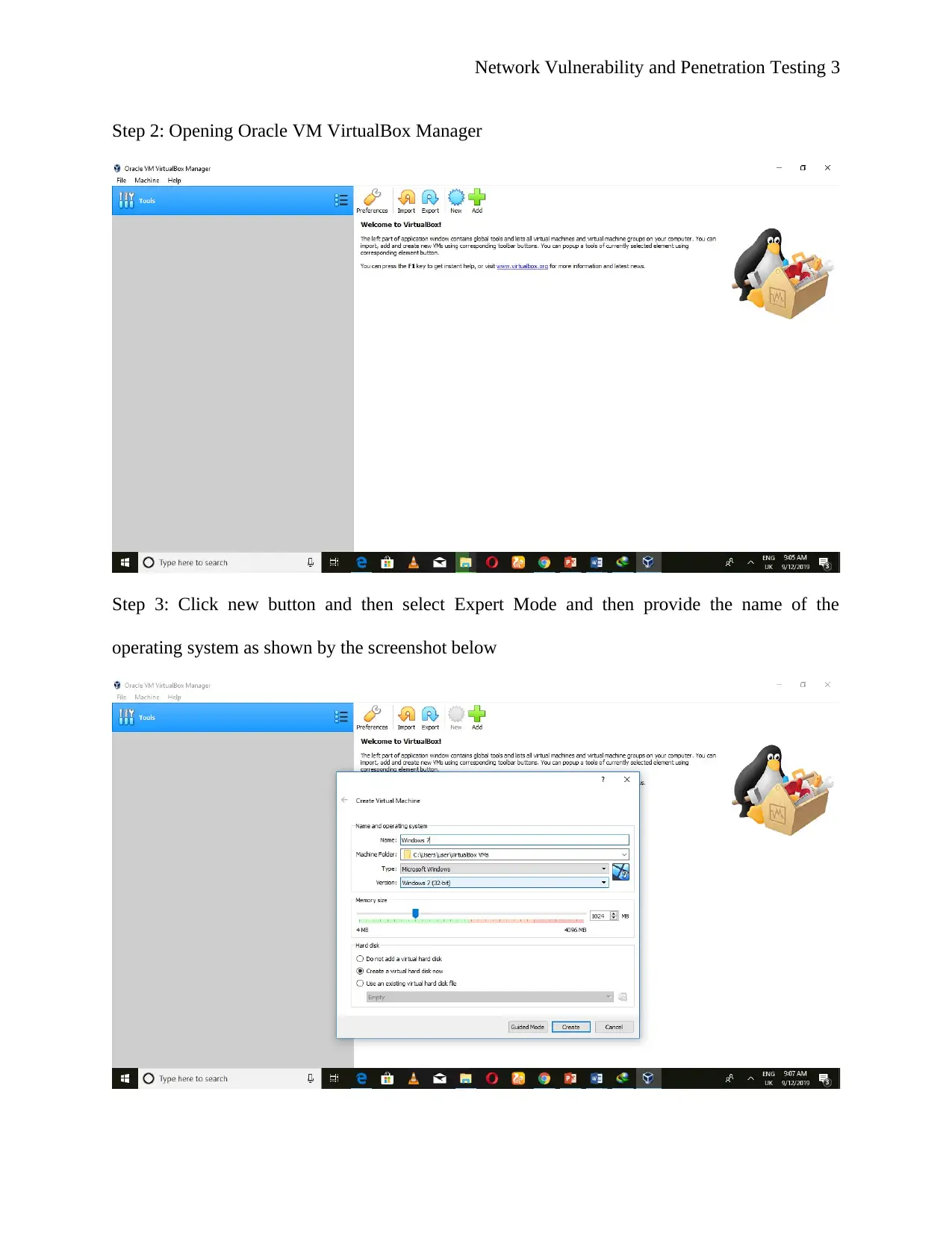
Step 2: Opening Oracle VM VirtualBox Manager
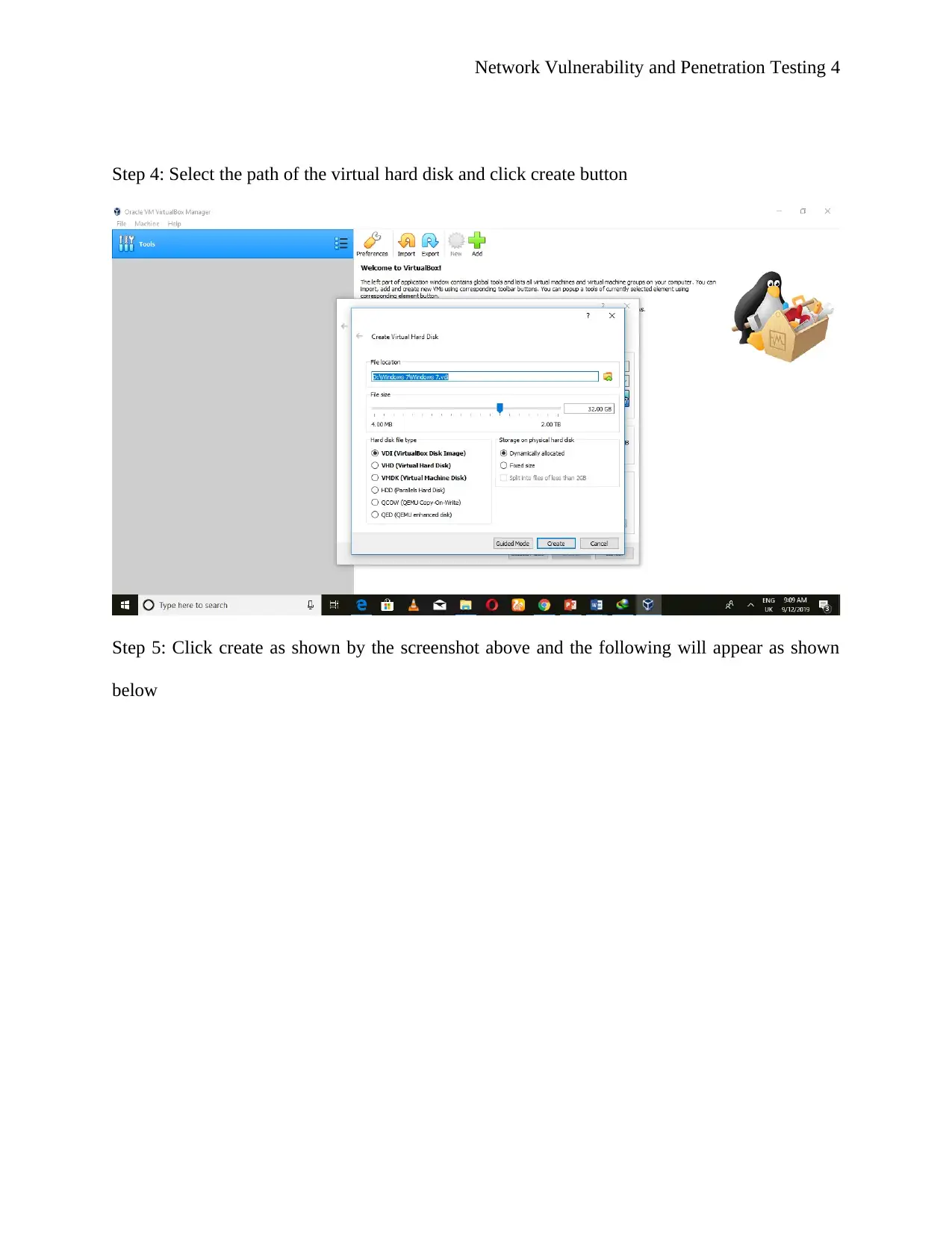
Step 3: Click new button and then select Expert Mode and then provide the name of the
operating system as shown by the screenshot below
Document Page
Network Vulnerability and Penetration Testing 4
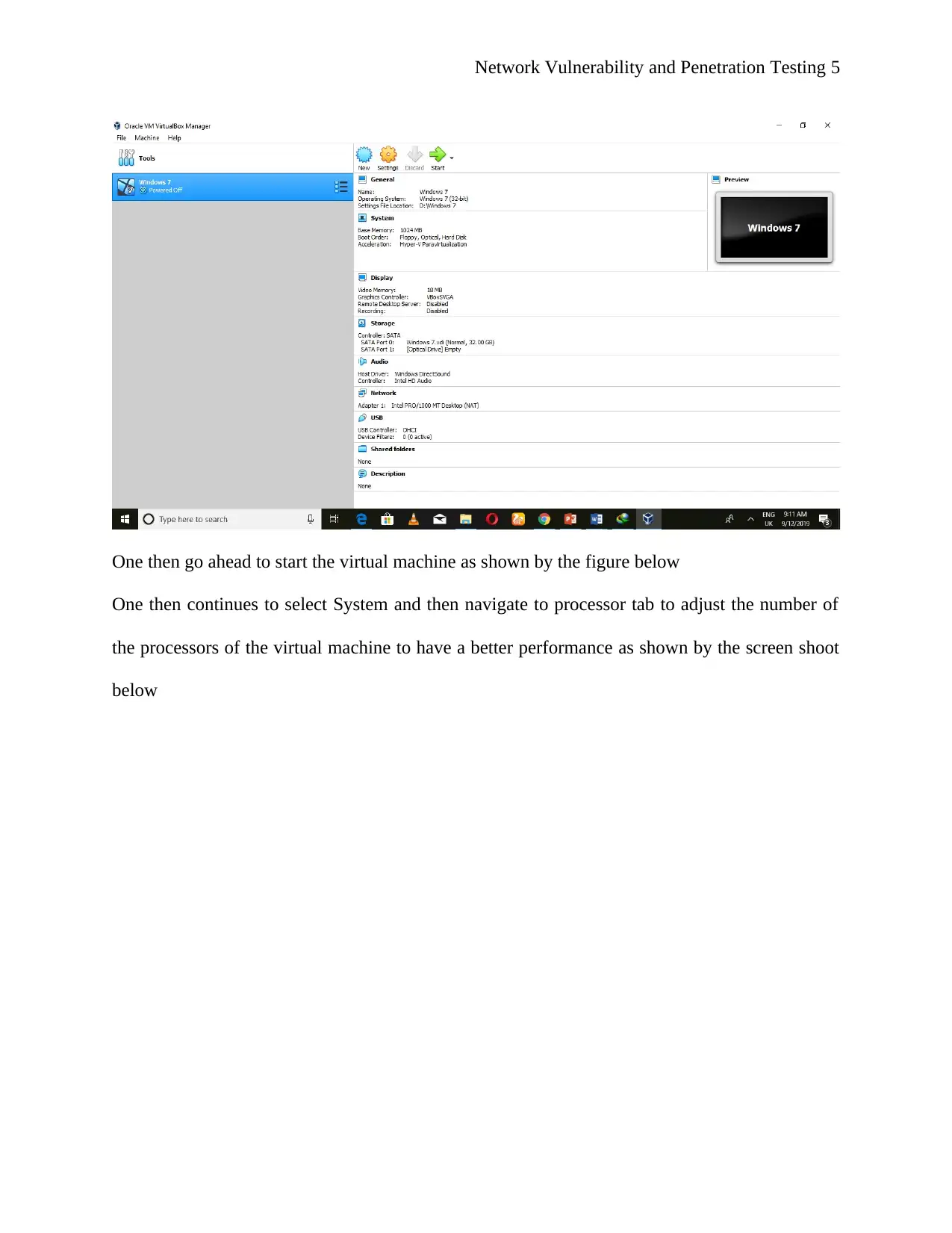
Step 4: Select the path of the virtual hard disk and click create button
Step 5: Click create as shown by the screenshot above and the following will appear as shown
below
tabler-icon-diamond-filled.svg

Paraphrase This Document

Need a fresh take? Get an instant paraphrase of this document with our AI Paraphraser
Document Page
Network Vulnerability and Penetration Testing 5
One then go ahead to start the virtual machine as shown by the figure below
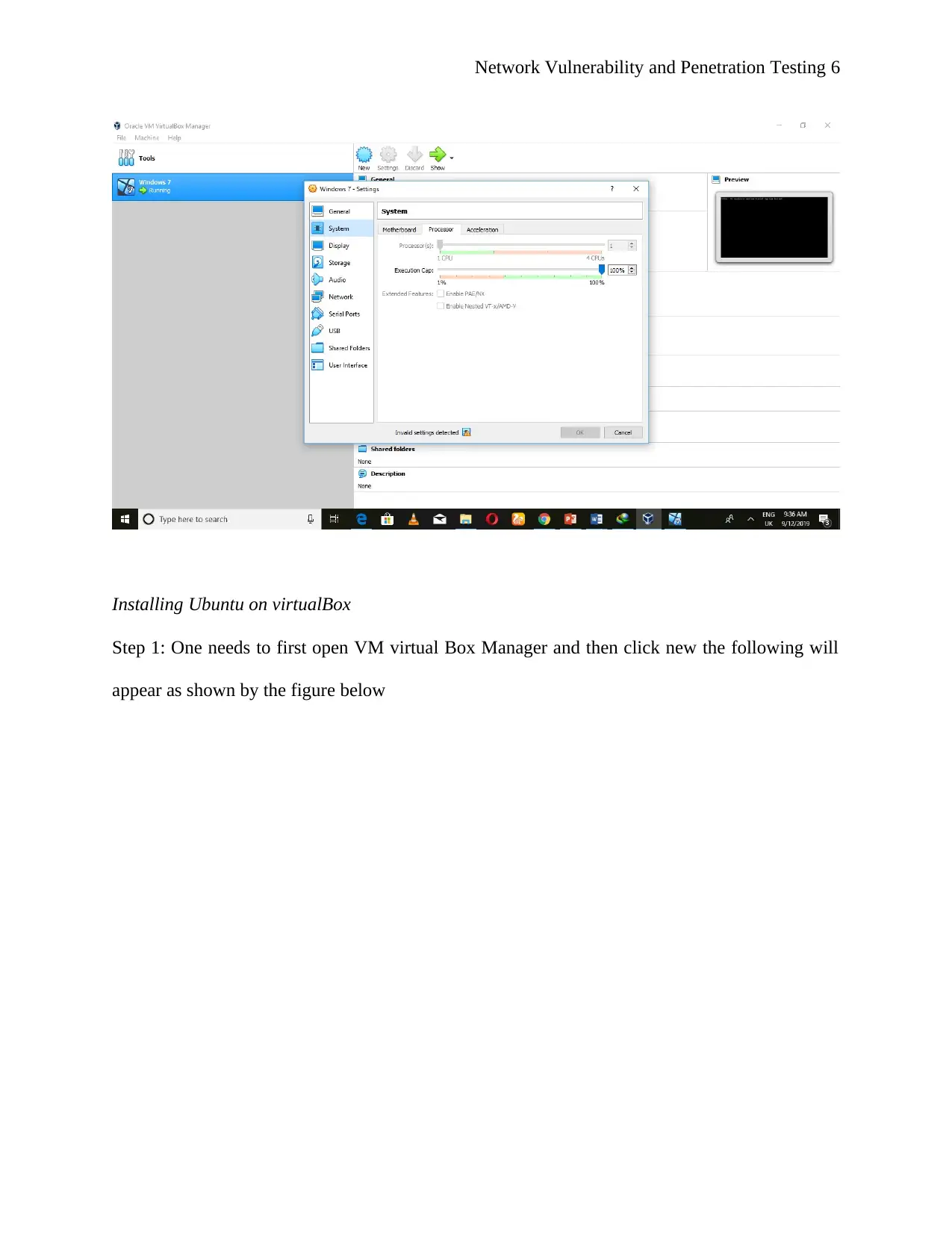
One then continues to select System and then navigate to processor tab to adjust the number of
the processors of the virtual machine to have a better performance as shown by the screen shoot
below
Document Page
Network Vulnerability and Penetration Testing 6
Installing Ubuntu on virtualBox
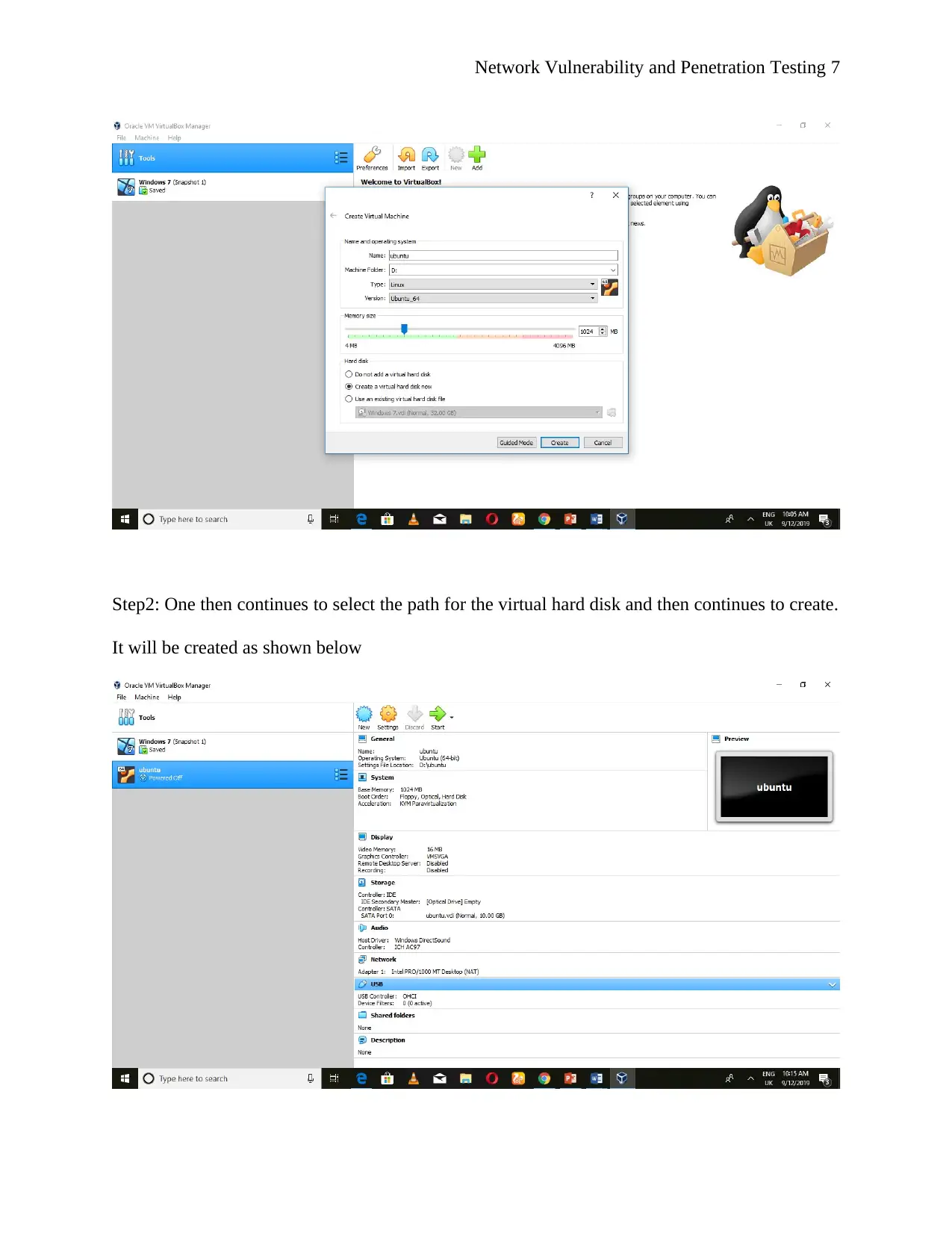
Step 1: One needs to first open VM virtual Box Manager and then click new the following will
appear as shown by the figure below
Document Page
Network Vulnerability and Penetration Testing 7
Step2: One then continues to select the path for the virtual hard disk and then continues to create.
It will be created as shown below
tabler-icon-diamond-filled.svg

Paraphrase This Document

Need a fresh take? Get an instant paraphrase of this document with our AI Paraphraser
Document Page
Network Vulnerability and Penetration Testing 8
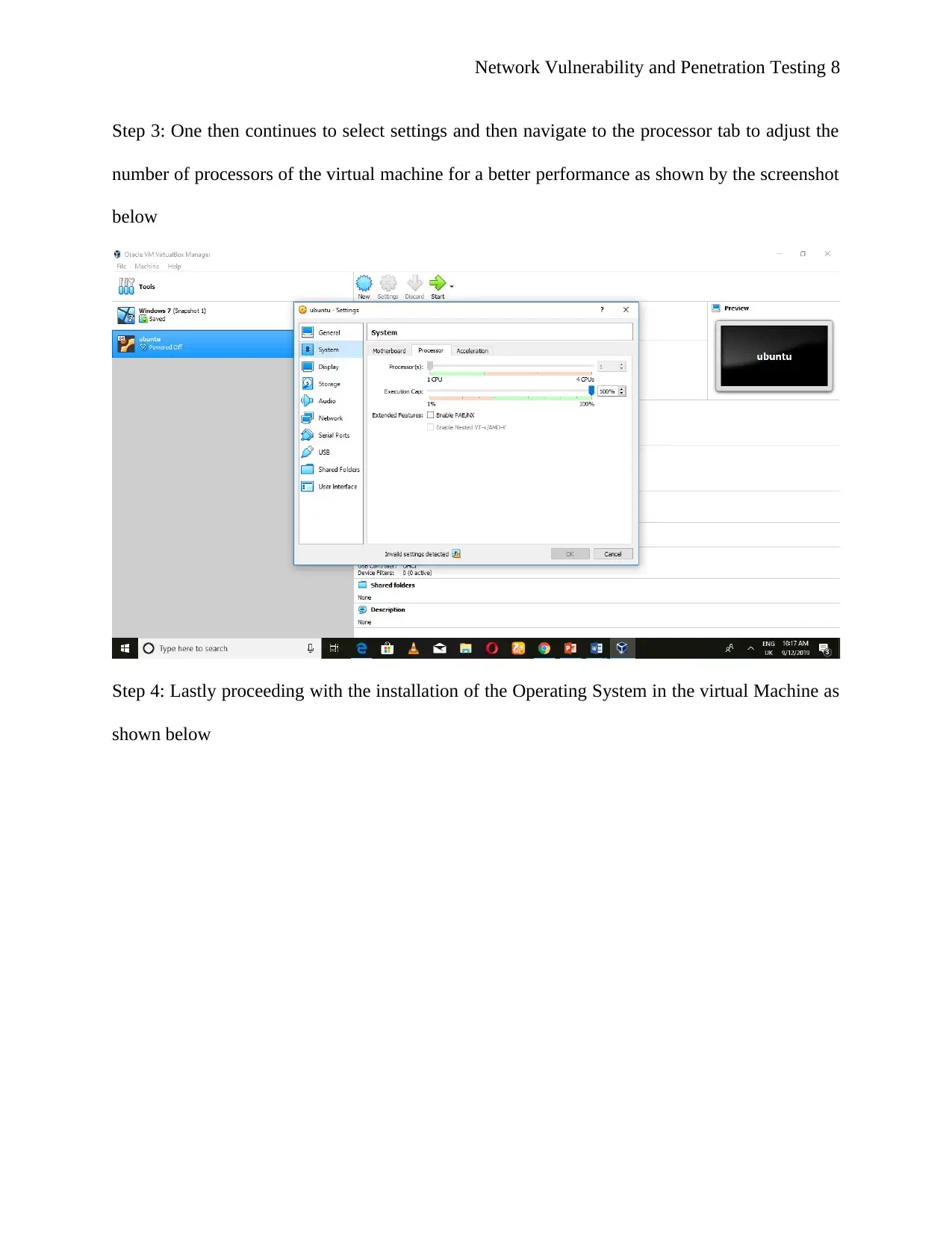
Step 3: One then continues to select settings and then navigate to the processor tab to adjust the
number of processors of the virtual machine for a better performance as shown by the screenshot
below
Step 4: Lastly proceeding with the installation of the Operating System in the virtual Machine as
shown below
Document Page
Network Vulnerability and Penetration Testing 9
Installing fedora
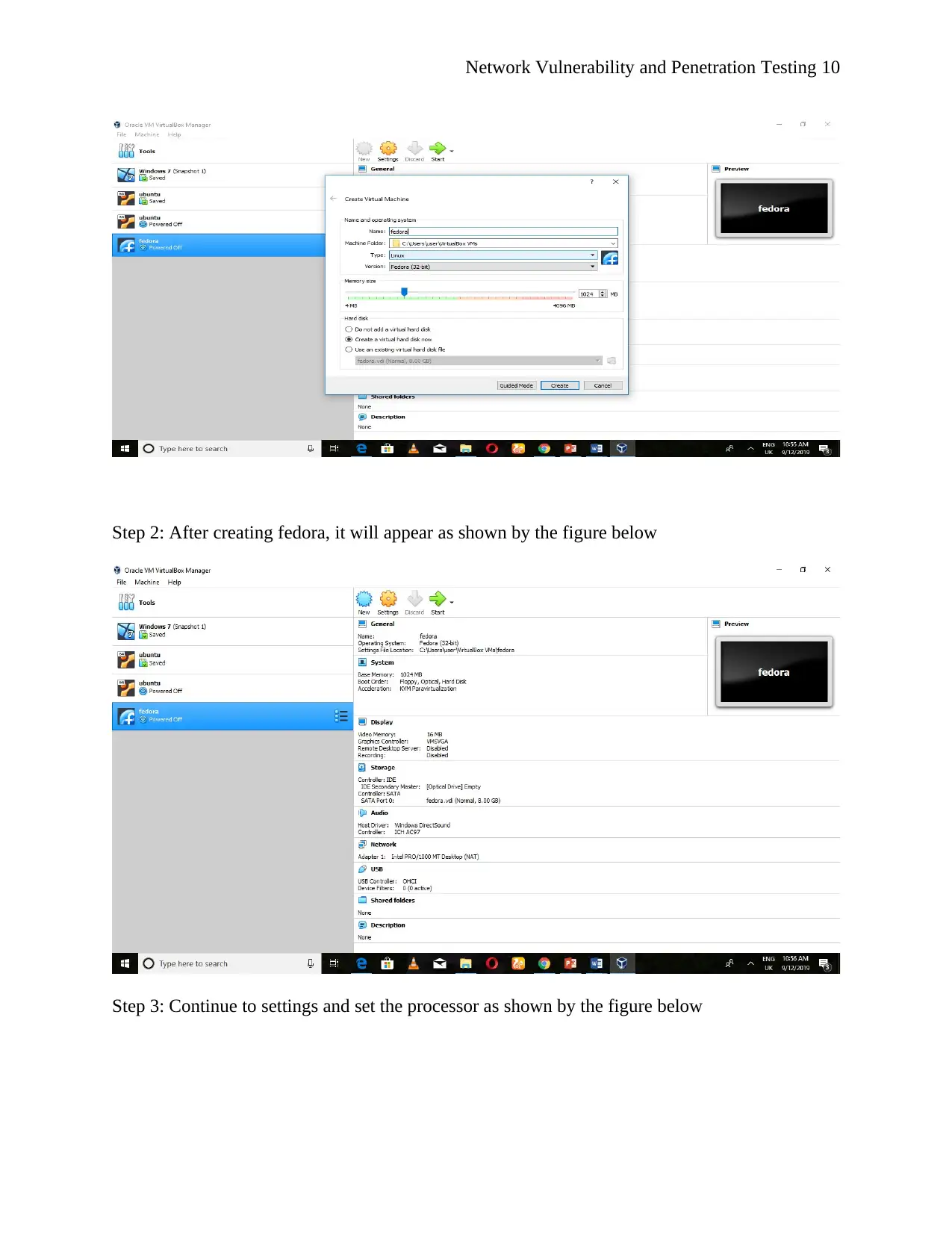
Step 1: One needs to first open VM virtual Box Manager and then click new the following will
appear as shown by the figure below
Document Page
Network Vulnerability and Penetration Testing 10
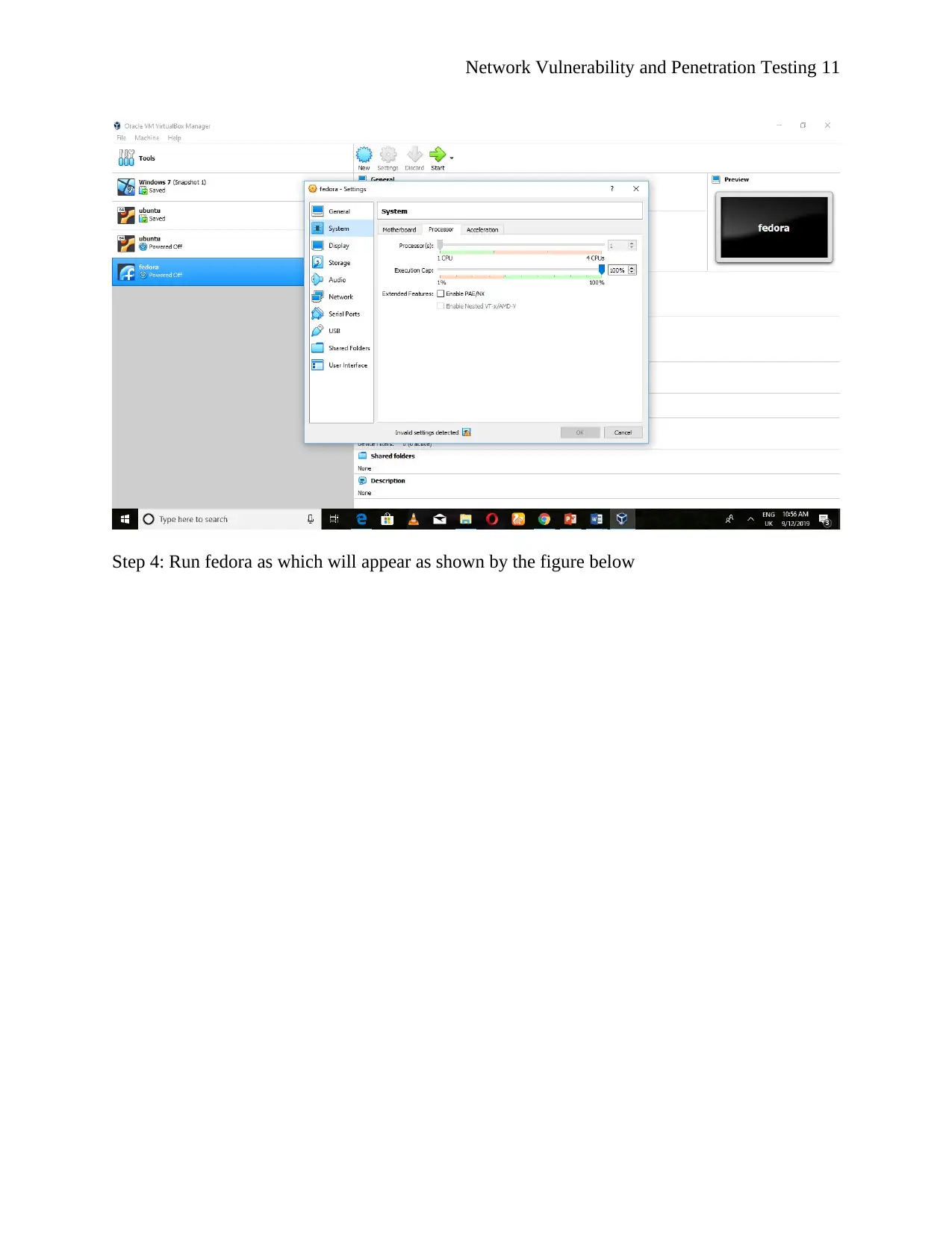
Step 2: After creating fedora, it will appear as shown by the figure below
Step 3: Continue to settings and set the processor as shown by the figure below
tabler-icon-diamond-filled.svg

Paraphrase This Document

Need a fresh take? Get an instant paraphrase of this document with our AI Paraphraser
Document Page
Network Vulnerability and Penetration Testing 11
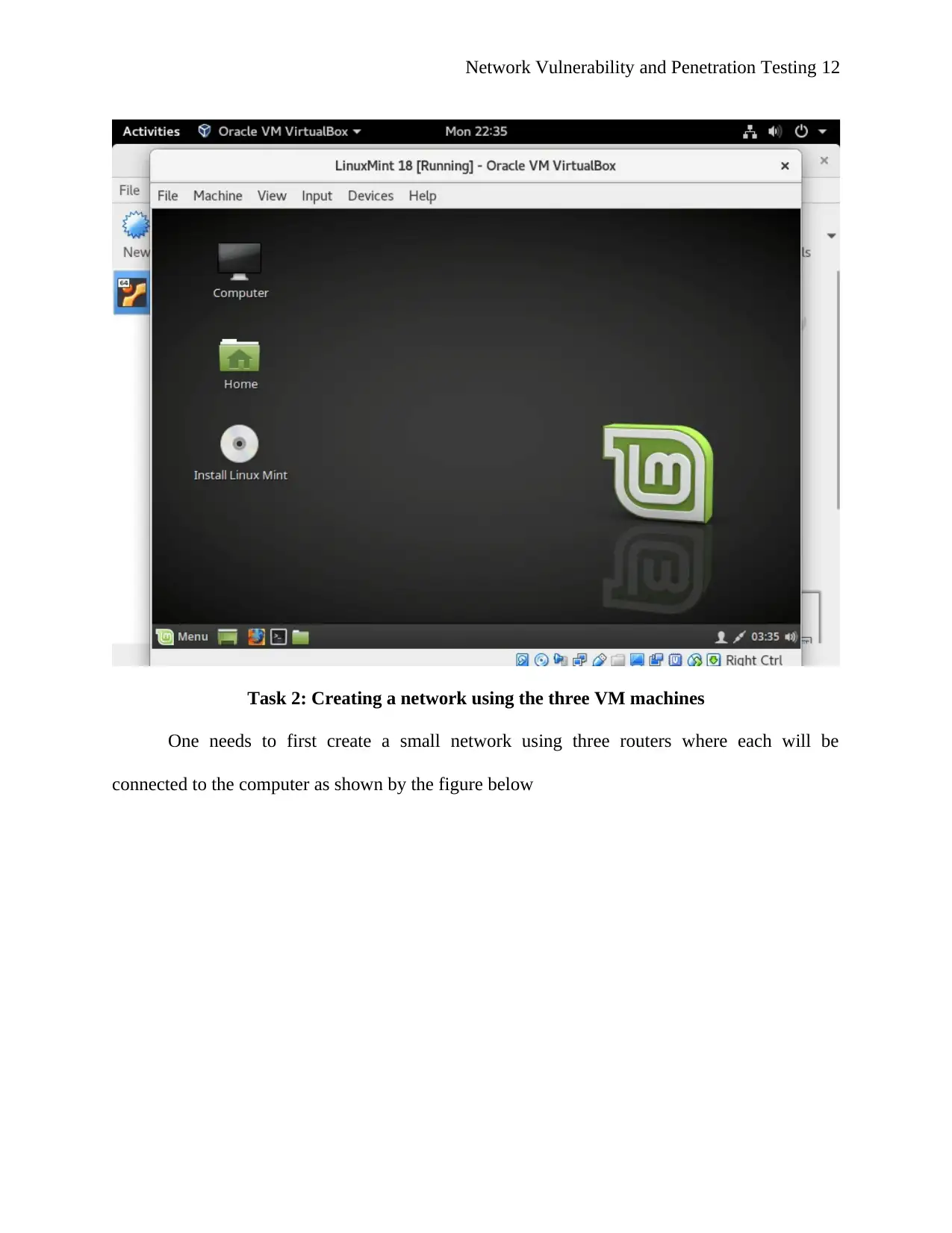
Step 4: Run fedora as which will appear as shown by the figure below
Document Page
Network Vulnerability and Penetration Testing 12
Task 2: Creating a network using the three VM machines
One needs to first create a small network using three routers where each will be
connected to the computer as shown by the figure below
chevron_up_icon
1 out of 26
circle_padding
hide_on_mobile
zoom_out_icon
[object Object]