ITC314 Virtualization Technologies: Installation and VM Creation

Verified

Added on  2023/06/12

|21
|1112
|95
Report
AI Summary
This report provides a detailed instruction manual for installing VirtualBox on a PC and creating an Ubuntu virtual machine (VM) within VirtualBox. It includes step-by-step instructions with screenshots for installing VirtualBox 5.2, covering the download process, installation interface navigation, and completion. Furthermore, the guide explains how to mount the Ubuntu .iso file using Power ISO and create a new Ubuntu VM in VirtualBox, including allocating memory and hard disk space, selecting the hard disk file type, and configuring storage. It also details the Ubuntu installation process within the VM, from selecting the installation type and time zone to setting up user accounts. Finally, the report touches on basic virtual machine management, such as increasing base memory and allocating more processor cores to the VM to enhance performance. This document is intended as a training resource for IT support staff.
Document Page
Running head: ITC314 VIRTUALIZATION TECHNOLOGIES
ITC314 Virtualization Technologies
Name of the Student
Name of the University
Author’s Note
tabler-icon-diamond-filled.svg

Paraphrase This Document

Need a fresh take? Get an instant paraphrase of this document with our AI Paraphraser
Document Page
1
ITC314 VIRTUALIZATION TECHNOLOGIES
Table of Contents
1. Virtual Box installation on a PC..................................................................................................2
1.1. Description of the steps for the installation of virtualBox 5.2..............................................2
2. Creation of Virtual Machine (Ubuntu)........................................................................................9
2.1. Description to mount Ubuntu .iso file..................................................................................9
2.2. Description to create a Ubuntu virtual machine in VirtualBox..........................................10
2.2.1. Screenshot of each step................................................................................................10
2.3. Basic virtual machine management on ubuntu...................................................................19
Bibliography..............................................................................................................................21
Document Page
2
ITC314 VIRTUALIZATION TECHNOLOGIES
1. Virtual Box installation on a PC
1.1. Description of the steps for the installation of virtualBox 5.2
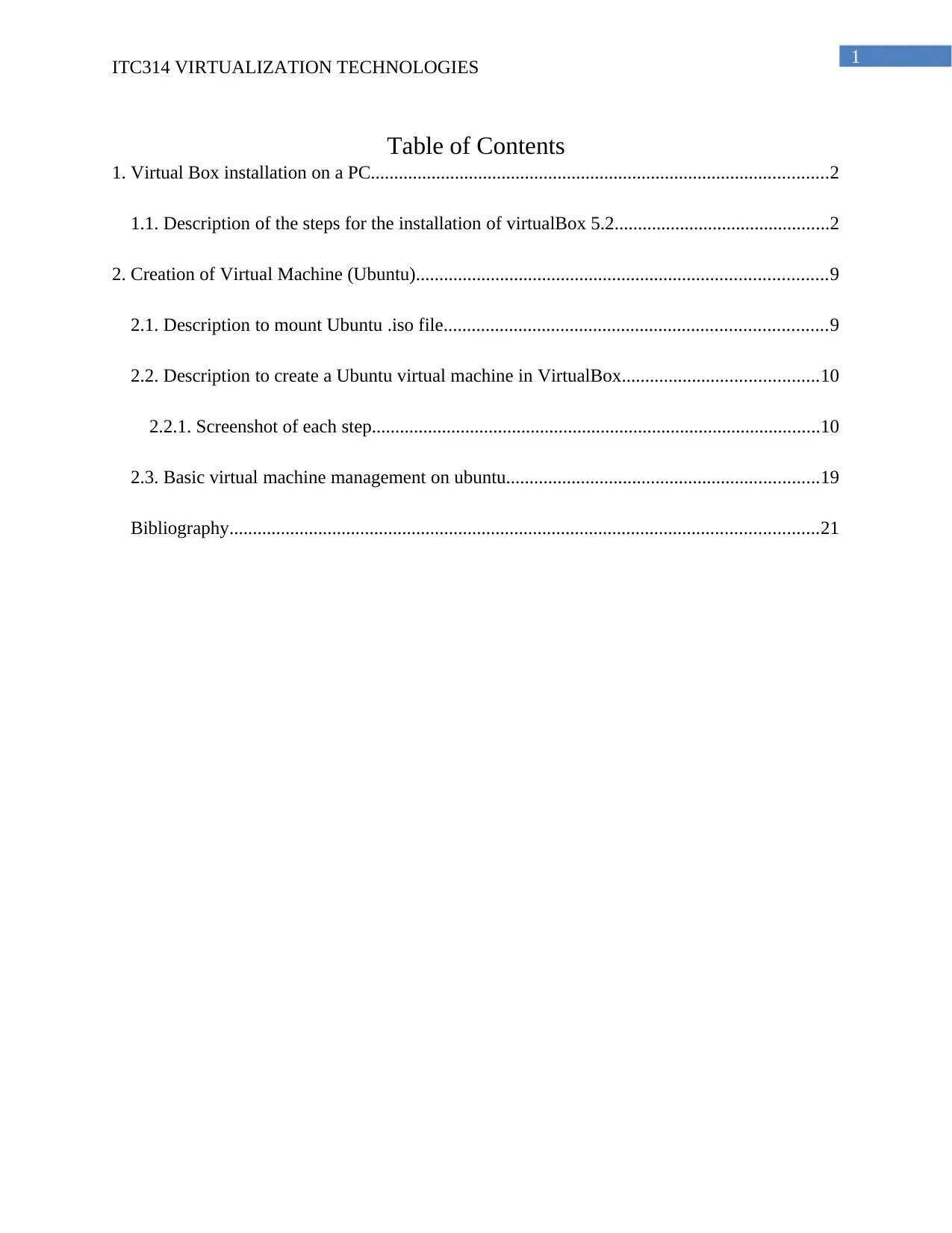
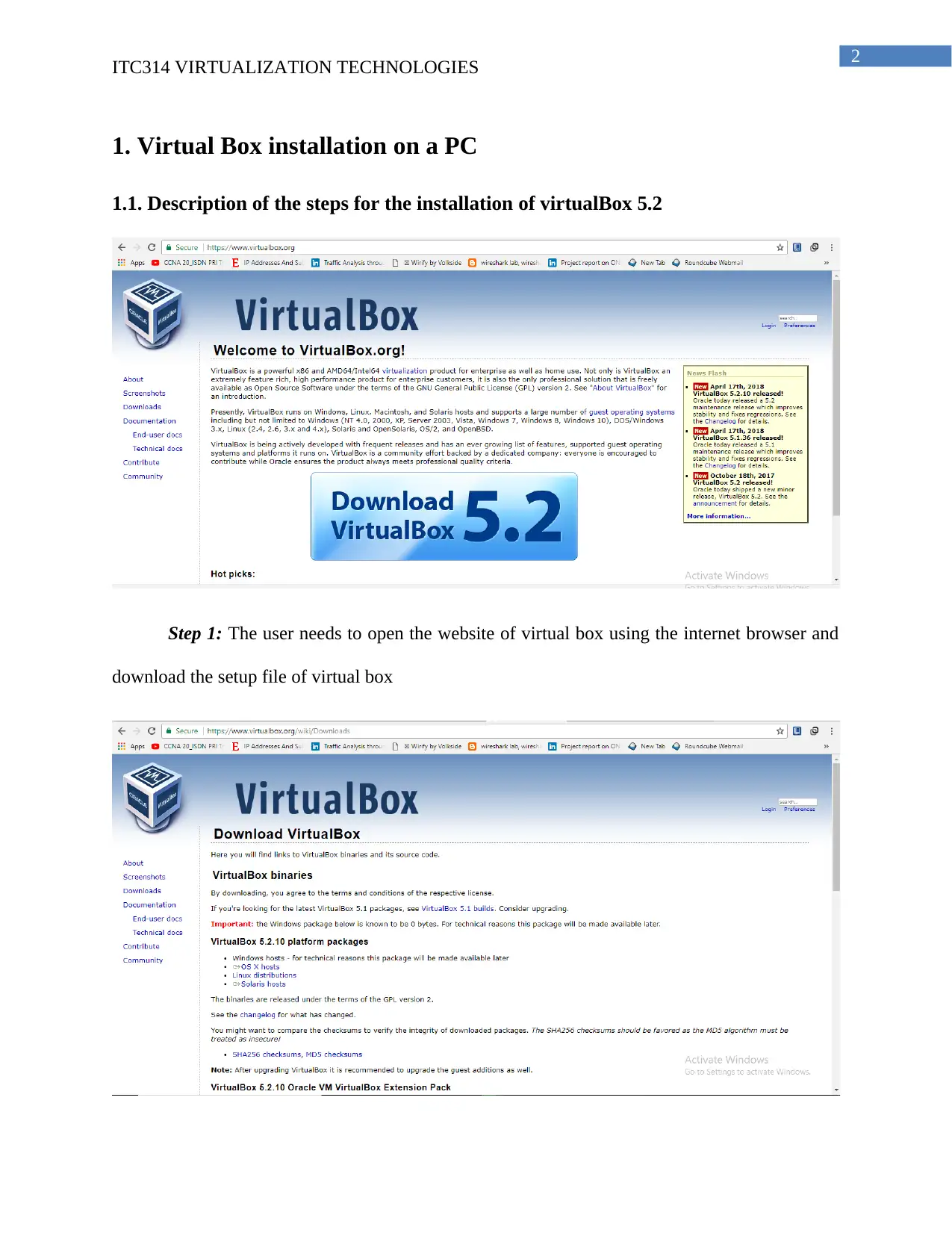
Step 1: The user needs to open the website of virtual box using the internet browser and
download the setup file of virtual box
Document Page
3
ITC314 VIRTUALIZATION TECHNOLOGIES
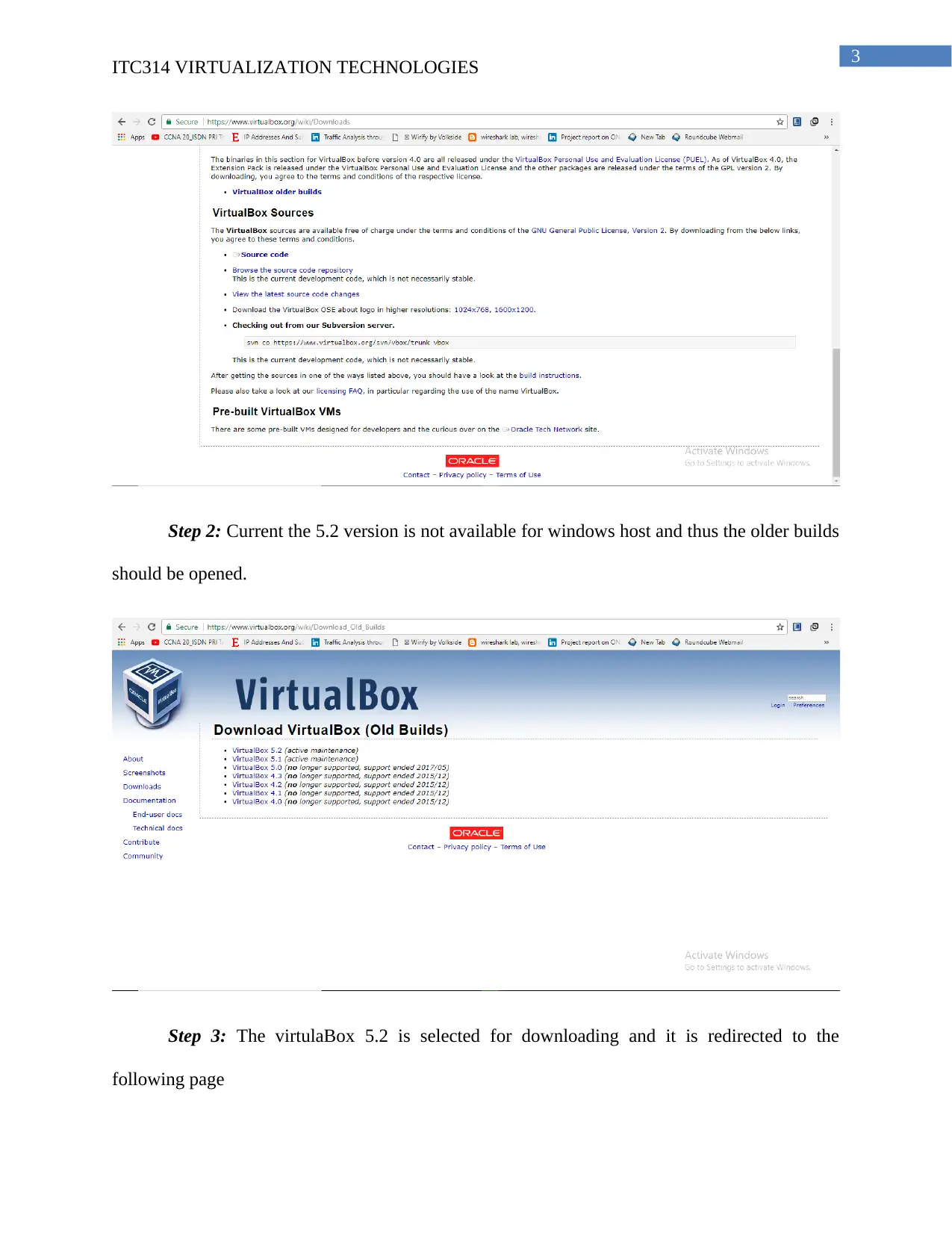
Step 2: Current the 5.2 version is not available for windows host and thus the older builds
should be opened.
Step 3: The virtulaBox 5.2 is selected for downloading and it is redirected to the
following page
tabler-icon-diamond-filled.svg

Paraphrase This Document

Need a fresh take? Get an instant paraphrase of this document with our AI Paraphraser
Document Page
4
ITC314 VIRTUALIZATION TECHNOLOGIES
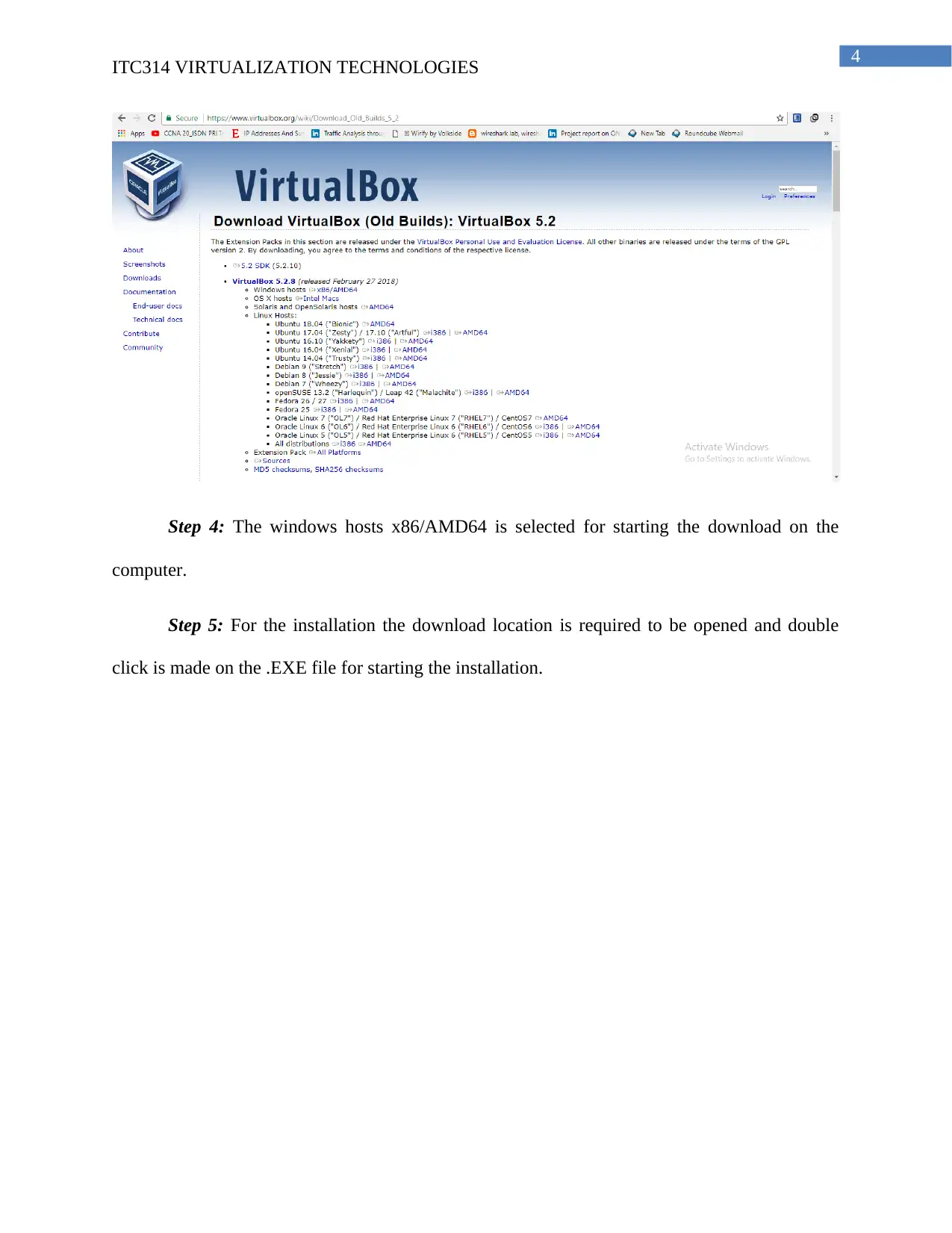
Step 4: The windows hosts x86/AMD64 is selected for starting the download on the
computer.
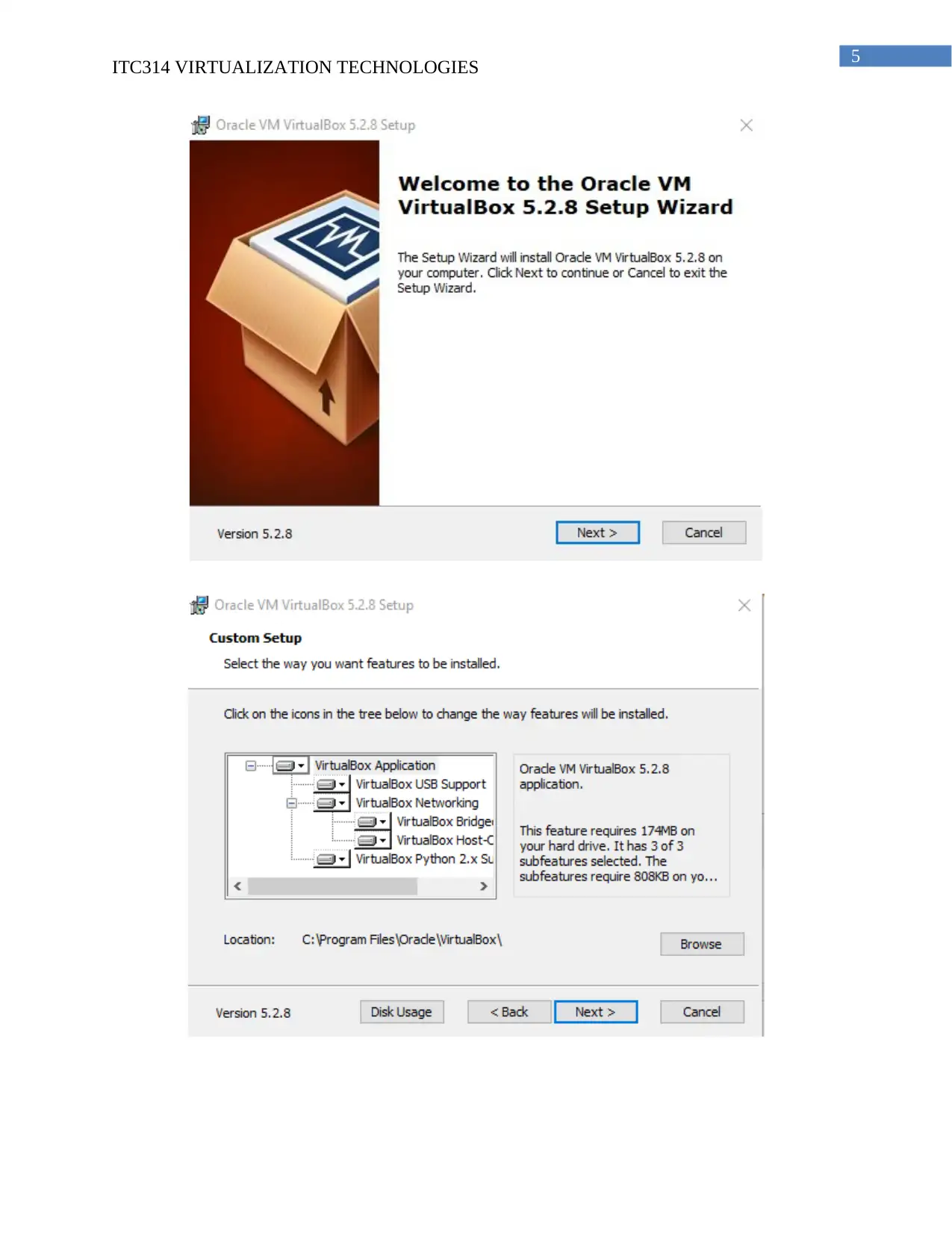
Step 5: For the installation the download location is required to be opened and double
click is made on the .EXE file for starting the installation.
Document Page
5
ITC314 VIRTUALIZATION TECHNOLOGIES
Document Page
6
ITC314 VIRTUALIZATION TECHNOLOGIES
tabler-icon-diamond-filled.svg

Paraphrase This Document

Need a fresh take? Get an instant paraphrase of this document with our AI Paraphraser
Document Page
7
ITC314 VIRTUALIZATION TECHNOLOGIES
Document Page
8
ITC314 VIRTUALIZATION TECHNOLOGIES
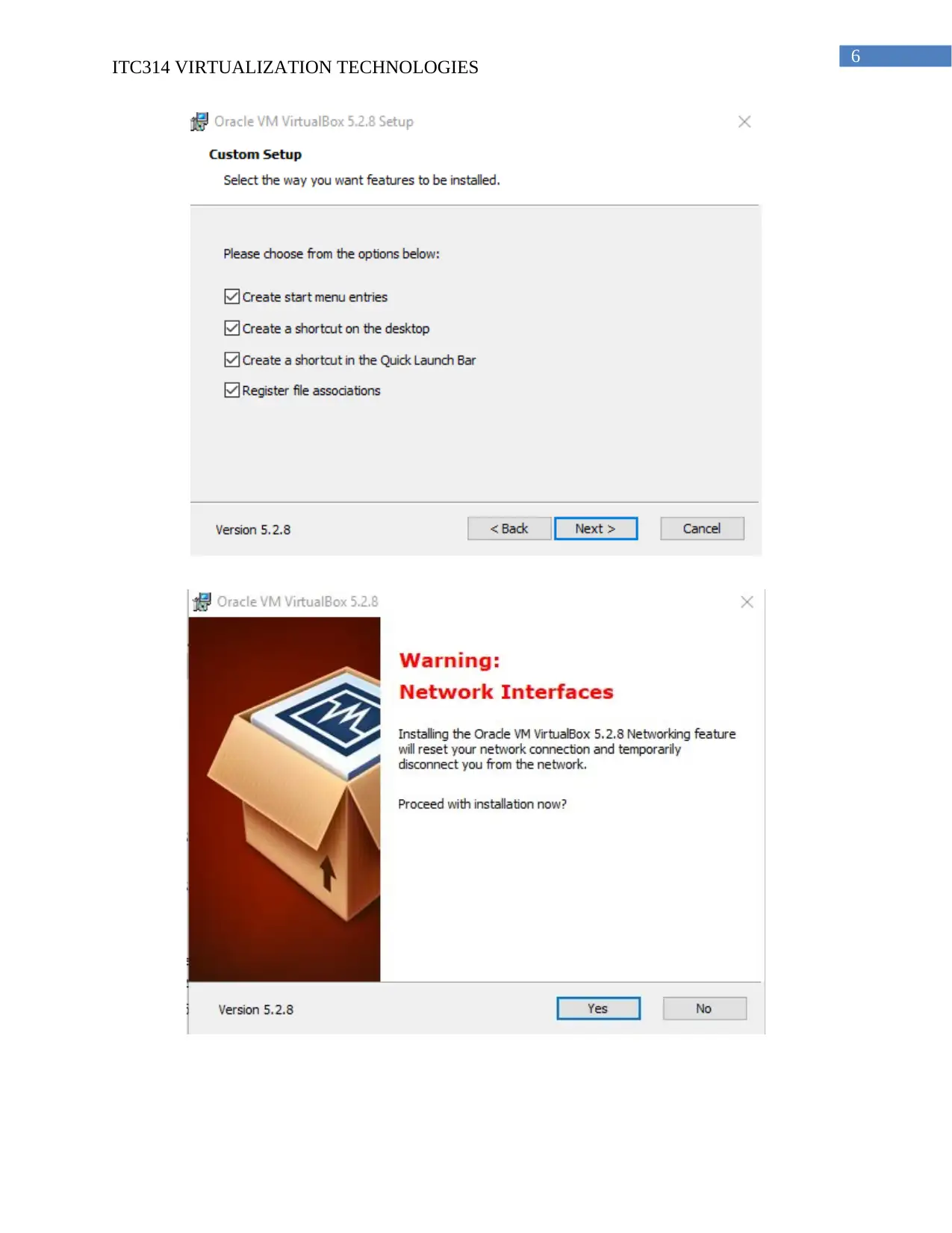
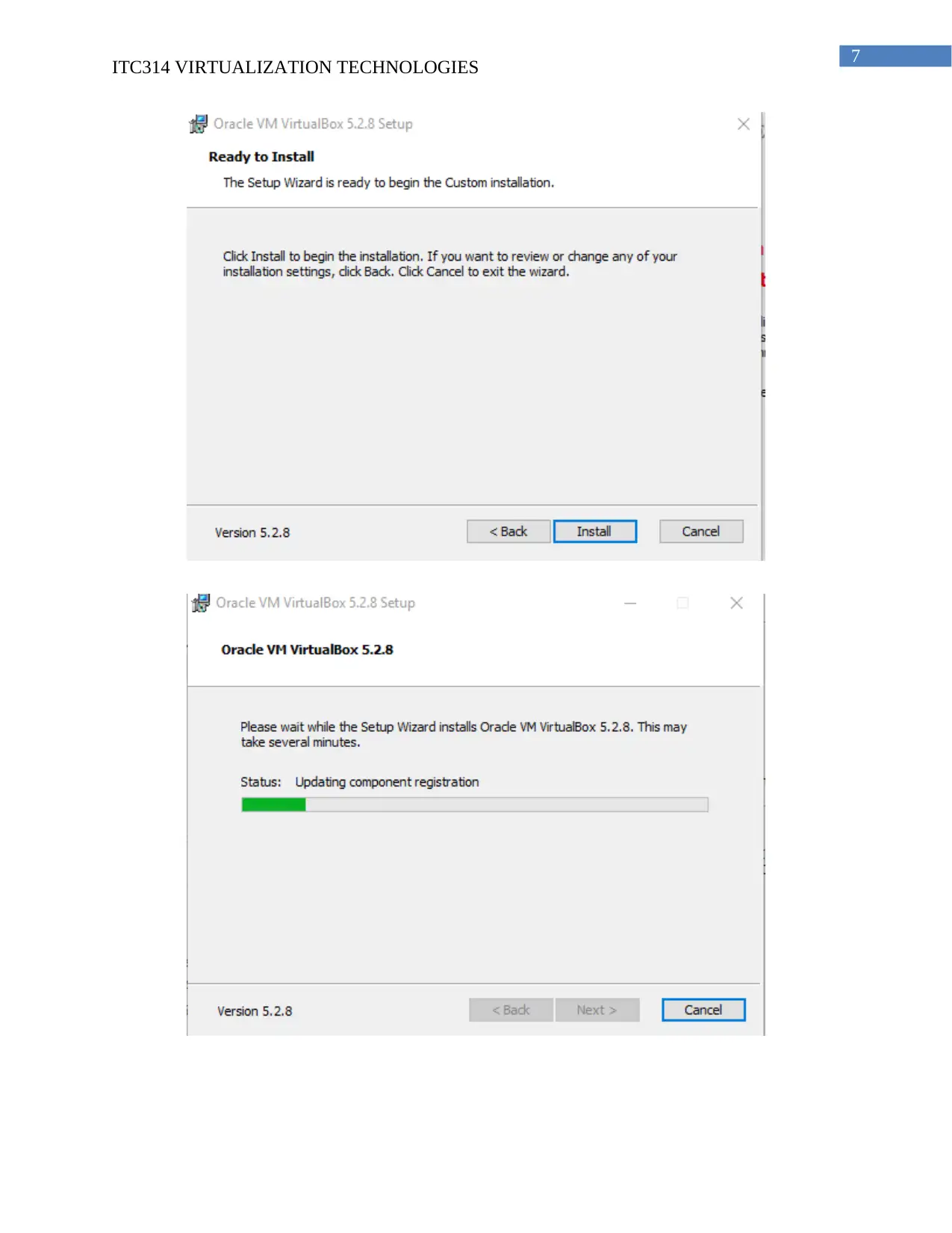
Step 6: For the installation of the virtual box the installation interface is navigated by
clicking on the next option for three times and finally clicking the yes option and starting the
installation on clicking the install option provided in the interface.
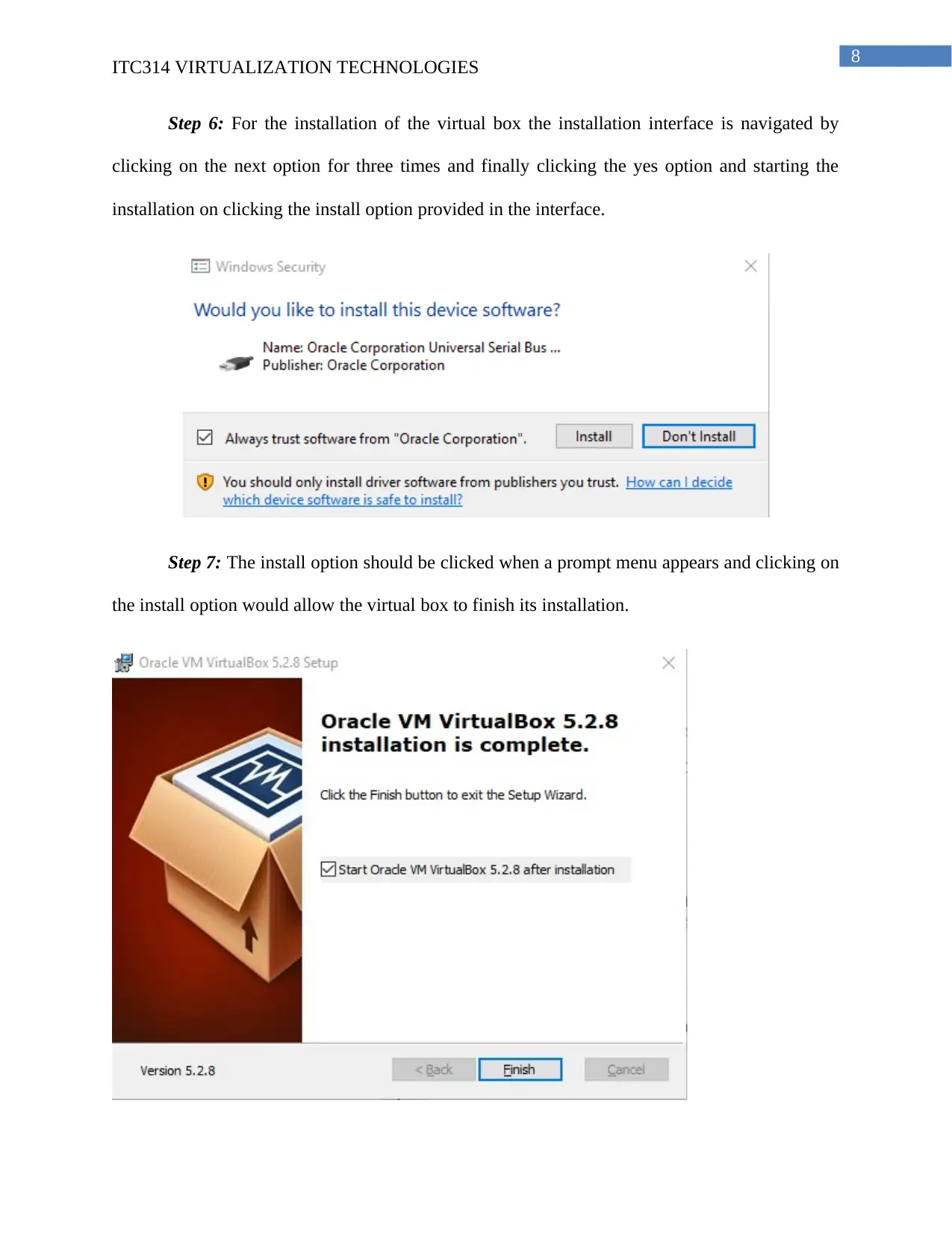
Step 7: The install option should be clicked when a prompt menu appears and clicking on
the install option would allow the virtual box to finish its installation.
Document Page
9
ITC314 VIRTUALIZATION TECHNOLOGIES
Step 8: The finish option should be clicked for finishing the installation and on selection
of the checkbox it would start virtual box automatically on clicking the finish button.
2. Creation of Virtual Machine (Ubuntu)
2.1. Description to mount Ubuntu .iso file
Power ISO is used for mounting the Ubuntu ISO file into a virtual drive and for thie the
following steps are performed.
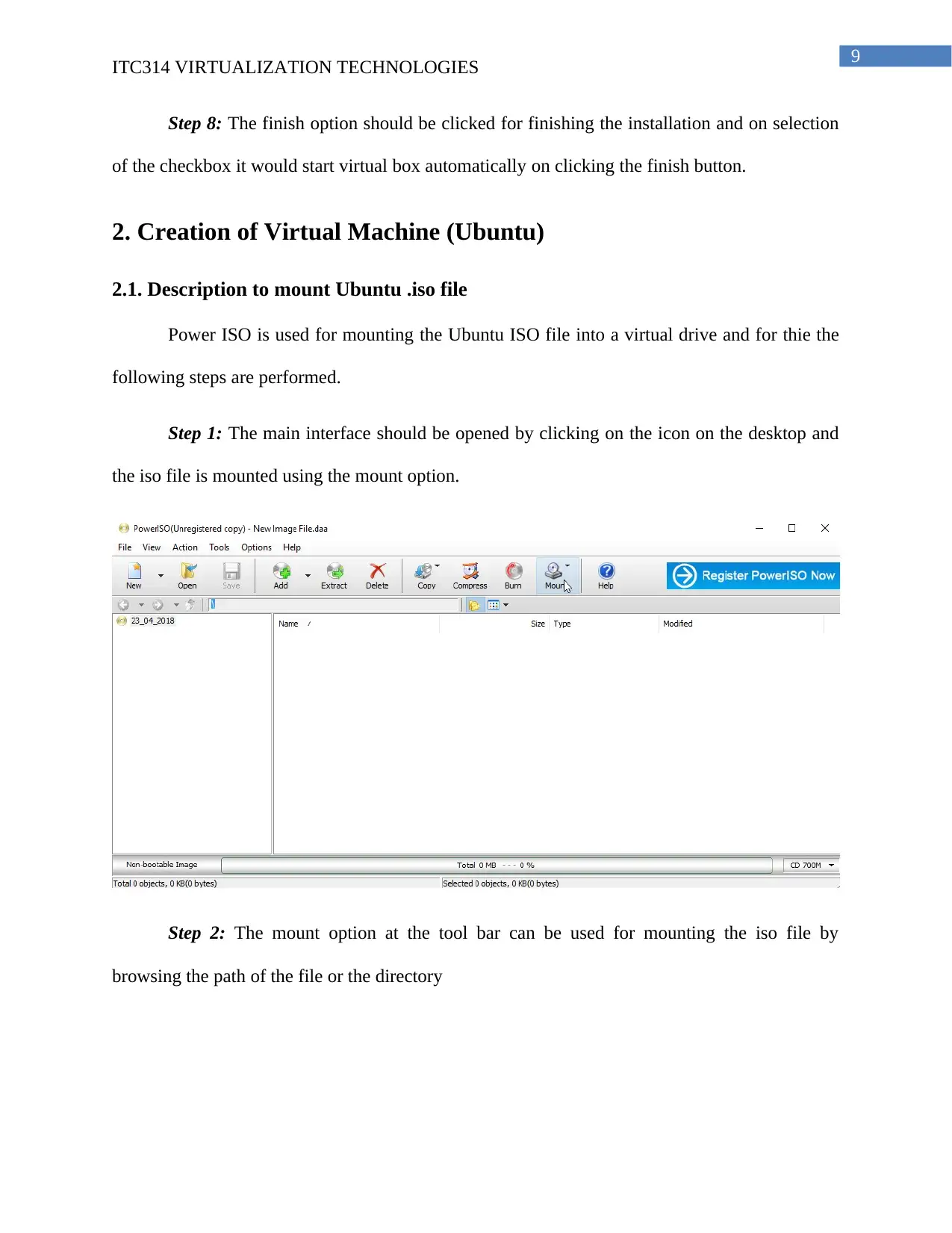
Step 1: The main interface should be opened by clicking on the icon on the desktop and
the iso file is mounted using the mount option.
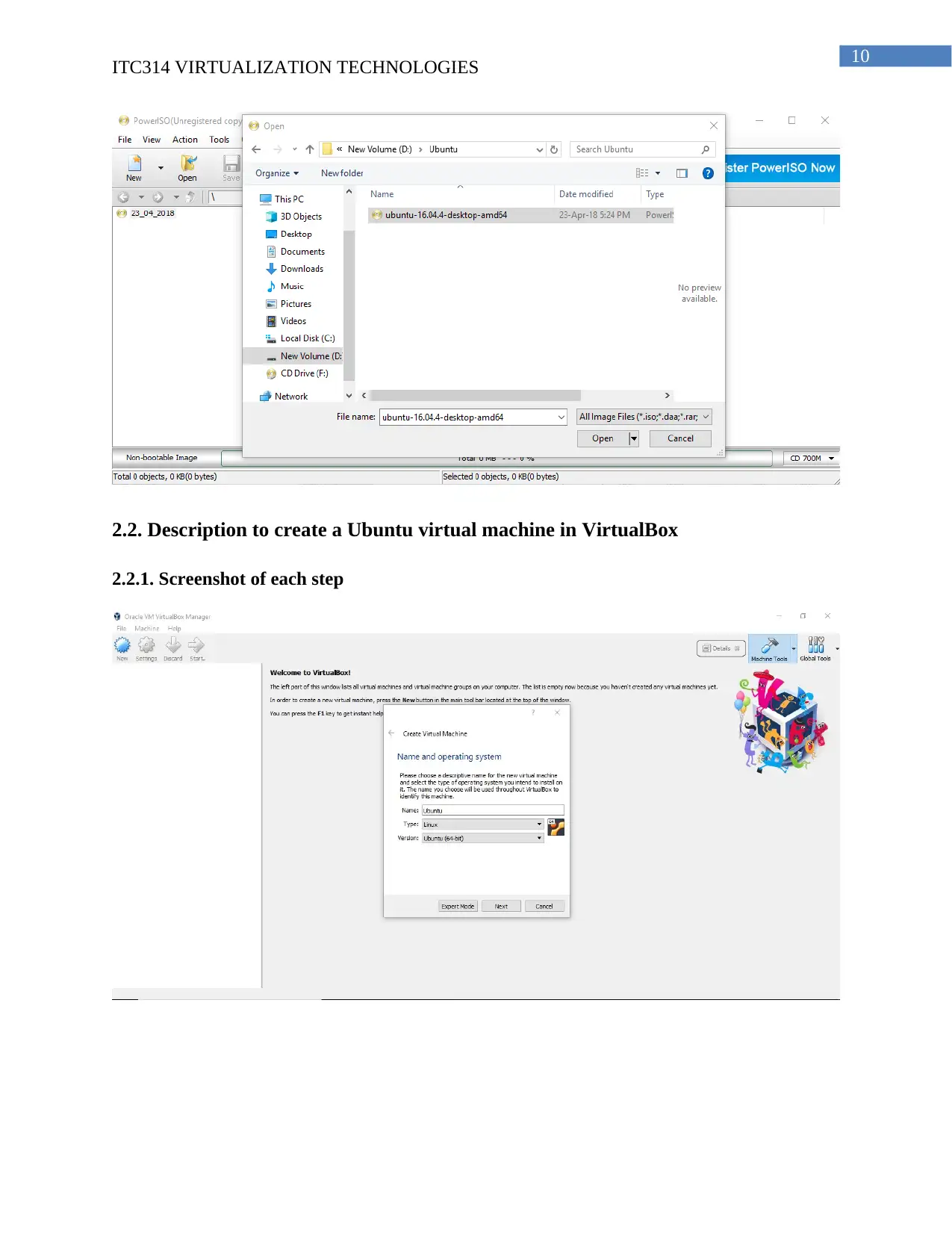
Step 2: The mount option at the tool bar can be used for mounting the iso file by
browsing the path of the file or the directory
tabler-icon-diamond-filled.svg

Paraphrase This Document

Need a fresh take? Get an instant paraphrase of this document with our AI Paraphraser
Document Page
10
ITC314 VIRTUALIZATION TECHNOLOGIES
2.2. Description to create a Ubuntu virtual machine in VirtualBox
2.2.1. Screenshot of each step
Document Page
11
ITC314 VIRTUALIZATION TECHNOLOGIES
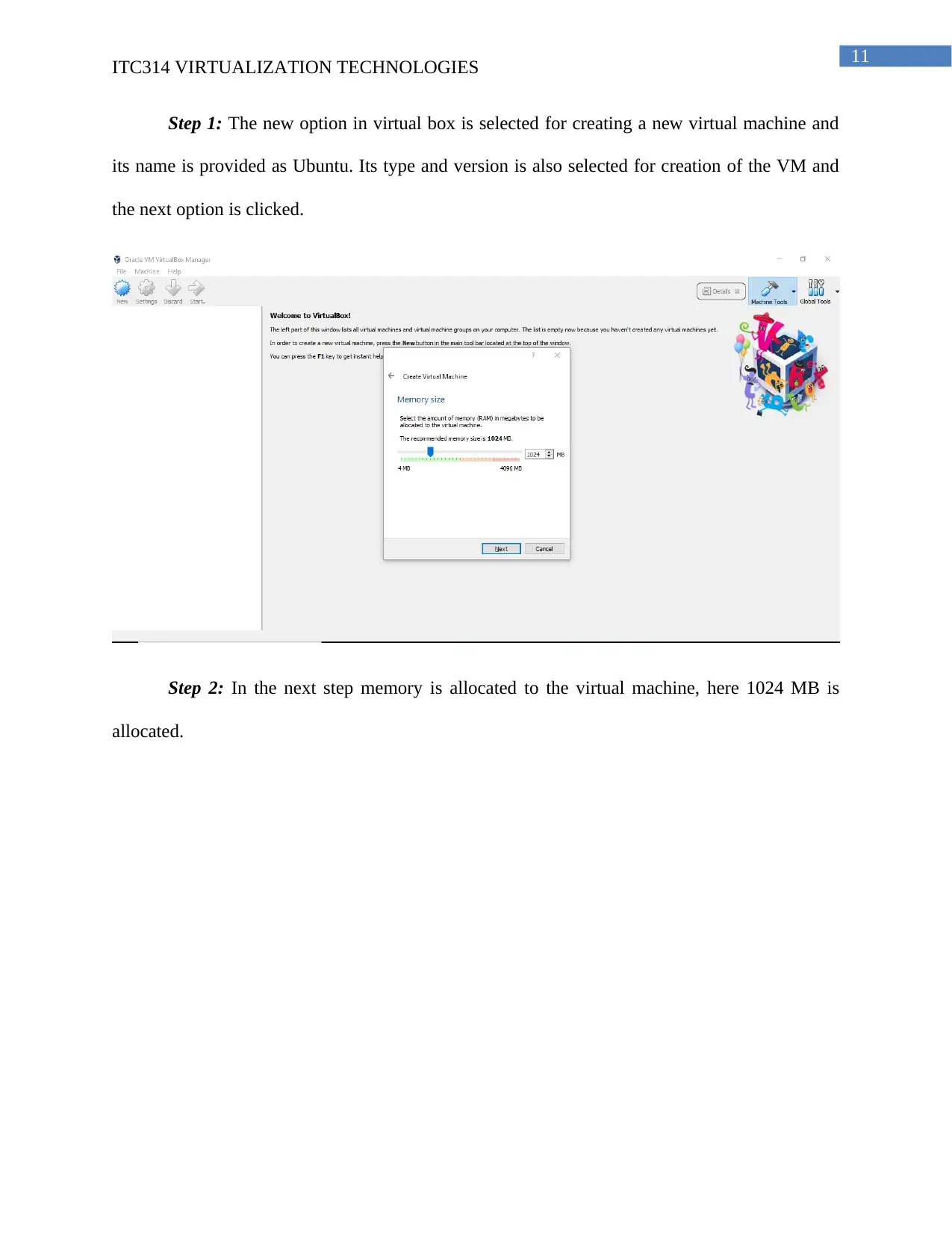
Step 1: The new option in virtual box is selected for creating a new virtual machine and
its name is provided as Ubuntu. Its type and version is also selected for creation of the VM and
the next option is clicked.
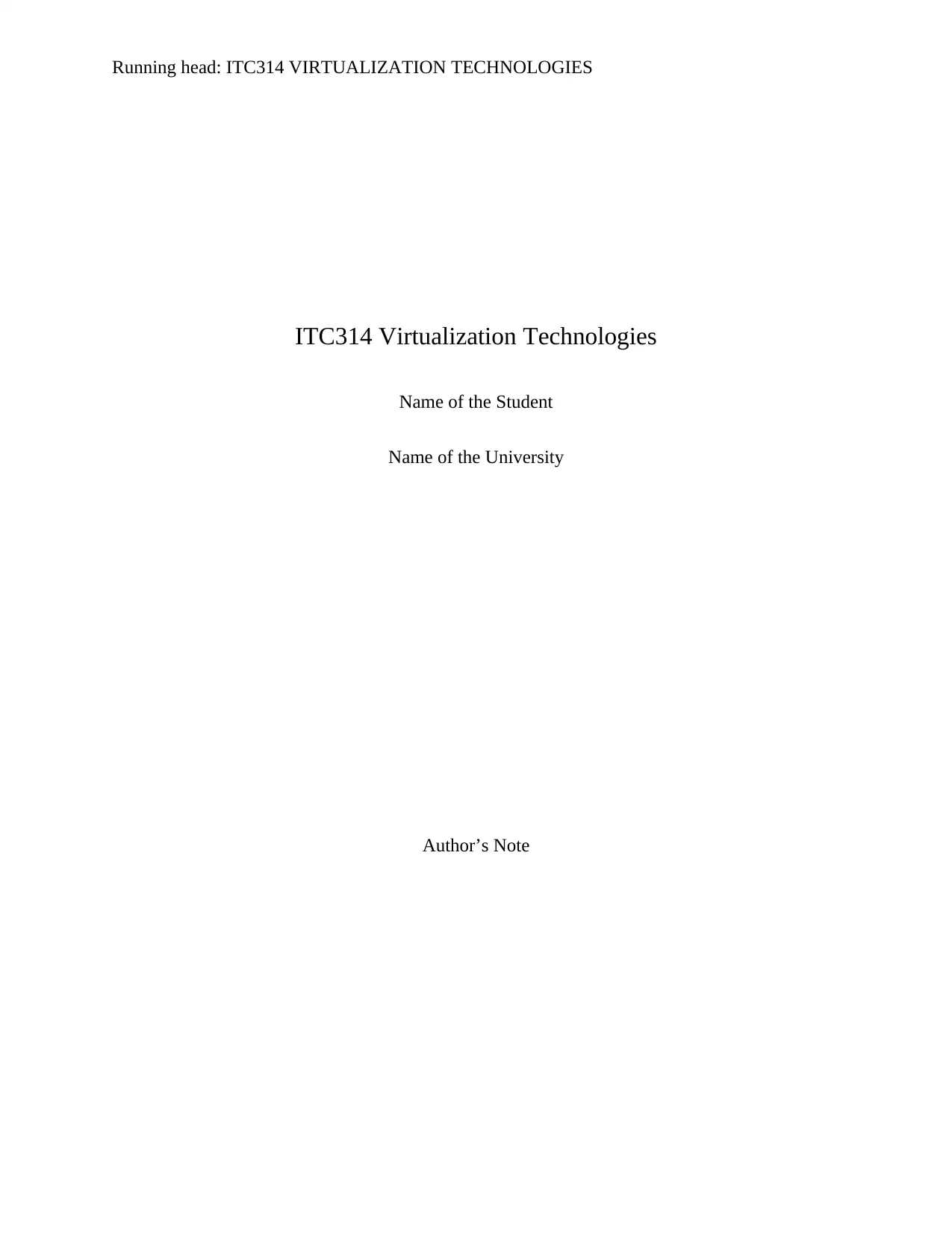
Step 2: In the next step memory is allocated to the virtual machine, here 1024 MB is
allocated.
chevron_up_icon
1 out of 21
circle_padding
hide_on_mobile
zoom_out_icon
[object Object]